Unify OpenScape Desk Phone CP and OpenStage — setup for our PBX
These phones used to be sold as Siemens, then as Unify (the brand belongs to Mitel today). Venues run them in two generations: the newer OpenScape Desk Phone CP line (CP100, CP200/CP205, CP400, CP600/CP600E, CP700/CP700X) and the older but very long-lived OpenStage 15/20/40/60/80, continued as OpenScape Desk Phone IP 35G/55G. Setup is almost identical: both generations share the same web interface (Unify calls it WBM), the same System → Registration menu and the same factory administrator password.
Shared credentials, network requirements and typical mistakes are on the overview page “Setting up SIP phones”.
What you need#
- A Unify phone with SIP firmware, cabled into the same network as your computer (powered over PoE from the switch, or from a separate power supply).
- The extension credentials from the admin panel: Admin panel → Telephony → Staff & groups → “Reset password” — the “Extension credentials” window (details).
- A computer with a browser on the same network.
- The phone’s administrator password. The factory value is
123456; if somebody has already configured the phone, the password may have been changed — then you need a factory reset.
Step 1. Find the phone’s IP address#
By default the phone gets its address over DHCP and does not display it anywhere — look it up in the phone menu.
- Press the main menu key (the three-bar icon) or the Settings key.
- Choose Settings → User settings. If the phone asks for a user password — it is not set at factory defaults, just confirm.
- Open Network information.
- The IPv4 address line is the phone’s address; the URL line (Web address on OpenStage) is the ready-made address of its web interface.
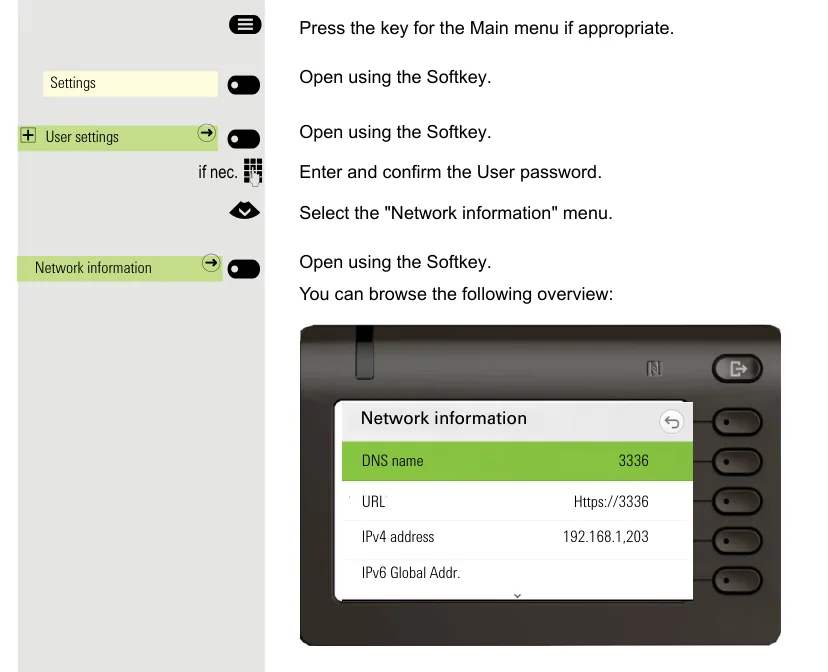 Screenshot: OpenScape Desk Phone CP600/CP600E SIP, User Guide, p. 210.
If there is no DHCP in your network, or you need a static address
The same address is visible in the administrator menu: Settings → Administration settings → password 123456 → Network → IPv4 configuration → IP address. Turning DHCP off there lets you enter the address, subnet mask and gateway by hand — that is what you do when the phone sits in a network without a DHCP server.
Step 2. Log in to the web interface#
Open the phone’s address in a browser. The browser will warn about the certificate — that is normal, the phone’s certificate is self-signed; continue.
| Factory value | |
|---|---|
| Address | https://<phone IP> (for example https://192.168.1.203) |
| Tab | Administrator settings (“Administrator Pages”) |
| Administrator password | 123456 |
| User password (User settings tab) | not set |
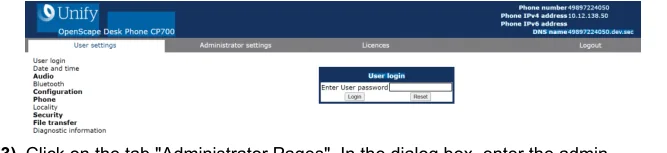 Screenshot: OpenScape Desk Phone CP SIP, Administrator Documentation, Issue 1 (05/2024), p. 28.
In the top right corner the page shows the phone’s number, IPv4 address and DNS name — a handy way to confirm you have opened the right device.
Administrator password changed and unknown? It cannot be recovered — only a factory reset helps. The vendor recommends changing the factory 123456 right after the first login (Security and policies → Password → Change Admin password).
Step 3. Enter the PBX credentials#
All account fields live on two pages of the web interface: System → Registration and System → System identity.
| In the admin panel (“Extension credentials”) | On the phone |
|---|---|
| SIP server | System → Registration → SIP addresses → SIP server address and SIP registrar address — put the same address into both fields |
Login (the whole sip-xxxxxxxx-101) |
System → System identity → Terminal number and System → Registration → SIP session → User ID |
| Password | System → Registration → SIP session → Password |
Port 5060 |
Network → Port configuration → SIP server and SIP registrar — the factory value is already 5060, leave it |
Transport UDP |
System → SIP interface → SIP transport — the factory value is already UDP |
| Extension number | System → System identity → Display identity, then switch on Enable identity — this labels the line on the screen |
Three more fields on the same System → Registration page:
- SIP gateway address — leave
0.0.0.0(we have no separate gateway); - Server type — choose Other. The factory
OS Voiceenables behaviour specific to Unify’s own PBX, which ours does not have; - Realm — leave empty, our PBX does not require it.
Press Submit at the bottom of the page. The phone applies the addresses and the account immediately, no reboot needed; if something did not take effect, use Maintenance → Restart Phone.
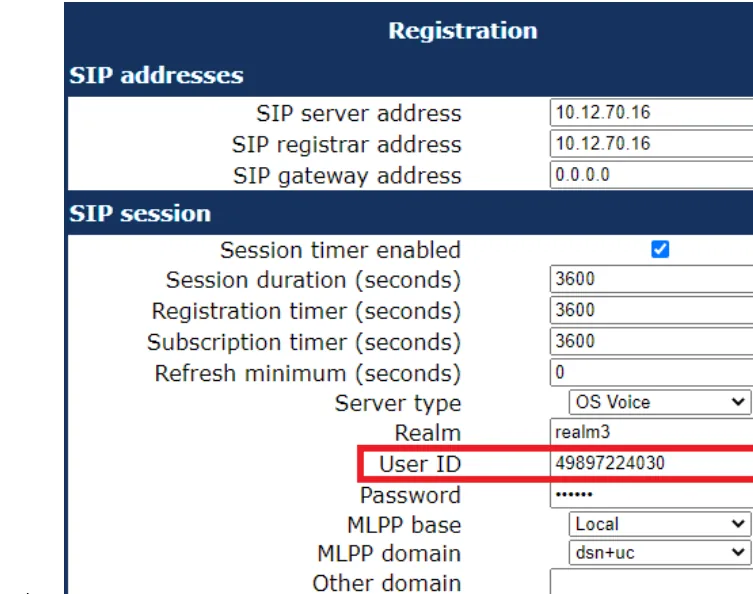 Screenshot: OpenScape Desk Phone CP SIP, Administrator Documentation, Issue 1 (05/2024), p. 46.
Optional: codecs, time, timers
Codecs — Speech → Codec preferences. Our PBX works with G.711 A-law, G.711 µ-law and G.722. G.711 is enabled out of the box (Choice 2), but G.722 is Disabled by default — set it to Choice 1 if you want wideband audio on internal calls. G.729 is not used here and can be set to Disabled.
DTMF. There is no separate DTMF transmission switch in the web interface: the phone uses RFC 2833 (the vendor documentation says “DTMF … received using RFC2833 coding”), which is exactly what our PBX expects.
Time — the Date and time section. If your DHCP server hands out an SNTP server address, there is nothing to do; otherwise set SNTP primary and the Timezone offset — the UTC offset of your city (4 for Tbilisi, 3 for Moscow, 3 for Istanbul). Without it, call history timestamps will be wrong.
Timers. Registration timer and Subscription timer default to 3600 seconds — leave them. If registration fails, the phone retries every 30 seconds; that interval is hard-coded in the firmware.
Step 4. Verify the registration#
- On the phone. The idle screen shows the line label — the extension number you set in
Display identity. If the phone is not registered, there is no label and calls will not go through. - In the web interface. Open
Diagnostics → Fault trace configurationonly if something is wrong; normally it is enough to check that the fields onSystem → Registrationsurvived theSubmit. - In the admin panel. Admin panel → Telephony → Staff & groups: the operator gets a green dot and a line with the identity the phone reported (for example
OpenScape Desk Phone CP400). The status comes from the PBX and refreshes at most once a minute. - Test call. Dial a colleague’s extension. If the call connects but only one side is audible, the problem is not registration but RTP: check SIP ALG on the router (overview).
Audio quality — the *43 echo test. The green dot only speaks about registration: the voice travels as a separate stream and breaks separately. Dial *43 on the phone and press Send / OK (most devices do not start dialling on a star key by themselves). The PBX answers, plays a short beep after a second and then plays your own voice back to you — speak into the handset for about ten seconds and listen to yourself. You hear both the beep and yourself: audio flows both ways. Beep but no voice: audio does not reach the PBX from the phone (SIP ALG on the router is the usual culprit). Not even a beep: audio does not reach the phone from the PBX. All outcomes and the measured numbers (loss, jitter, latency) are covered in “Checking call quality”.
Factory reset#
Unify phones have two different passwords: the administrator password 123456 and a separate reset password 124816. A reset is possible even when the administrator password is lost — that is exactly what the second password is for.
From the phone (works with a lost administrator password):
- Press the Settings (Service) key to open the administration menu.
- Press the digit keys 2 – 8 – 9 simultaneously. The factory reset menu opens. If it does not, the key combination has been switched off in the security settings (the
Factory reset clawparameter) and only the web interface route is left. - Enter the reset password
124816and confirm with OK.
From the web interface: Maintenance → Factory reset → type 124816 into Factory reset password → Submit. The same item exists in the phone menu: Admin → Maintenance → Factory reset.
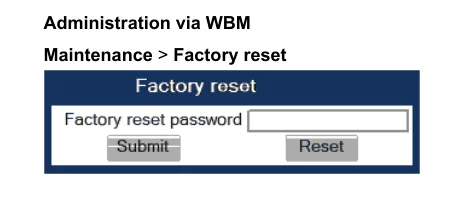 Screenshot: OpenScape Desk Phone CP SIP, Administrator Documentation, Issue 1 (05/2024), p. 288.
What is erased: every parameter returns to its factory value — the SIP account, server addresses, network settings (DHCP is switched back on), language, time zone, programmable keys. The administrator password becomes 123456 again and the user password becomes empty.
When you cannot avoid a reset: the phone was bought second-hand or came from a previous operator (it keeps the address of somebody else’s DLS provisioning server and will overwrite your configuration on every reboot); the administrator password is lost; the phone misbehaves after a firmware update.
After the reset the phone reboots and may ask for a “Terminal number” on the screen — you can skip that and go back to step 1: it will pick up an address over DHCP again, and you will enter the whole account through the web interface.
If the phone does not register#
Terminal numberholds the short number. This is the field that goes out in REGISTER — it must contain the full loginsip-xxxxxxxx-101, the same value asUser ID.- The login is not in every field.
System identity → Terminal numberandRegistration → User IDmust match. - The password is stale. The admin panel shows the password once; if you closed the window, press “Reset password” on the operator and enter the new one. The old password stops working.
- The PBX address is only in one field.
SIP server addressis used for outgoing calls,SIP registrar addressfor registration; for us it is the same address and both must be filled in. - The firmware is HFA, not SIP. If the
Systempage has noRegistrationitem at all, you have an HFA phone — it will not connect to our PBX. - Transport or port were changed.
System → SIP interface → SIP transportmust beUDPandNetwork → Port configurationmust be5060. If somebody selectedTLS, the port was moved to5061as well; our PBX does not offer TLS. - The phone came from a previous operator and receives somebody else’s DLS address over DHCP, which restores the old settings. Only a reset fixes this — and, if needed, disabling option 43 on your DHCP server.
- General network causes — SIP ALG on the router, client isolation on Wi-Fi, blocked ports: see the overview.
Still stuck — or the phone is registered but there is no audio, calls drop after 30 seconds, incoming calls do not arrive? Troubleshooting by symptom — “Phone not working”; on-screen messages and error codes — “Not registering: error codes”.
Models in the family#
| Model | Screen / lines | PoE | Setup specifics |
|---|---|---|---|
| CP100 | monochrome, 1 line | 802.3af | No G.722 and no OPUS — G.711 only; everything else is the same |
| CP200 / CP205 | monochrome, 2 lines | 802.3af | The workhorse of small venues; CP205 has no headset jack |
| CP400 | large monochrome, up to 6 lines | 802.3af | Supports a key module |
| CP600 / CP600E | colour touch screen | 802.3af | CP600E has no Bluetooth and no headset jack |
| CP700 / CP700X | colour touch screen, top model | 802.3af | CP700X adds extended interfaces |
| OpenStage 15 / 20 / 20E | monochrome, 1–2 lines | 802.3af | Previous generation; same menu items and same passwords |
| OpenStage 40 / 60 / 80 | large monochrome / colour | 802.3af | Same; 60/80 have a touch menu |
| OpenScape Desk Phone IP 35G / 55G | monochrome / colour | 802.3af | Rebranded OpenStage; use the OpenStage manual |
Every model listed also exists in an HFA flavour — only the SIP one works with our PBX.
FAQ#
How does the SIP version differ from HFA, and which one do I have?#
HFA (CorNet-IP) is Unify’s proprietary protocol for OpenScape Business and OpenScape 4000 systems; such a phone cannot talk to a third-party PBX at all. Check the administrator menu: if System contains a Registration item with SIP address fields, the firmware is SIP. Converting HFA to SIP is officially possible, but a Unify partner does it through their own procedure — do not count on it for a second-hand phone without a service contract.
I lost the administrator password — what now?#
It cannot be recovered, only reset. The reset itself does not need the administrator password: press Settings on the phone, then the 2-8-9 keys simultaneously, and enter the separate reset password 124816. After the reset the administrator password is 123456 again.
Do I need a provisioning server (DLS)?#
No. DLS is Unify’s own tool for configuring fleets of phones, and our platform has no provisioning server of its own: the phone is configured field by field as described here. Somebody else’s DLS, however, is harmful: a phone inherited from a previous operator may receive its address over DHCP and restore the old settings after every reboot.
The phone asks for a “Terminal number” after power-on — what do I type?#
That is the factory prompt for the phone’s number. Enter your login from the admin panel (sip-xxxxxxxx-101) — it is the same value as the System identity → Terminal number field. You can also skip the prompt and fill everything in later through the web interface.
Can I enable encryption (TLS/SRTP)?#
Not at the moment: our PBX accepts UDP and TCP, and does not offer TLS or SRTP. Keep SIP transport = UDP and port 5060.
Sources#
- OpenScape Desk Phone CP100/CP200/CP205/CP400/CP600/CP600E/CP700/CP700X SIP, Administrator Documentation, Issue 1 (A31003-C1000-M101-21-76A9, 05/2024) — https://wiki.unify.com/images/a/a3/OpenScape_Desk_Phone_CP200_400_600_SIP%2C_Administrator_Documentation%2C_Issue_1.pdf
- OpenScape Desk Phone CP600/CP600E SIP, User Guide — https://wiki.unify.com/images/5/5d/OpenScape_Desk_Phone_CP600_CP600E_SIP_User_Guide.pdf
- OpenScape Desk Phone CP200/CP205 SIP, User Guide, Issue 2 — https://wiki.unify.com/images/d/db/OpenScape_Desk_Phone_CP200_SIP%2C_User_Guide%2C_Issue_2.pdf
- Administration Manual OpenStage 20/40/60/80 SIP (OpenScape Voice) — https://wiki.unify.com/images/1/1b/Administration_Manual_OpenStage_OpenScape_Voice.pdf
- Family overview and model list — https://wiki.unify.com/wiki/OpenScape_Desk_Phone_CP