Snom D series and DECT M series — setup for our PBX
Snom are German phones, more common in Europe than in the CIS. Desk models (D120, D315, D715, D785, D865, the hotel HD1xx) are all configured the same way — through the web interface, tab Identity 1. The DECT M series works differently: you configure the base (M300, M400, M700, M900), and the handsets (M25, M65, M85, M90) only register on it.
Two words that make instructions written for other brands useless here:
- an account is called an identity (up to four per device), and the server address is the registrar;
- the factory administrator password is
0000(four zeros), while there is no factory HTTP password for the web interface at all. DECT bases are the other way round: the login and password areadmin/admin.
Common credentials, network requirements and ports are on the overview page “SIP phone setup”. This page covers only what is specific to Snom.
What you need#
- The extension credentials from the admin panel: SIP server, login, password, port, transport — where to get them.
- The phone (or DECT base) cabled into the same network as your computer. Power comes over PoE from the switch or from a power supply — with Snom it is often not included and has to be bought separately.
- A computer with a browser.
- For DECT — a charged M25/M65/M85 handset: without one you cannot find the base's IP address.
Step 1. Find the IP address of the phone or base#
Desk phone: press the Settings softkey, then 6 Information → 2 System Info. The MAC address and firmware version are on the same screen. If the device is in user mode the item is named the same but the menu numbering shifts (3 Maintenance / 4 Information).
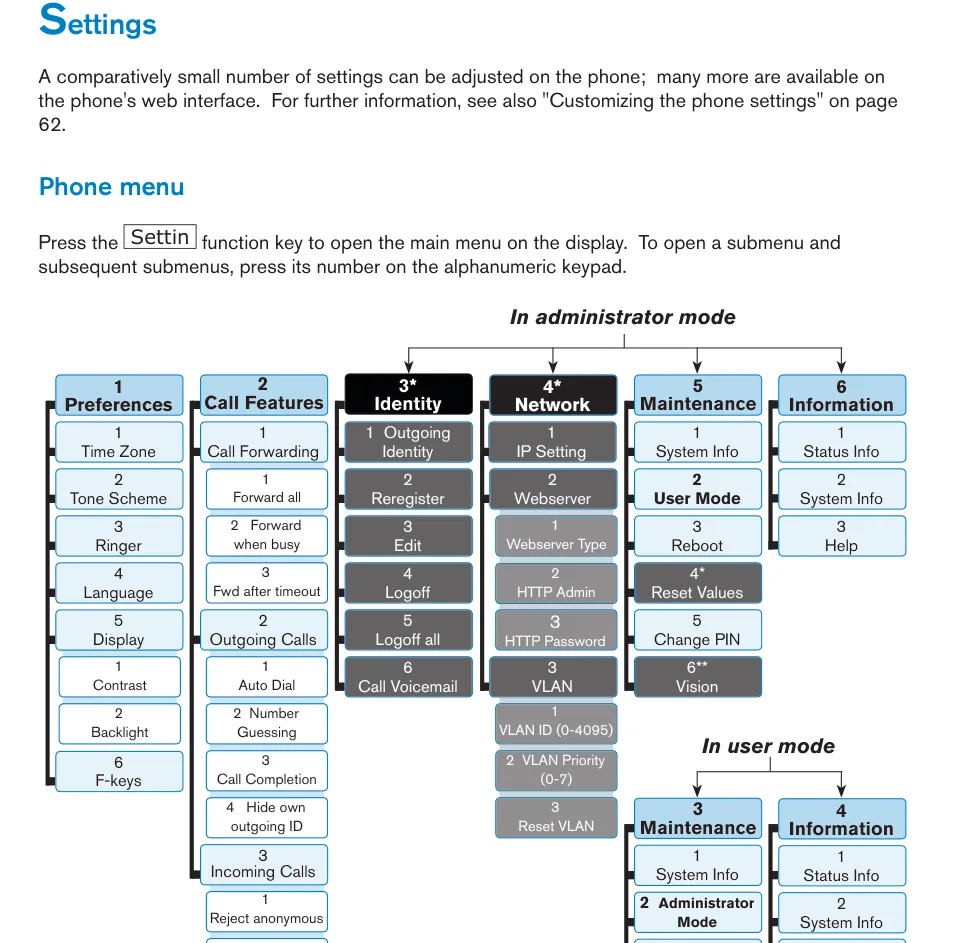 Screenshot: snom D715 User Manual, p. 27 — the Settings menu. Left to right: Information → System Info (IP address), Maintenance → Reset Values (factory reset).
There is a faster way too: on the idle screen press and hold the Help softkey for three seconds — the phone shows its IP address.
DECT base M300 / M400 / M700 / M900: take any M25, M65 or M85 handset — it does not have to be registered on the base:
- Connect the base to the network and wait until the LED turns green.
- Press the menu key on the handset (on the M25 — the centre of the navigation key).
- Dial
*47*— the IP Search screen opens with the bases it found. If there are several, check the MAC address on the bottom of your base.
Step 2. Sign in to the web interface#
| Desk phone, D series | DECT base, M series | |
|---|---|---|
| Address | http://<phone IP> |
http://<base IP> |
| Login | not asked | admin |
| Password | there is no factory HTTP password — the phone opens straight away and offers to set one | admin |
| Administrator password (configuration mode) | 0000 — four zeros |
— |
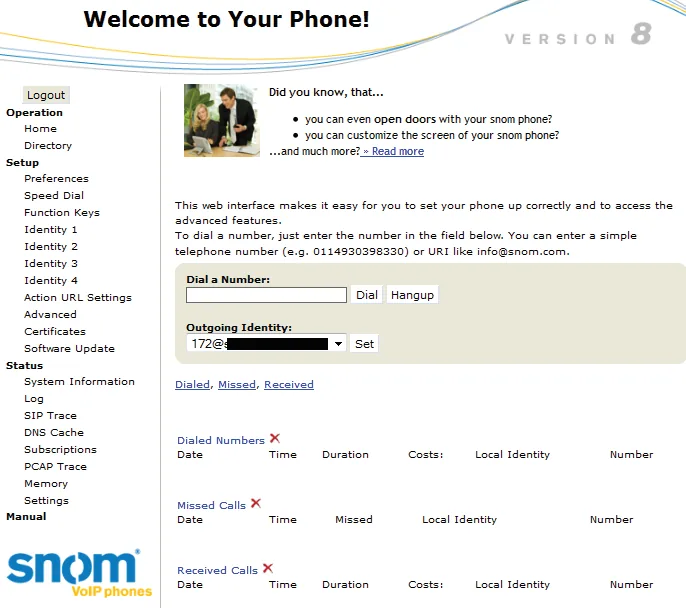 Screenshot: snom D715 User Manual, p. 30 — the phone web interface; the left-hand menu carries Identity 1…Identity 4.
Snom insists on setting both passwords — administrator and HTTP — on the first login. Do it right away and write them down: without the administrator password the phone cannot be brought back from user mode to configuration mode, and without the HTTP password the web interface will not open at all.
If a previous owner changed the password and it is unknown, it cannot be recovered — only a factory reset helps.
Step 3. Enter the PBX credentials#
Desk phone (D series, HD series)#
Pick Identity 1 in the left-hand menu — a window with four tabs opens, the first of them Login.
| In the admin panel ("Extension credentials") | In the phone (Identity 1 → Login) |
|---|---|
| SIP server | Registrar |
| Login | Account |
| Login (a second time) | Authentication Username |
| Password | Password |
Port 5060 |
no need to enter it — Snom uses 5060 by default; to be explicit, write server:5060 in the Registrar field |
Transport UDP |
the SIP tab → SIP Transport (UDP out of the box) |
| Extension number | Display name — the line caption; leave it empty and the phone shows the Account instead |
Click Apply, then Save. If you changed the Account or the Registrar of an account that was already working, press Re-Register (or on the device Settings → 3 Identity → 2 Reregister) — otherwise the phone keeps the old registration alive.
A brand-new phone asks for the first account right on its screen, before any web interface: language → time zone → country tone scheme → account → registrar. That is the normal flow: type in the login and the server address, and add the password and the Authentication Username later in the web interface — the screen never asks for them.
DECT base (M300, M400, M700, M900)#
Here it takes two different pages: Servers — where to call, Extensions — who is calling.
- Servers → add a server: Registrar — the SIP server from the admin panel (the port is optional), SIP Transport —
UDP(the factory value), leave Outbound proxy empty. - Extensions → Add extension: Handset —
New Handset, Extension — the login from the admin panel, Authentication User Name — the same login, Authentication Password — the password, Display Name — the caption you want, Server — the one created in step 1. Save. - Register a handset for that account: on the Extensions page click the row of capital
Fs under the IPEI header and follow the base's instructions.
One account, one handset: a single Extension cannot be assigned to several handsets.
Extras: codecs, time, registration period, user mode
- Codecs — the Identity 1 → RTP tab (on the base, the SIP/RTP page). G.711 A-law, G.711 µ-law and G.722 in that order are all we need.
- Time comes from an NTP server; if it is wrong, the time zone is usually to blame: Settings → 1 Preferences → 1 Time Zone. The factory date format is American (MM/DD/YYYY); the European one is switched in the web interface.
- Registration period on the base is the Reregistration time (s) field on the Servers page; the vendor itself advises against anything below 60 seconds.
- User mode. Snom can hide settings: in user mode the Identity and Network menus and the Reset Values item disappear from the device, and web pages such as "Advanced" show a single field — Administrator Login. The phone looks broken while nothing is wrong. To come back: Settings → Maintenance → Administrator Mode, password
0000.
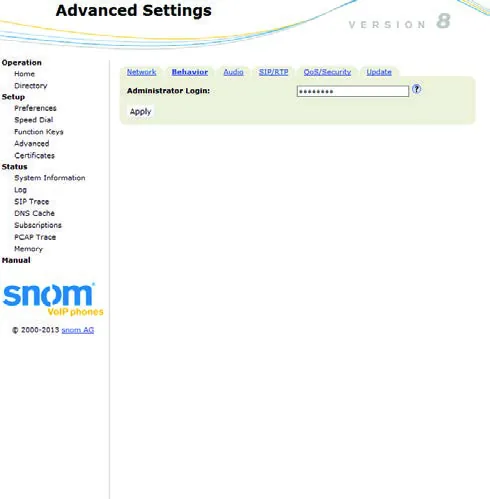 Screenshot: snom D715 User Manual, p. 32 — the Advanced page as it looks when the phone is in user mode.
Fleet auto-provisioning
The platform runs no provisioning server. If you have your own, Snom takes its settings from an XML file: the address supports the {mac} substitution and the file itself is split into <phone-settings>, <functionKeys>, <tbook> and <dialplan> sections. The format is documented by the vendor as "Desk Phone Configuration Files" in the Snom Service Hub.
The flip side is the same as with every brand: a second-hand phone may still carry the previous provider's provisioning address and overwrite your account on every reboot.
Step 4. Verify registration#
- On the phone screen a handset icon and the identity itself appear under the date-and-time bar. If the identity is shown with an empty square instead of the handset icon, there is no registration — the phone never reached the server.
- In the web interface the state of the lines is on the Status → System Information page.
- In the admin panel: Telephony → Staff & groups — a green dot lights up next to the operator together with the string the phone identified itself with (for example
snom D715). The status refreshes no more than once a minute. - Test call: dial a colleague's extension from the phone.
Audio quality — the *43 echo test. The green dot only speaks about registration: the voice travels as a separate stream and breaks separately. Dial *43 on the phone and press Send / OK (most devices do not start dialling on a star key by themselves). The PBX answers, plays a short beep after a second and then plays your own voice back to you — speak into the handset for about ten seconds and listen to yourself. You hear both the beep and yourself: audio flows both ways. Beep but no voice: audio does not reach the PBX from the phone (SIP ALG on the router is the usual culprit). Not even a beep: audio does not reach the phone from the PBX. All outcomes and the measured numbers (loss, jitter, latency) are covered in “Checking call quality”.
Factory reset#
You need a reset if the device came second-hand (it holds someone else's account and, worse, someone else's provisioning address), if the administrator password is lost, or if the phone behaves inexplicably.
Desk phone — from the device:
- Press Settings.
- Select 5 Maintenance.
- Select 4 Reset Values.
- Enter the administrator password (factory value
0000) and confirm. - Wait for the idle screen to come back. The phone asks for the language, time zone and tone scheme again, like a new one.
⚠️ The Reset Values item exists only in administrator mode: in user mode it is not in the menu. Switch the device first — Settings → Maintenance → Administrator Mode, password 0000.
Desk phone — from the web interface: the Advanced → Update page, the reset-to-factory-values button (the page is unavailable in user mode).
If the administrator password is lost and the reset menu will not let you in, the vendor's TFTP Update procedure remains: the phone boots from a TFTP server and is wiped completely. It is described in the Snom wiki for each model.
DECT base M300 / M400 / M700 / M900: the Reset key on the back of the unit (on ceiling models, under the mounting plate). Press it with a paper clip and hold for at least 10 seconds, until the LED changes colour. The same from the web interface: the Management page, the base reset button at the bottom.
A DECT handset is reset separately from the base, with its own PIN — which is neither the access code used to register the handset nor the voicemail PIN.
What is erased: every identity (account), the network settings, the administrator and HTTP passwords, the language, time zone and tone scheme, the directory and the function keys. The firmware stays.
After the reset: go through the on-screen questions (language → time zone → tone scheme), find the IP again (step 1) and repeat steps 2–4. Set the administrator and HTTP passwords straight away.
If the phone does not register#
- The login is not entered in full. It must be
sip-xxxxxxxx-<number>, not the number alone, and it goes into both Account and Authentication Username. - Re-Register was not pressed. Snom does not re-register by itself after the Account or the Registrar changes: Identity 1 → Re-Register, or Settings → 3 Identity → 2 Reregister on the device.
- An empty square instead of the handset icon on the screen — the phone is configured but the server does not answer: check the address in Registrar, the network, and that the account was not reset in the admin panel.
- The password is out of date — someone pressed "Reset password" in the admin panel. Issue a new one.
- The phone is in user mode — there is simply no Identity menu and nothing to configure. Settings → Maintenance → Administrator Mode, password
0000. - The transport is not UDP. The Identity 1 → SIP → SIP Transport tab (on the base, the Servers page). The factory value is UDP, but a previous provider may have set TCP or TLS; the platform does not offer TLS.
- Someone else's auto-provisioning. Settings "come back" after a reboot — the device still holds the previous owner's provisioning server address. A reset cures it.
- DECT: the handset is not registered on the base. The base can be configured correctly while the handset shows "Detached" or "Enabled" on the Extensions page — that is DECT registration, not SIP.
- Network: SIP ALG on the router, guest Wi-Fi with client isolation, blocked UDP 5060 — common causes.
Still stuck — or the phone is registered but there is no audio, calls drop after 30 seconds, incoming calls do not arrive? Troubleshooting by symptom — “Phone not working”; on-screen messages and error codes — “Not registering: error codes”.
Models in the family#
| Model | Screen / lines | PoE | Setup specifics |
|---|---|---|---|
| D120 / D140 / D150 | monochrome, entry level (the D120 has a single identity) | 802.3af | Same setup: Identity 1 → Login |
| D315 / D335 / D345 / D375 / D385 | monochrome (D345/D385 colour), 4 identities | 802.3af | Same setup |
| D712 / D715 / D717 | monochrome, 4 identities | 802.3af | The reference of the family: this page is written from the D715 manual |
| D735 / D765 / D785 | colour, 4 identities, the D735 has a sensor bar | 802.3af | Same setup |
| D812 / D815 / D862 / D865 | new generation, colour on the D862/D865 | 802.3af | Same setup; the web interface is newer in styling, the field names are unchanged ⚠️ verify |
| HD100 / HD101 / HD350W | hotel models, minimal buttons, the HD350W has Wi-Fi | HD100/HD101 — yes | Same account; hotel models expose part of the settings through provisioning only ⚠️ verify |
| M300 | DECT base, up to 20 handsets | 802.3af | The base is configured: the Servers and Extensions pages; the base IP comes from *47* on a handset |
| M400 / M700 | DECT base (the M700 is multi-cell) | 802.3af | Same as the M300; on the M700 exactly one handset is bound to one account |
| M900 | multi-cell DECT base for large areas | 802.3af | The same |
| M25 / M65 / M85 / M90 | DECT handsets | — | They have no SIP account of their own: they register on the base, the credentials live in the base |
| M70 / M80 | previous-generation handset and charging base | — | We have no dedicated instructions for them ⚠️ verify |
Frequently asked questions#
The phone menu has no Identity or Network section — is it broken?#
No, it is in user mode: those menus and the Reset Values item are simply hidden there. Bring back administrator mode — Settings → Maintenance → Administrator Mode, default password 0000 — and the sections return.
The Snom administrator password is lost#
The factory value is 0000 (four zeros). If it was changed and not written down, the reset menu will not help either — it asks for that very password. What remains is the vendor's TFTP Update procedure: the phone is wiped by booting from a TFTP server, as described in the Snom wiki for your model.
I entered the account, but the phone still holds the old one#
Snom does not re-register automatically after Account or Registrar changes. Press Re-Register in the web interface (Identity 1) or Settings → 3 Identity → 2 Reregister on the device.
How do I find the DECT base IP address if no handset is registered yet?#
Registration is not needed: any M25/M65/M85 handset near the base picks it up over DECT. Press the handset menu, dial *47* — a list of the bases found appears with their IP addresses. If there are several, tell them apart by the MAC address on the bottom of the case.
How many extensions can live on one Snom phone?#
Up to four — those are Identity 1…Identity 4. Each is configured separately with its own Account, Registrar and Password; you pick which one to call out with using the navigation key on the idle screen.
Sources#
- snom D715 User Manual (device menu, web interface, identities, reset) — https://www.snomamericas.com/assets/f1cc48de-91bc-4e27-bb3c-d6b1d5ad1e4a/um_d715_en.pdf
- Snom M700, M300 Base stations — Admin and Installation Guide v1.06 (base IP via
*47*, admin/admin login, Servers, Extensions, the Reset key) — https://www.snomamericas.com/assets/8f197d38-ba7d-466d-83ce-5d7add49dc07/M700_M300_Admin_Guide_en.pdf - Snom Service Hub — manuals and administrator guides per model — https://service.snom.com/spaces/wiki/pages/234332150/Manuals
- Desk Phone Configuration Files (the XML settings format, auto-provisioning) — https://service.snom.com/display/wiki/Desk+Phone+Configuration+Files
Open questions (marked ⚠️ verify in the text): for the D8xx, the hotel HD1xx and the M70/M80 handsets we have no separate vendor manual in the cache — the description leans on the D7xx web interface shared by the family; the field names are the same there, but the item numbering in the device menu may differ.