D-Link DPH-150S / DPH-400S — setup for our PBX
D-Link desk phones are the most common “budget” handsets in CIS venues: they were bought by the crate for office PBXs and now circulate widely on the second-hand market. They do work with our PBX, and setting one up takes about five minutes.
The first thing to establish is which of the two devices is on your desk — they are configured differently:
- DPH-120S / DPH-120SE / DPH-150S / DPH-150SE — one shared web interface with the System · Network · Line · Phone settings tabs. Factory login
admin/admin, address over DHCP. - DPH-400S / DPH-400SE — a different device with different firmware: the INFORMATION · SETUP · SW UPGRADE · SIP · PHONEBOOK tabs, factory login
admin/1234, and a static factory address of192.168.1.10.
The model is printed on the bottom of the case and shown in the top left corner of the web interface. Common credentials, ports and network requirements are on the overview page “SIP phone setup”.
What you need#
- Extension credentials from the admin panel: Admin panel → Telephony → Staff & groups tab → “Reset password” on the operator (how to get them).
- The phone connected by cable to the same network as your computer. Power comes from an adapter; PoE is only on some models (see the table).
- A computer with a browser on the same network.
Step 1. Find the phone's IP address#
DPH-120S / DPH-150S / DPH-150SE. Press the Status button on the phone — the current IP address appears on the display. The same address is shown under Menu → Settings → Advanced Settings → Network; the factory on-screen menu password is 123.
DPH-400S / DPH-400SE. Out of the box this phone has a fixed address of 192.168.1.10 (mask 255.255.255.0, gateway 192.168.1.1). If the venue network is different or the address has already been changed, look up the current one: press the Config soft key, enter a line number (1–4) and OK, choose item 5.Info, then press the down key four times — the IP address is on the screen.
If the address comes from DHCP it may change after the router reboots — just look it up again.
Step 2. Log in to the web interface#
Type the phone's address into your browser: http://192.168.1.10 (or whatever the phone showed).
| DPH-120S / DPH-150S / DPH-150SE | DPH-400S / DPH-400SE | |
|---|---|---|
| Address | http://<phone IP> |
http://192.168.1.10 — factory default |
| Administrator username | admin |
admin |
| Administrator password | admin |
1234 |
| Restricted account | guest / guest (on the DPH-120S) |
user / 1111 |
| On-screen menu password | 123 |
1234 |
The restricted account only sees part of the pages — log in as administrator to configure SIP.
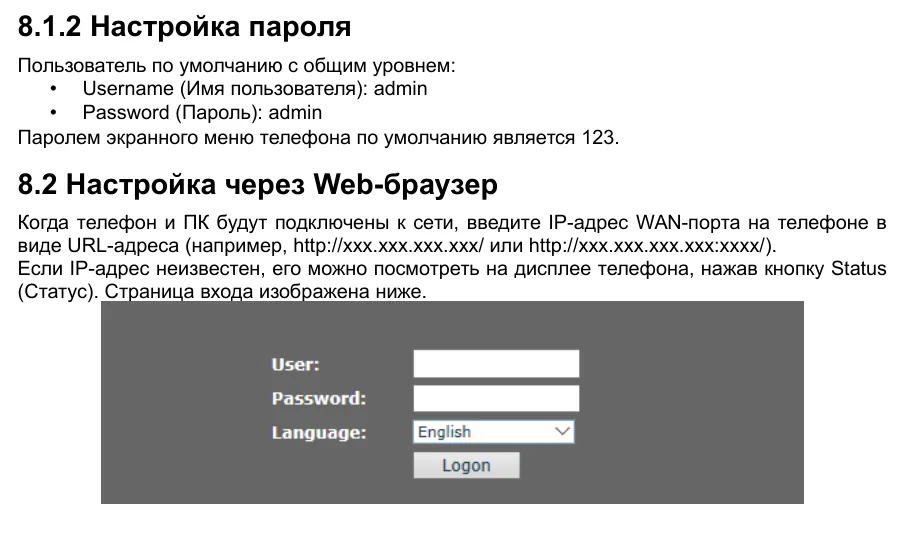 Screenshot: D-Link DPH-150S/DPH-150SE User Manual V5.00 (Russian edition), p. 23.
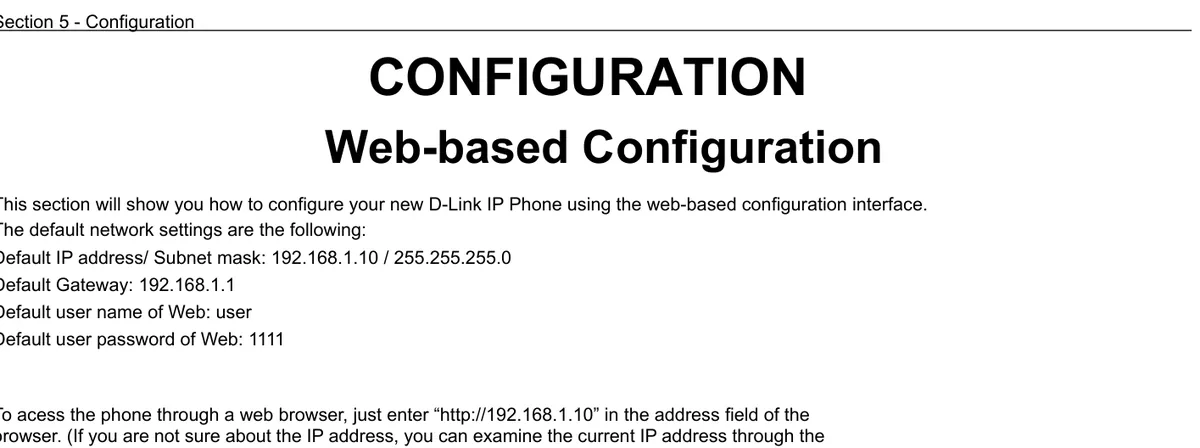 Screenshot: D-Link DPH-400S(SE) User Manual v1.00, p. 37.
If the factory password is refused, it has been changed. It cannot be recovered, only reset with the phone.
Step 3. Enter the PBX credentials#
DPH-120S / DPH-150S / DPH-150SE#
Open the Line → SIP tab, pick SIP 1 in the Line list and expand Basic Settings:
| In the admin panel (“Extension credentials”) | On the phone (Line → SIP → Basic Settings) |
|---|---|
| SIP server | SIP Proxy Server Address |
| Login | Username and Authentication Name — the whole sip-…-<extension> string, in both fields |
| Password | Authentication Password |
Port 5060 |
SIP Proxy Server Port (the factory value is already 5060) |
Transport UDP |
the factory value, nothing to change (the Transport Protocol field under Advanced Settings) |
| Extension number | Display name — the line label on the screen |
Tick Activate and click Apply. Leave Outbound proxy add. / port and Realm empty.
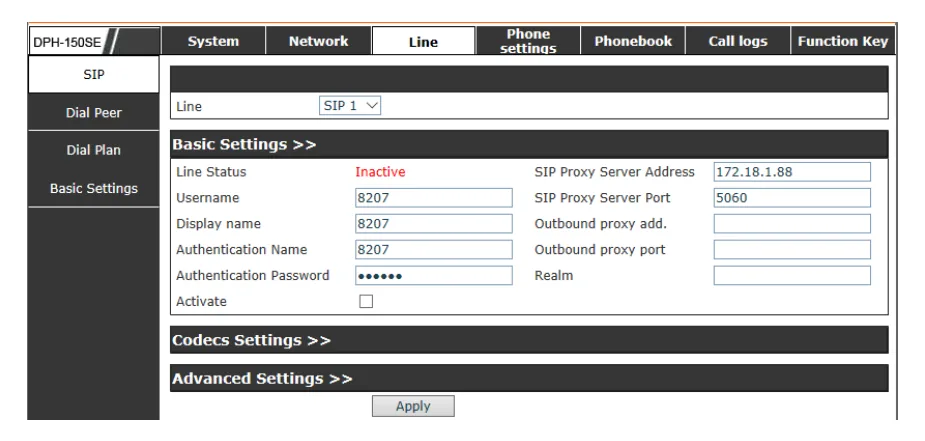 Screenshot: D-Link DPH-150S/DPH-150SE User Manual V5.00 (Russian edition), p. 35.
DPH-400S / DPH-400SE#
Open the SIP tab and pick Line1 → Line1 Sip on the left:
| In the admin panel (“Extension credentials”) | On the phone (SIP → Line1 Sip) |
|---|---|
| SIP server | SIP Proxy Server and Registrar Server — the same address in both |
Port 5060 |
Server Port and Registrar Server Port |
| Login | User Name and Authorized ID |
| Password | Authorized Password |
| Extension number | Phone Number and Display Name |
Transport UDP |
the factory value, nothing to change |
Leave the rest (SIP Secondary Proxy Server, SIP Surviving Proxy Server, Registrar Outbound Server, ACD, BLA) empty and switched off. Click Save Settings.
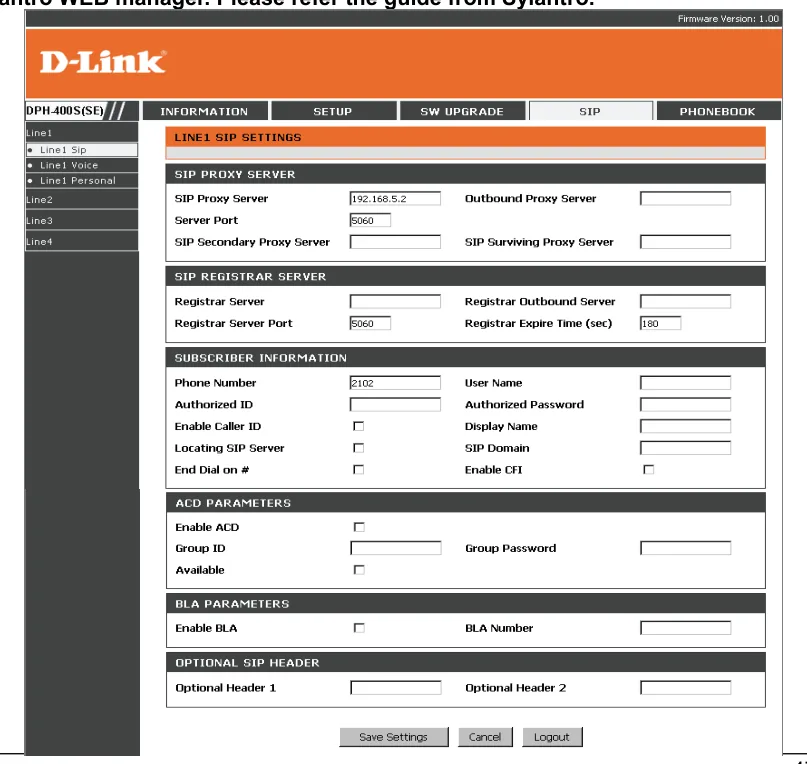 Screenshot: D-Link DPH-400S(SE) User Manual v1.00, p. 47.
Optional: codecs, Strict Proxy, time
Codecs. On the DPH-150S, expand Codecs Settings on the same page: the Enabled Codecs list should hold G.722, G.711U, G.711A — the factory set already does. G.729AB can stay or be moved out with the left arrow; we do not need it.
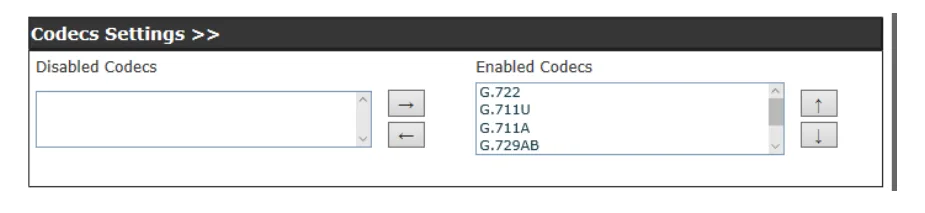 Screenshot: D-Link DPH-150S/DPH-150SE User Manual V5.00 (Russian edition), p. 35.
Enable Strict Proxy (DPH-150S, the Advanced Settings block of the SIP page). With it on, the phone answers to the IP address the packet actually came from rather than the address in the
viaheader. That cuts off part of the junk SIP calls that bypass the PBX — worth ticking if the phone faces the internet directly.Time. Phone settings → Time & Date: your venue's time zone. Without it the call history shows the wrong time.
The interface language of the phone is set under Menu → Settings → Basic Settings → Language.
Step 4. Verify the registration#
- In the web interface: on the same SIP page the Line Status field changes from the red Inactive to the registration state. The page does not refresh itself — press F5.
- On the phone: the line label appears on the screen and the “not registered” notice disappears.
- In the admin panel: Telephony → Staff & groups — a green dot lights up next to the operator, together with the string the phone used to identify itself. The status comes from the PBX and refreshes at most once a minute.
- A test call: dial a colleague's extension.
Audio quality — the *43 echo test. The green dot only speaks about registration: the voice travels as a separate stream and breaks separately. Dial *43 on the phone and press Send / OK (most devices do not start dialling on a star key by themselves). The PBX answers, plays a short beep after a second and then plays your own voice back to you — speak into the handset for about ten seconds and listen to yourself. You hear both the beep and yourself: audio flows both ways. Beep but no voice: audio does not reach the PBX from the phone (SIP ALG on the router is the usual culprit). Not even a beep: audio does not reach the phone from the PBX. All outcomes and the measured numbers (loss, jitter, latency) are covered in “Checking call quality”.
Factory reset#
A reset is needed if the phone was bought second-hand (it still holds someone else's account and, worse, someone else's provisioning address, which will overwrite your settings on every reboot), if the administrator password has been forgotten, or if the phone behaves oddly. Everything is erased: SIP accounts, network settings, passwords, the phone book, the language.
DPH-120S / DPH-150S / DPH-150SE
- From the phone: Menu → Enter → Advanced settings → enter the on-screen menu password (factory
123) → Factory Reset → Enter → choose Yes. - From the web interface: System → Configurations → Reset to factory defaults.
 Screenshot: D-Link DPH-150S/DPH-150SE User Manual V5.00 (Russian edition), p. 23.
DPH-400S / DPH-400SE
- From the phone: the Config soft key → line number (1–4) → OK → item 18.Admin → the administrator password (factory
1234) → item 8.Reset → Yes. - With the button: there is a dedicated Reset button on the case that restores the factory settings.
After the reset. The DPH-150S takes an address over DHCP again — find it with the Status button. The DPH-400S returns to its static 192.168.1.10: to reach it, your computer temporarily needs an address in the same subnet (say 192.168.1.50). The passwords are back to factory values and the SIP account has to be entered again.
If the phone does not register#
- The extension number was typed into the login field. Username / User Name and Authentication Name / Authorized ID must hold the whole
sip-xxxxxxxx-<extension>string, not “101”. - The Activate box is unticked (DPH-150S) — the line is configured but disabled, and the phone does not even try to register.
- Only SIP Proxy Server is filled in on the DPH-400S. This phone registers using the Registrar Server field: if it is empty there will be no registration. Fill in both.
- The password came from the wrong window. An extension password is shown once; if it was not saved, click “Reset password” in the admin panel and enter the new one.
- The phone is on the wrong subnet. The DPH-400S ships with the static
192.168.1.10— on a192.168.0.xnetwork it sees neither the PBX nor your browser. Switch it to DHCP: SETUP → Network. - The address is mistyped or carries a port. The port goes into its own field, not after a colon in the server address.
- SIP ALG on the router. Registration works but the call drops or only one side is audible — switch SIP ALG off (details in the overview).
Still stuck — or the phone is registered but there is no audio, calls drop after 30 seconds, incoming calls do not arrive? Troubleshooting by symptom — “Phone not working”; on-screen messages and error codes — “Not registering: error codes”.
Models in this family#
| Model | Screen / lines | PoE | Setup differences |
|---|---|---|---|
| DPH-150S / DPH-150SE | monochrome, 1 SIP line | no (external power adapter) | the reference for this page; admin/admin, the Line → SIP tab |
| DPH-120S / DPH-120SE | monochrome, 1 SIP line | no | the same web interface as the DPH-150S: admin/admin, menu password 123, plus a restricted guest/guest account |
| DPH-400S / DPH-400SE | monochrome, up to 4 SIP lines | on the SE build | different firmware: admin/1234, the SIP → Line1 Sip tab, factory static address 192.168.1.10 |
| DVG-2102S / DVG-5004S | analogue telephone gateways (ATA) | no | not a phone but an adapter: ordinary analogue handsets plug into it and SIP is configured in its own web interface — not covered here |
Other phones in the range (DPH-100S/H/M, DPH-200SE, DPH-300S, DPH-540/541, DPH-70/80) are discontinued; their documentation sits in the same D-Link FTP archive.
Frequently asked questions#
The phone is from 2016 — will it work with a modern cloud PBX at all?#
Yes. All we need is plain SIP over UDP on port 5060 with the G.711/G.722 codecs, and these phones have had that from day one. Our PBX does not offer TLS/SRTP encryption, so an old phone's lack of support for it changes nothing.
Where do I get the manual for my exact model?#
In the FTP archive of D-Link's Russian office: https://ftp.dlink.ru/pub/VoIP/ — the folder named after the model, then Description. That is also where the Russian translations this page is based on live.
The phone came from a previous telecom operator and keeps “resetting itself”. What now?#
That is auto-provisioning at work: the phone still holds the previous provider's server address and downloads someone else's configuration over yours on every reboot. Do a factory reset and configure the line straight afterwards, without rebooting the phone more than necessary.
Can four different extensions be registered on one DPH-400S?#
Yes, it has four independent SIP lines: pick Line2, Line3, Line4 on the left of the web interface and fill them in exactly like Line1. The DPH-120S/150S has a single line.
Do I need a separate power supply?#
Usually yes: PoE is only on some builds (the DPH-400SE), while the rest run from an adapter that is often sold separately. Check the label on the case before taking the phone to a venue with a PoE switch.
Sources#
- D-Link DPH-150S/DPH-150SE User Manual V5.00 (Russian edition) — https://ftp.dlink.ru/pub/VoIP/DPH-150S/Description/DPH-150S_DPH-150SE_User_Manual_RUS_V5.00.pdf (factory login and password, menu password
123— p. 23, SIP page fields — pp. 35–38, reset from the phone — p. 23, reset from the web interface — pp. 25–26) - D-Link DPH-150S/DPH-150SE User Manual V5.00 (English) — https://ftp.dlink.ru/pub/VoIP/DPH-150S/Description/DPH-150S%20DPH-150SE%20UserManual%20V5.00.pdf
- D-Link DPH-400S(SE) A1 User Manual v1.00 — https://ftp.dlink.ru/pub/VoIP/DPH-400SE/Description/DPH-400S+400SE_A1_MANUAL_1.00.pdf (factory address
192.168.1.10, theuser/1111andadmin/1234accounts — p. 37, showing the IP via 5.Info — p. 25, reset via 18.Admin → 8.Reset — p. 36, SIP page fields — p. 47) - D-Link DPH-120S/DPH-120SE User Manual V3.00 (Russian edition) — https://ftp.dlink.ru/pub/VoIP/DPH-120S/Description/DPH-120S_DPH-120SE_UserManual_V3.00_RUS.pdf (the
guest/guestandadmin/adminaccounts, menu password123) - D-Link VoIP documentation FTP archive — https://ftp.dlink.ru/pub/VoIP/