Poly (Polycom) VVX, Edge E, Trio and OBi — setup for our PBX
Poly is the former Polycom, today part of HP. Venues most often run desk VVX models (from the plain VVX 150 up to the VVX 450 and VVX 601), meeting rooms use the Trio conference units, and the current line is called Edge E. They all run the shared Poly UC Software, so they are configured identically: the device web interface, page Settings → Lines.
OBi devices stand apart — adapters and "OBi Edition" phones with different firmware and a different web interface.
Two traits of this brand that no other has:
- the factory passwords are known and identical everywhere: administrator
456, user123. Until you change the administrator password, the phone shows a warning on every reboot; - the default transport is not UDP but
DNSnaptr— the phone "works out" the protocol itself through DNS NAPTR and SRV lookups. Our PBX publishes no such records, so UDP has to be set explicitly.
Common credentials, network requirements and ports are on the overview page “SIP phone setup”. This page covers only what is specific to Poly.
What you need#
- The extension credentials from the admin panel: SIP server, login, password, port, transport — where to get them.
- The phone cabled into the same network as your computer. Power comes over PoE from the switch or from a power supply (Poly usually does not include one).
- A computer with a browser.
- The factory administrator password
456— or the new one, if it was already changed.
Step 1. Find the phone's IP address#
There is no factory address — the phone gets one over DHCP. On the device itself:
Status → Platform → Phone → IP Address — this is the path named by the Poly administrator guide.
On the VVX 250/350/450 you reach the menu with the Home key, then Settings. To check that the phone sees the network at all, use Menu → Status → Network and scroll down to the LAN status line.
If no screen is at hand, the address is visible in the DHCP client list on your router.
Step 2. Sign in to the web interface#
| Factory value | |
|---|---|
| Address | https://<phone IP> (the web interface is called the Web Configuration Utility) |
| Administrator password | 456 |
| User password | 123 |
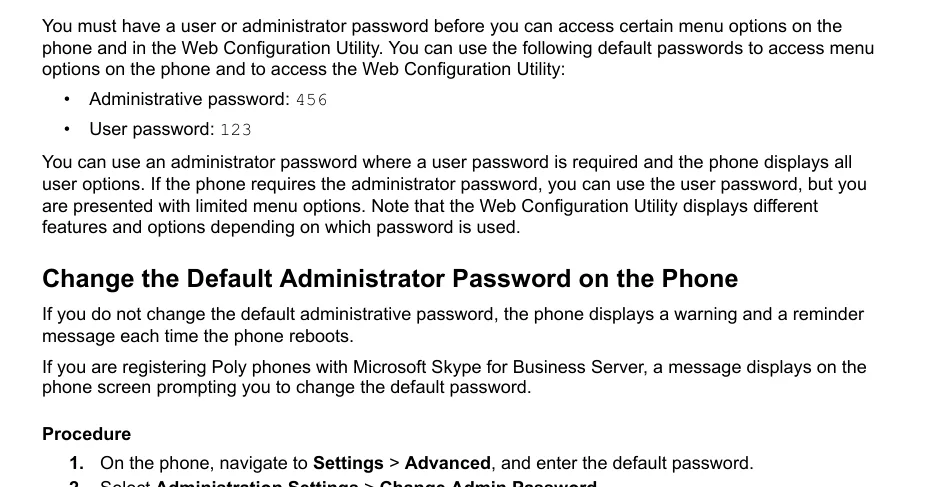 Screenshot: Poly UC Software Administrator Guide 6.4.0 (3725-42644-012A), p. 36 — the factory passwords and how to change them.
Sign in with the administrator password: under the user password the web interface shows a reduced set of pages, and the line settings may not be among them.
Change the factory password straight away — a phone on the venue network with password 456 is an open door. On the device: Settings → Advanced (enter the current password) → Administration Settings → Change Admin Password. While the password is the factory one, the phone shows a warning on every reboot — that is not a fault.
If a previous owner changed the password and it is unknown, it cannot be recovered — only a factory reset helps.
Step 3. Enter the PBX credentials#
Open Settings → Lines → Line 1. The page sections are Identification (who you are) and Server 1 (where to register).
| In the admin panel ("Extension credentials") | In the phone (Settings → Lines → Line 1) | Configuration parameter |
|---|---|---|
| Login | Address in the Identification section | reg.1.address |
| Login (a second time) | Auth User ID | reg.1.auth.userId |
| Password | Auth Password | reg.1.auth.password |
| Extension number | Label — the line caption on the screen | reg.1.label |
| SIP server | Address in the Server 1 section | reg.1.server.1.address |
Port 5060 |
Port in the Server 1 section | reg.1.server.1.port |
Transport UDP |
Transport → choose UDPOnly | reg.1.server.1.transport |
⚠️ The transport is the one thing you must change. The factory value DNSnaptr makes the phone look for DNS NAPTR and SRV records to "guess" the protocol and the port. Our PBX has no such records, and the phone may fall back to TCP or nowhere at all. Set UDPOnly and the port 5060 explicitly.
The login goes in in full, prefix included (sip-xxxxxxxx-101), both into Address and into Auth User ID: the Auth User ID value overrides whatever was entered in the Authentication submenu on the device itself.
Save with the Save button. The web interface field names are given for UC Software 6.x; newer firmware restyled the page, while the configuration parameter names (the right-hand column) stay the same.
Extras: codecs, registration period, time
- Codecs — the Settings → Codec Priorities page. G.711 A-law (PCMA), G.711 µ-law (PCMU) and G.722 are enough; the rest can be pushed down the list.
- Registration period — the Expires field in the Server 1 section (
reg.1.server.1.expires); the factory value needs no change. - Time — the Settings → Date & Time page: time zone and NTP server. Without the right time zone the call history shows someone else's time.
- Network diagnostics from the phone — Settings → Status → Diagnostics → Network: built-in ping and traceroute, handy for checking whether the device reaches the PBX address.
Fleet auto-provisioning
The platform runs no provisioning server: the phone is configured with the fields above. Poly settings live in parameter files (reg.1.address, reg.1.server.1.transport and the rest of the table) that the device pulls from your provisioning server.
The flip side: a second-hand phone may still hold the previous provider's address — it then downloads a foreign file and overwrites your settings on every reboot. That is exactly what the separate Reset Web Configuration and Reset Local Configuration options are for.
Step 4. Verify registration#
- On the phone screen the line stops being crossed out and its caption (Label) appears.
- In the web interface the line state is on the Web Configuration Utility home page and under Settings → Status.
- In the admin panel: Telephony → Staff & groups — a green dot lights up next to the operator together with the string the phone identified itself with (for example
PolycomVVX-VVX_450). The status refreshes no more than once a minute. - Test call: dial a colleague's extension from the phone.
Audio quality — the *43 echo test. The green dot only speaks about registration: the voice travels as a separate stream and breaks separately. Dial *43 on the phone and press Send / OK (most devices do not start dialling on a star key by themselves). The PBX answers, plays a short beep after a second and then plays your own voice back to you — speak into the handset for about ten seconds and listen to yourself. You hear both the beep and yourself: audio flows both ways. Beep but no voice: audio does not reach the PBX from the phone (SIP ALG on the router is the usual culprit). Not even a beep: audio does not reach the phone from the PBX. All outcomes and the measured numbers (loss, jitter, latency) are covered in “Checking call quality”.
Factory reset#
You need a reset if the device came second-hand (it holds someone else's account and someone else's provisioning address), if the administrator password is lost, or if the phone behaves inexplicably.
From the device: Settings → Advanced → Administration Settings → Reset to Defaults and pick an option. Poly offers several, and here it pays to pick precisely:
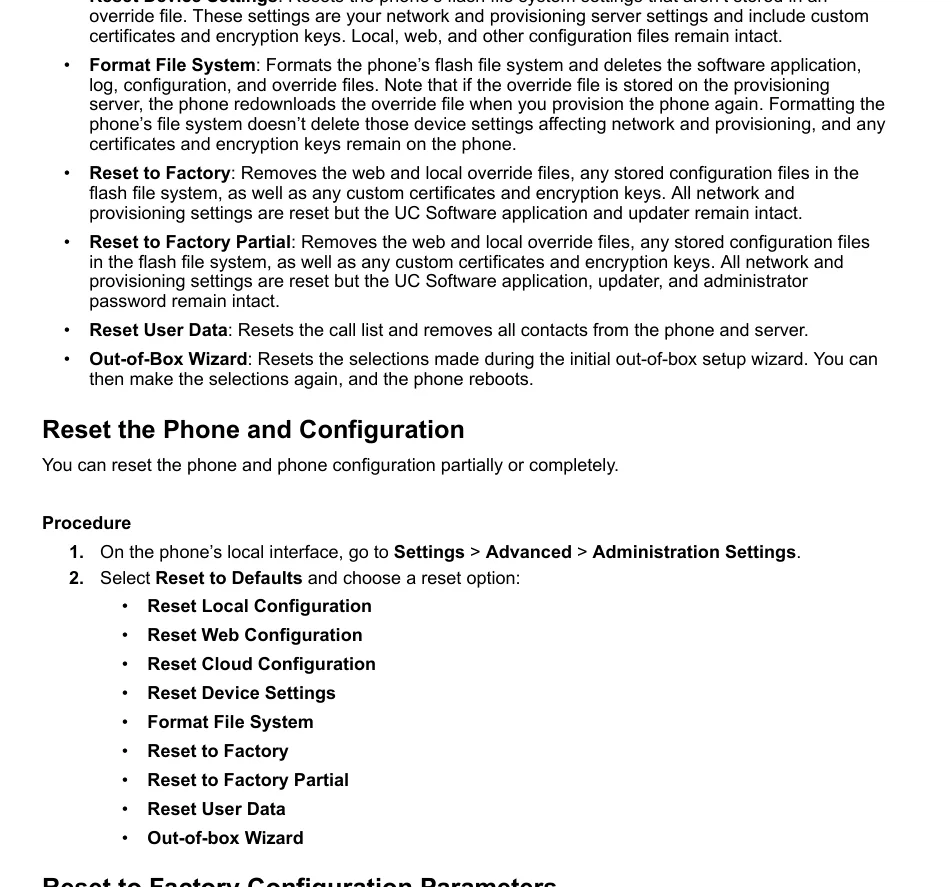 Screenshot: Poly UC Software Administrator Guide 6.4.0 (3725-42644-012A), p. 83 — the reset options and what each of them erases.
- Reset to Factory — the full reset: the web and local override files, all stored configuration files, custom certificates and encryption keys are removed; network and provisioning settings are reset. The firmware stays. This is the option for a second-hand phone.
- Reset to Factory Partial — the same, but the administrator password survives.
- Reset Web Configuration / Reset Local Configuration — remove only the settings made through the web interface or on the device itself: good when the account "comes back" after a reboot and you would rather not touch the network.
- Reset Device Settings — resets the device settings, network ones included.
- Reset User Data — clears the call list and the contacts.
- Out-of-Box Wizard — runs the initial setup wizard again.
A full reset returns the administrator password to the factory 456.
From the web interface the same actions are available on the utility settings page; Reset Web Configuration removes exactly the web-made settings.
What a full reset erases: the line accounts, the network and provisioning settings, certificates and keys, and the administrator password. The firmware (UC Software) and the updater remain.
After the reset: the phone takes an address over DHCP again (find it as in step 1), the administrator password is 456 again — repeat steps 2–4 and change the password immediately.
If the phone does not register#
- The transport is still
DNSnaptr. The most common cause on Poly: the phone looks for DNS NAPTR/SRV records, does not find them and goes the wrong way. Set UDPOnly and port5060. - The login is not entered in full — it must be
sip-xxxxxxxx-<number>, not the number alone, and it goes into both Address and Auth User ID. - You signed in with the user password
123. The web interface then shows a reduced set of pages and part of the line settings is simply unavailable. Use456(or the new administrator password). - The password is out of date — someone pressed "Reset password" in the admin panel. Issue a new one; the old is dead.
- Someone else's auto-provisioning. Settings "come back" after a reboot — use Reset Web Configuration or a full reset.
- The wrong firmware. VVX and Trio also ship in Microsoft Skype for Business / Teams and "OBi Edition" builds — they are configured differently and may not join an ordinary SIP PBX at all. The model name looks the same.
- TLS switched on "just in case". The platform offers neither TLS nor SRTP — the Transport field must read UDPOnly.
- Network: SIP ALG on the router, guest Wi-Fi with client isolation, blocked UDP 5060 — common causes. You can test connectivity from the phone itself: Settings → Status → Diagnostics → Network.
Still stuck — or the phone is registered but there is no audio, calls drop after 30 seconds, incoming calls do not arrive? Troubleshooting by symptom — “Phone not working”; on-screen messages and error codes — “Not registering: error codes”.
Models in the family#
| Model | Screen / lines | PoE | Setup specifics |
|---|---|---|---|
| VVX 101 / VVX 150 | monochrome, 1–2 lines | 802.3af | Same setup: Settings → Lines → Line 1 |
| VVX 201 / VVX 250 | monochrome / colour, 2–4 lines | 802.3af | Same setup |
| VVX 301 / VVX 311 / VVX 350 | monochrome (VVX 350 colour), 6 lines | 802.3af | Same setup |
| VVX 401 / VVX 411 / VVX 450 | colour, 12 lines | 802.3af | Same setup; the VVX 450 has a 10.9 cm screen |
| VVX 501 / VVX 601 | colour touch, 12 / 16 lines | 802.3af | Same setup |
| VVX 1500 | touch, with a video camera, discontinued | 802.3af | Old firmware, the field names differ from modern VVX models |
| Edge E100 … E550 | the current line, monochrome and colour | 802.3af | Newer firmware (Poly Edge E) with its own administrator guide; the logic is the same, the page names may have moved ⚠️ verify |
| Trio 8300 / 8500 / 8800 | conference units for meeting rooms | 802.3af | The same UC Software; the account is configured identically, but Trio has its own audio settings |
| Trio C60 | the new generation conference unit | 802.3af | The Trio C60 has a separate vendor guide, which is not in our cache |
| OBi 200 / 202 / 300 / 302 | ATA adapters for analogue telephones | no, external power supply | Different firmware and a different web interface (OBi); this page does not apply ⚠️ verify |
| SoundPoint IP (legacy) | old Polycom sets predating the VVX line | some models | A discontinued line with different firmware; we have no verified instructions |
Frequently asked questions#
What is the factory password of a Poly phone?#
Administrator 456, user 123. They are the same on every Poly device running UC Software, which is why the administrator password must be changed at once: Settings → Advanced → Administration Settings → Change Admin Password. While the password is the factory one, the phone reminds you with an on-screen message after every reboot.
The phone looks configured but does not register, and there is nothing in the logs#
Check the Transport field of Server 1. The factory value DNSnaptr is not UDP: the phone first asks DNS for NAPTR and SRV records for the PBX address and, finding none, behaves unpredictably. Set UDPOnly and port 5060.
How does "Reset to Factory" differ from "Reset to Factory Partial"?#
Both erase the settings, the configuration files, the certificates and the keys, and reset the network and provisioning. The single difference: Partial keeps the administrator password, while the full reset returns it to the factory 456. If you know the password and are simply adapting the device, take Partial.
The phone was configured, and by the morning it is unregistered again#
Most likely the previous provider's provisioning settings are still inside and the phone downloads a foreign file on every reboot. Try Reset Web Configuration and Reset Local Configuration first; if that does not help, do a full Reset to Factory.
We have a Poly Trio in the meeting room — can it be connected too?#
Yes, the Trio 8300/8500/8800 run the same UC Software: the account is configured the same way through the device web interface. Only the audio part differs — microphones, coverage area, extra modules.
What about a "Poly for Teams" or "OBi Edition" phone?#
That is different firmware. A device with Microsoft Teams / Skype for Business firmware waits for its own server and will not join an ordinary SIP PBX; an "OBi Edition" is configured through a different web interface. The model on the box looks identical in both cases — look at what the boot screen says.
Sources#
- Poly UC Software Administrator Guide 6.4.0 (3725-42644-012A, September 2021) — factory passwords, reset options, the
reg.x.*parameters, the path to the IP address — https://kaas.hpcloud.hp.com/pdf-public/pdf_9122088_en-US-1.pdf - Poly VVX Business IP Phones User Guide 6.3.1 (3725-48813-005A, March 2021) — the keys and screens of the VVX 250/350/450 — https://kaas.hpcloud.hp.com/pdf-public/pdf_9138121_en-US-1.pdf
- Poly Documentation Library (since 2026 it opens on support.hp.com) — https://docs.poly.com/
Open questions (⚠️ verify in the text): we have no separate guides in the cache for the Edge E line, the Trio C60, the OBi adapters or the discontinued SoundPoint IP — the page describes them by the logic shared across Poly, and the web interface page names of those families may differ. The web interface field names are given for UC Software 6.x; the configuration parameter names in the right-hand column of the step 3 table are taken straight from the administrator guide and do not depend on the styling version.