Cisco SPA, MPP 6800/7800/8800 and ATA 19x — setup for our PBX
Two different Cisco generations turn up in venues, and both are configured almost the same way — through the phone's web page and the Voice → Ext 1 tab:
- SPA300 and SPA500 (SPA303, SPA504G, SPA508G, SPA525G2 and relatives) — the small-business line. Discontinued, but still sitting on front desks and working fine with an ordinary SIP PBX.
- 6800, 7800, 8800 — current models. They connect to our PBX only with MPP firmware (Multiplatform, also called 3PCC — "for 3rd-Party Call Control"). The same-looking phone with enterprise firmware for Cisco Unified CM will never register: that is a firmware question, not a settings question.
- ATA 191 / ATA 192 — adapters for a plain analogue telephone; the web interface is similar, but the line is called Voice → Line 1.
Common credentials, network requirements and ports are on the overview page “SIP phone setup”. This page covers only what is specific to Cisco.
What you need#
- The extension credentials from the admin panel: SIP server, login, password, port, transport — where to get them.
- The phone cabled into the same network as your computer. Power comes over PoE from the switch; without PoE you need a power adapter (for the 6841/6851 it is mandatory).
- A computer with a browser.
- Confidence that a 6800/7800/8800 runs MPP firmware: the web page header must read "Cisco IP Phone for 3rd-Party Call Control" and the model name must carry the 3PCC suffix (for example
CP-8861-3PCC).
Step 1. Find the phone's IP address#
Cisco phones have no factory IP address — it is handed out by the network's DHCP server, so plug the phone in with a cable and power it on first.
6800 / 7800 / 8800 (MPP):
- Press the Applications button.
- Use the arrows to select Status.
- Select Network status.
- Select IPv4 status.
- The IP address line is the address you need for the web interface.
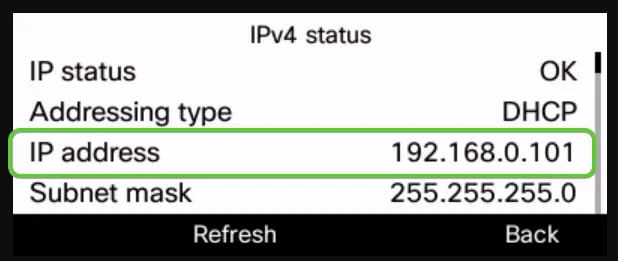 Screenshot: Cisco, "How to Find the IP Address of a Cisco 6800 Series IP Phone with Multiplatform Firmware" (rev. 1.0, 22 May 2019).
SPA500 (SPA502G, SPA504G, SPA508G, SPA509G…): press Setup → select Network → the address is shown under Current IP.
SPA525G / SPA525G2: Setup → Status → Network Status.
SPA301 and SPA501G have no screen — they use a voice menu (IVR): on the SPA301 press the asterisk (*) four times, on the SPA501G press Setup, then dial 110# and the phone reads its address out loud.
ATA 191 / ATA 192: the address is easiest to find in the DHCP client list on your router.
Step 2. Sign in to the web interface#
| Factory value | |
|---|---|
| Address | http://<phone IP>/admin/advanced |
| Login | admin (the user account is user; account names cannot be changed) |
| Password | there is no factory password — neither for admin nor for user. A password exists only if the previous owner or provider set one |
If you open plain http://<phone IP> you land in the user view: click Admin Login, then advanced — otherwise half of the settings are missing from the page.
 Screenshot: Cisco, "Configure SIP Settings on the Cisco IP Phone 8800 Series Multiplatform Phone", step 1.
The browser shows an untrusted-certificate warning ("Your connection is not private") — that is normal: the phone issues the certificate to itself. Click Advanced → Proceed.
If the web interface asks for a password you do not know, it cannot be recovered — only a factory reset helps. The ATA 191/192 is the opposite: on the first login and after a reset the device requires you to set the admin and user passwords before it lets you go any further.
Step 3. Enter the PBX credentials#
Open Voice → Ext 1 (for a second line, Ext 2, and so on).
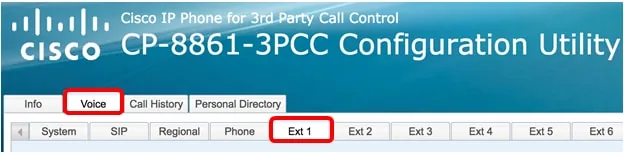 Screenshot: Cisco, "Configure SIP Settings on the Cisco IP Phone 8800 Series Multiplatform Phone", step 2.
| In the admin panel ("Extension credentials") | In the phone (Voice → Ext 1) |
|---|---|
| — | Line Enable: yes (at the very top of the page) |
| SIP server | Proxy — Proxy and Registration section |
| — | Register: yes — same section |
| Login | User ID — Subscriber Information section |
| Login (a second time) | Use Auth ID: yes, then Auth ID — the same login in full |
| Password | Password — Subscriber Information section |
Port 5060 |
SIP Port — SIP Settings section, already 5060 out of the box |
Transport UDP |
SIP Transport — SIP Settings section |
| Extension number | Display Name — the line caption on the screen |
The login goes in in full, prefix included (sip-xxxxxxxx-101), both into User ID and into Auth ID. Leaving Use Auth ID: no means the phone sends only the User ID for registration and the PBX rejects it.
The transport is a drop-down with three values; you need UDP:
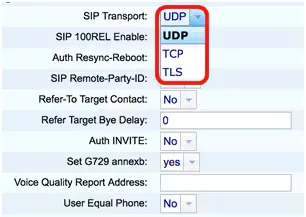 Screenshot: Cisco, "Configure SIP Settings on the Cisco IP Phone 8800 Series Multiplatform Phone", step 3.
At the bottom of the page click Submit All Changes — the phone reboots and applies the settings. The neighbouring Undo All Changes button discards everything you changed since the last save.
Extras: codecs, DTMF, time, registration period
All of this is on the same Voice → Ext 1 page, sections Audio Configuration and Proxy and Registration:
- Preferred Codec —
G711a, Second Preferred Codec —G711u, Third Preferred Codec —G722. The 7800/8800 phones encode and decode G.711 a-law, G.711 µ-law, G.722, G.729a and iLBC — we need the first three. - DTMF Tx Method —
AVT(this is RFC 2833 / RFC 4733).InBandandINFOare not needed. - Register Expires — the factory
3600seconds; no need to change it. - Time zone and time — the Voice → Regional tab, Time section. Without the right time zone the call history shows someone else's time.
Fleet auto-provisioning
The platform runs no provisioning server — phones are configured with the fields above. If you have your own provisioning server, Cisco handles it on the Voice → Provisioning tab, field Profile Rule (the XML profile address; the $PSN macro and the [--srv] option are supported), and the same thing from the device: Applications → Device administration → Profile rule → Resync.
The flip side: a second-hand phone may still hold the previous provider's address in Profile Rule. The device then downloads a foreign profile on every reboot and overwrites your account — only a reset cures it.
Step 4. Verify registration#
- On the phone: the Info tab of the web interface shows the state of every line, including Registration State — it must read
Registered. - On the device screen the line caption (Display Name) appears and the “line not working” notice disappears.
- In the admin panel: Telephony → Staff & groups — a green dot lights up next to the operator together with the string the phone identified itself with (for example
Cisco/CP-8861-3PCC). The status refreshes no more than once a minute. - Test call: dial a colleague's extension from the phone.
Audio quality — the *43 echo test. The green dot only speaks about registration: the voice travels as a separate stream and breaks separately. Dial *43 on the phone and press Send / OK (most devices do not start dialling on a star key by themselves). The PBX answers, plays a short beep after a second and then plays your own voice back to you — speak into the handset for about ten seconds and listen to yourself. You hear both the beep and yourself: audio flows both ways. Beep but no voice: audio does not reach the PBX from the phone (SIP ALG on the router is the usual culprit). Not even a beep: audio does not reach the phone from the PBX. All outcomes and the measured numbers (loss, jitter, latency) are covered in “Checking call quality”.
Factory reset#
You need a reset if the phone came second-hand (it holds someone else's account and, worse, someone else's provisioning address), if the administrator password is lost, or if the device behaves inexplicably.
6800 / 7800 / 8800 (MPP) — from the keypad, when the web interface is out of reach:
- Disconnect the phone from power (unplug the PoE cable or the power cube) and wait 5 seconds.
- Method 1 (recommended by Cisco): hold # and plug the phone back in. Then press #, followed by 123456789*0# in sequence.
- Method 2 (for the 6821, and for the 8841/8845/8851/8861/8865 of hardware revision 15 and later): hold 0 and plug the phone back in, then dial 369#.
- ⚠️ Do not power the phone down until the reset finishes and the main screen appears.
6800 / 7800 / 8800 — from the device menu: Applications → Device administration → Factory reset → OK. On some firmware the path differs: Applications → Admin Settings → Factory Reset (or Admin Settings → Reset settings → Factory Reset).
6800 / 7800 / 8800 — from the web interface: open http://<phone IP>/admin/factory-reset and click Confirm Factory Reset. Or go to Admin Login → Advanced → Info → Debug Info, press Factory Reset in the Factory Reset section, confirm the message and click Submit All Changes.
SPA300 / SPA500 with a screen: press Setup, select Factory Reset (on the SPA504G it is item 7), press Ok and wait for it to finish.
SPA301 and SPA501G (no screen): enter the voice menu (SPA301 — four * presses, SPA501G — the Setup button), dial 73738, confirm with 1 and hang up — the reset starts. The separate code 87778 on the SPA501G clears only user settings (speed dials) and leaves the account alone. Reboot without a reset is 732668.
ATA 191 / ATA 192: the Administration → Factory Defaults page in the web interface, or the RESET button on the case — hold it for 10 seconds.
What is erased: the accounts of every line, network settings (static IP, VLAN), the administrator and user passwords, the language, the directory, the call history and the list of reboot reasons. The firmware stays as it was — a reset will not turn an MPP device into an enterprise one or the other way round.
After the reset: the phone takes an address over DHCP again (find it as in step 1), the web interface is open without a password again — set an administrator password right after you enter the account, and repeat steps 2–4.
If the phone does not register#
- The firmware is not MPP. No Voice tab in the web interface, no Ext 1 in the menu, a model without the 3PCC suffix — this is enterprise firmware for Cisco Unified CM. Such a phone does not connect to an ordinary SIP PBX; it needs to be reflashed to multiplatform.
- SIP Transport: TCP. A Cisco classic and a case we investigated on an SPA508G: the phone reports no error at all, it just stays silent, while a softphone with the same account registers on the first try. Set UDP in Voice → Ext 1 → SIP Settings.
- The login is not entered in full — it must be
sip-xxxxxxxx-<number>, not the number alone, and it goes into both User ID and Auth ID. - Use Auth ID: no. The default is
no; with it the Auth ID and password are never sent for authentication. - Line Enable: no or Register: no. The line is simply switched off — no credentials will help.
- The password is out of date — someone pressed "Reset password" in the admin panel. Issue a new one; the old is dead.
- A foreign provisioning profile. Settings "come back by themselves" after a reboot — the previous provider's address is still in Voice → Provisioning → Profile Rule. Clear the field or reset the device.
- TLS or SRTP switched on "just in case". The platform does not offer them — the phone will not register over TLS.
- Network: SIP ALG on the router, guest Wi-Fi with client isolation, blocked UDP 5060 — common causes.
Still stuck — or the phone is registered but there is no audio, calls drop after 30 seconds, incoming calls do not arrive? Troubleshooting by symptom — “Phone not working”; on-screen messages and error codes — “Not registering: error codes”.
Models in the family#
Setup is identical on all of them — Voice → Ext 1; the differences are the screen, the number of lines and the way into the menu.
| Model | Screen / lines | PoE | Setup specifics |
|---|---|---|---|
| SPA301 | no screen | no | Voice menu only: * four times, IP is 110#, reset is 73738 |
| SPA501G | no screen, 8 line buttons | 802.3af | Voice menu via the Setup button; reset 73738, user settings only 87778 |
| SPA502G / SPA504G / SPA508G / SPA509G | monochrome, 1 / 4 / 8 / 12 lines | 802.3af | IP: Setup → Network → Current IP; reset: Setup → Factory Reset |
| SPA303 | monochrome, 3 lines | no | Same as the SPA50x |
| SPA512G / SPA514G | monochrome, 1 / 4 lines, Gigabit | 802.3af | Same as the SPA50x |
| SPA525G2 | colour, 5 lines, Wi-Fi and Bluetooth | 802.3af | IP: Setup → Status → Network Status (a different path from the other SPAs) |
| CP-6821 | monochrome, 2 lines | 802.3af (powered over PoE or an adapter through the LAN port) | Keypad reset uses the second method (hold 0, then 369#) |
| CP-6841 / CP-6851 / CP-6861 | monochrome | 6841 and 6851 — yes, but a power cube is included; 6861 is the Wi-Fi model | The 6861 joins over Wi-Fi, the network is set in Network configuration |
| CP-6871 | colour | 802.3af | Setup is the same |
| CP-7811 | monochrome, 0 programmable line keys | 802.3af | The single line is Ext 1 |
| CP-7821 / CP-7841 / CP-7861 | monochrome, 2 / 4 / 16 line keys | 802.3af, the 7841 has a Gigabit port | Setup is the same |
| CP-8811 | monochrome, 5 lines | 802.3af | Key expansion module not supported |
| CP-8841 / CP-8851 / CP-8861 | colour, 5 / 5 / 10 lines | 802.3af | The 8841 and 8845 do not support a key expansion module |
| CP-8845 / CP-8865 | colour, built-in camera | 802.3af | We do not need video — the camera can be left alone; it does not affect voice registration |
| ATA 191 / ATA 192 | not a phone — an adapter for 2 analogue sets | ATA 192 — no, external power supply | The line is called Voice → Line 1 (and Line 2); on the first login the device demands passwords; reset is the RESET button held 10 s |
What is missing from the table and why. The CP-3905 is an enterprise-line phone for Cisco Unified CM; it has no multiplatform (MPP) firmware, so it does not connect to our PBX. The SPA112 / SPA122 are discontinued previous-generation ATAs; their web interface differs from the ATA 19x and we have no verified instructions for them yet ⚠️ verify. The WIP310 is the Wi-Fi handset of the same SPA family and is practically never seen in venues.
Frequently asked questions#
How do I tell MPP firmware from enterprise firmware?#
Open the phone's web interface. MPP says "Cisco IP Phone for 3rd-Party Call Control" in the header and the model name contains 3PCC (CP-8861-3PCC). Enterprise firmware offers no Voice tab at all — the phone is waiting for its Cisco Unified CM. The devices look identical: the box and the label will not tell you.
The Cisco does not register and shows no error at all — what should I check?#
The transport. Voice → Ext 1 → SIP Settings → SIP Transport must be UDP. Over TCP the phone in some networks never even receives a rejection and stays silent — which looks like a hardware fault. We investigated exactly this on an SPA508G: over UDP the same account registered on the first attempt.
The phone was configured, and by the morning it is unregistered again#
Most likely the previous provider's provisioning address is still in Voice → Provisioning → Profile Rule: on every reboot the phone downloads a foreign profile and overwrites your account. Clear the field or do a full factory reset and configure it again.
The web interface password is lost#
It cannot be recovered — only reset. On MPP devices the reset is done from the keypad without any password (hold # while powering on, then 123456789*0#), on an SPA with a screen it is Setup → Factory Reset, and on a screenless SPA it is code 73738 in the voice menu.
Do I need to do anything with the phone's second Ethernet port?#
No. The port with the computer icon is a pass-through — the employee's computer plugs into it so you do not have to run a second cable. The phone itself goes into the network through the port marked with three linked computers (LAN/SW).
Can one extension live on two Cisco devices?#
Yes, an account registers on several devices at once and the call rings on both. If you want the call to go to different people in turn, use a ring group in the admin panel rather than a shared account.
Sources#
- Cisco IP Desk Phone with Multiplatform Firmware (MPP) — Administration Guide (Provisioning, Maintenance, Installation, Hardware chapters) — https://www.cisco.com/c/en/us/td/docs/voice_ip_comm/cuipph/MPP/common/ag_desk_mpp_6800_7800_8800/tpcc_b_cisco-ip-desk-phone-multiplatform.html
- Cisco Small Business SPA300 Series, SPA500 Series, and WIP310 IP Phone Administration Guide, v7.5.7 — https://www.cisco.com/c/en/us/td/docs/voice_ip_comm/csbpipp/ip_phones/administration/guide/frame_source/500-series-7-5-7/ip_phone_admin.html
- How to Find the IP Address of a Cisco 6800 Series IP Phone with Multiplatform Firmware (rev. 1.0, 22 May 2019) — https://www.cisco.com/c/en/us/support/docs/smb/collaboration-endpoints/cisco-ip-phone-6800-series/how-to-find-ip-address-of-cisco-6800-series-phone.html
- How to Access the Web Configuration Page of a Cisco IP Phone 6800 Series with Multiplatform Firmware (6 May 2019) — https://www.cisco.com/c/en/us/support/docs/smb/collaboration-endpoints/cisco-ip-phone-6800-series/access-the-web-page-of-a-6800-series-ip-phone.html
- Configure SIP Settings on the Cisco IP Phone 8800 Series Multiplatform Phone — https://www.cisco.com/c/en/us/support/docs/smb/collaboration-endpoints/cisco-ip-phone-8800-series/smb5236-configure-sip-settings-on-the-cisco-ip-phone-8800-series-mul.html
- Factory Reset on the SPA500 and SPA300 Series IP Phone — https://www.cisco.com/c/en/us/support/docs/smb/unified-communications/cisco-small-business-spa300-series-ip-phones/smb1915-factory-reset-on-the-spa500-and-spa300-series-ip-phone.html
- Cisco ATA 191 and ATA 192 Analog Telephone Adapter Administration Guide for Multiplatform Firmware — https://www.cisco.com/c/en/us/td/docs/voice_ip_comm/cata/19x/3PCC/english/admin-guide/at9x_b_ata191-192-admin-mp.html
Open question: the factory web-interface login and password of the ATA 191/192 are not named in the multiplatform guide — it only states that on the first login and after a reset the device must ask you to set the admin and user passwords. If the unit came second-hand and the password is unknown, the RESET button is the way out.