Grandstream GRP26xx, GXP and WP8xx — setting up for our PBX
Grandstream is the second most common brand of desk SIP phones after Yealink. The current line is GRP26xx: the affordable GRP2601/2602 for a counter or a back office, the colour-screen GRP2612/2613/2614, the larger GRP2615/2616/2624/2634 with speed-dial keys, and the touchscreen GRP2650/2670. Many venues also run GXP16xx and GXP21xx — the previous generation, configured the same way in principle, but with differently named web UI sections. A separate branch is WP810/WP820/WP822/WP825: these are not desk phones but Wi-Fi handsets — no cable, and they get their IP address over Wi-Fi.
Everything that is the same for all brands — credentials, ports, network and when a reset is needed — is covered in the overview “Setting up SIP phones”. This page only covers what to press on a Grandstream.
Two quirks of this brand cause most of the confusion:
- new GRP phones may have no
admin/adminfactory password — the password is printed on the label on the unit, and if the label is gone, you log in with the “Login from LCD” button (step 2); - a new account is disabled out of the box: Account Active is set to
No, so a line with perfectly correct credentials will not come up until you switch it toYes(step 3).
What you will need#
- Extension credentials from the admin panel: the “Extension credentials” dialog (Telephony → Staff & groups → “Reset password” on the operator, or right when you create one) — SIP server, Extension number, Login, Password, Port, Transport. Details are in the overview.
- The phone powered on and plugged into the staff network of the venue (not the guest Wi-Fi). Power comes from PoE or a power supply: on GRP26xx only models with a P or G in the name have PoE, while GXP1628/GXP1630 and all GXP21xx have it built in.
- For WP8xx handsets — a charged handset and the venue Wi-Fi (SSID and password); they have no cable.
- A computer or laptop on the same network with any browser.
- The phone itself in front of you: the web UI password of a new GRP is printed on the label on the unit, and the “Login from LCD” method requires pressing keys on the phone.
Step 1. Find the phone’s IP address#
Wait for the phone to boot and, on the idle screen, press and hold the navigation “up” key for 3 seconds — the phone will show its IP address, address mode, MAC address and firmware version.
The same address is always in the menu: Menu → Status → Network Status, the IPv4 Address line. The diagram below shows where that item sits in the GRP26xx menu (and, incidentally, where System → Factory Reset is — you will need it at the end).
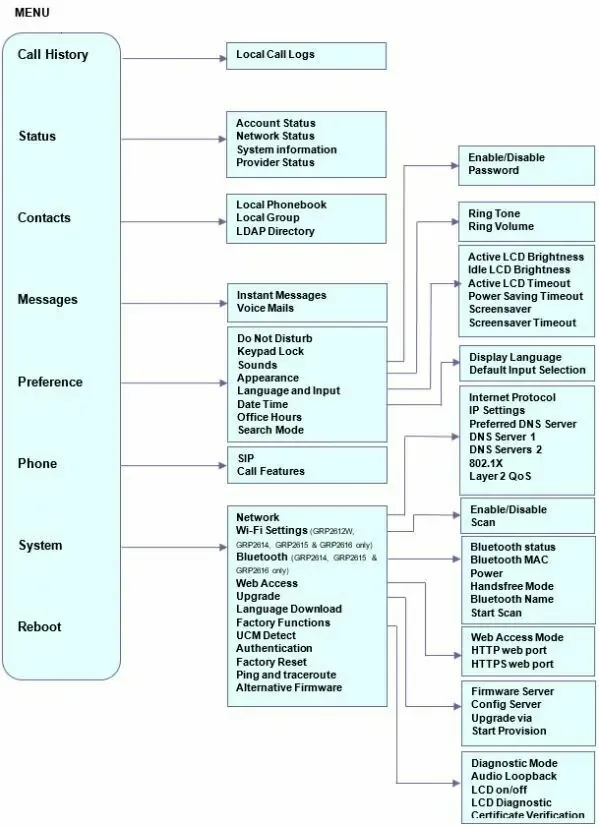 Illustration: GRP261x/GRP262x/GRP263x Series — Administration Guide, “Configuration via Keypad” (documentation.grandstream.com).
Differences between families:
- GXP1610–GXP1630 — menu only: Menu → Status → Network Status.
- GXP2130–GXP2170 — press the “up” key on the idle screen, or Menu → Status → Network Status.
- WP810/WP820/WP822/WP825 — unlock the handset, press the middle soft key Menu (or OK), move to the Status icon and open Network Status.
An address of 0.0.0.0 or an empty line means the phone did not get an address: check the cable (the LAN/Internet socket on the phone, not PC) and that DHCP is served on the network; for a WP handset, that it is connected to Wi-Fi.
Step 2. Log in to the web interface#
Open a browser on your computer and enter the phone’s IP — for example http://192.168.40.154. A login page with your model name appears.
| Factory value | |
|---|---|
| Address | http://<phone IP> |
| Username | admin |
| Password, GRP26xx and GRP260x | admin or the random password printed on the unit label |
| Password, GXP16xx and GXP21xx | admin (the phone will immediately ask you to change it) |
| Password, WP810 / WP822 / WP825 | the random password on the label on the back of the handset |
| Password, WP820 | admin |
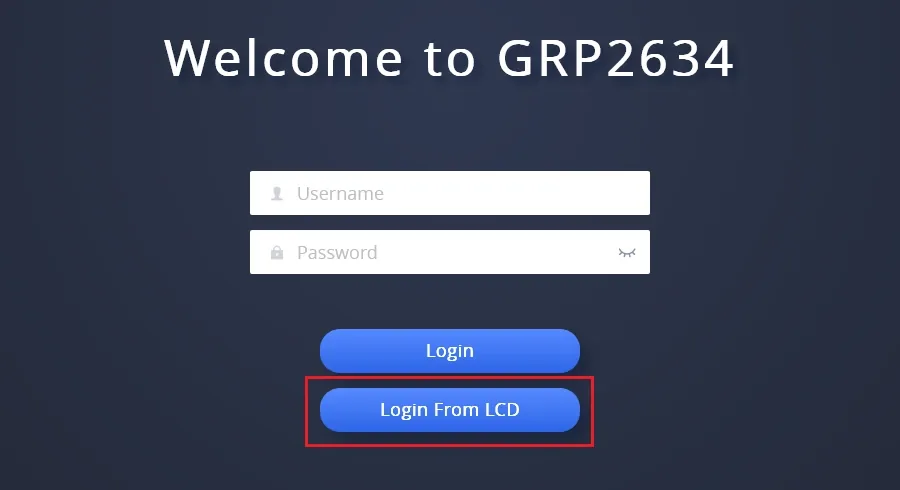 Screenshot: GRP261x/GRP262x/GRP263x Series — Administration Guide, “Accessing the Web UI via LCD” (documentation.grandstream.com).
If the password does not work or the label is gone, GRP26xx has a built-in way around it that only requires you to hold the phone:
- On the login page click “Login From LCD” — the browser shows a one-time access code.
- Type that code on the phone keypad, at the prompt that appears on its screen.
- Choose AdminLogin on the phone screen and confirm — the browser logs in with administrator rights.
The vendor suggests the same method for the very first login and after a factory reset. The second, restricted user account is disabled by default — you could not configure an account through it anyway, so log in as admin.
Once inside, set your own password right away: Maintenance → Web Access → Admin Password. A forgotten administrator password cannot be recovered — only a factory reset helps.
Step 3. Enter the PBX credentials#
In the web interface open the Accounts tab, pick Account 1 → General Settings on the left and fill in the fields from the “Extension credentials” dialog:
| In the admin panel (“Extension credentials”) | On the phone (Accounts → Account 1 → General Settings) |
|---|---|
| — | Account Active: Yes — the factory value is No, and without this the line will not come up |
| SIP server | SIP Server |
| Login | SIP User ID and SIP Authentication ID — the same long sip-…-<number> string in both fields |
| Password | SIP Authentication Password |
| Extension number | Account Name — the line label on the phone screen; Name — the name your colleagues will see |
Port 5060 |
part of the SIP Server field: written after a colon, server:5060 (5060 is the default anyway, so it may be omitted) |
Transport UDP |
Account 1 → SIP Settings → Basic Settings → SIP Transport: UDP (the factory value) |
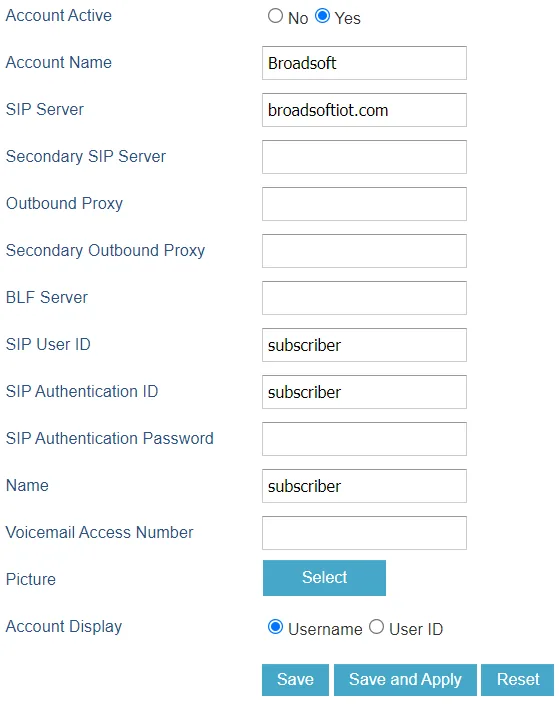 Screenshot: GRP261X BroadWorks SCA Configuration Guide, “Configure Primary Phone Account Settings” (documentation.grandstream.com).
Click Save and Apply at the bottom of the page. No reboot is needed: settings on the Accounts tab take effect immediately.
Optional: codecs, DTMF, NAT, time and language
None of this needs to change for registration — the factory values are fine. Check them if the unit came with someone else’s settings:
- Codecs — Accounts → Account 1 → Codec Settings → Preferred Vocoder: the top entries should be PCMA (G.711 A-law), PCMU (G.711 µ-law) and G.722; the PBX does not use G.729, G.723, iLBC or Opus.
- DTMF — Accounts → Account 1 → Codec Settings → Send DTMF: RFC2833. Needed so that tone commands reach the PBX.
- NAT — Accounts → Account 1 → Network Settings → NAT Traversal:
Noby default; if audio goes one way only, set Keep-Alive. STUN is not needed. - Time — Settings → Date and Time: the venue’s time zone; the NTP server defaults to Grandstream’s.
- Interface language — chosen in the top right corner of the web UI, and on the phone under Menu → Preference → Language and Input.
Configuring from the phone itself, without a browser
On a GRP26xx you can enter the account with the keypad too: Menu → Phone → SIP holds SIP Proxy, Outbound Proxy, SIP User ID, SIP Auth ID, SIP Password and SIP Transport. Letters are typed on the numeric keypad, case is switched with a soft key.
It works, but the long sip-… login takes a while to key in and is easy to mistype — if there is a computer on the same network, the browser is safer.
Step 4. Verify registration#
- On the phone. Menu → Status → Account Status lists the lines and their state; a registered line shows
Registered. On the idle screen the line label becomes active, and on models with line keys the indicator lights up. - In the phone’s web UI. The Status → Account Status tab: the SIP Registration column should show registration for your line, with SIP User ID and SIP Server next to it — handy for checking that what you typed is what you meant.
- In the admin panel. Telephony → Staff & groups: the operator gets a green dot, with the time of last activity and the string the phone used to introduce itself (for example
Grandstream GRP2612 124.86.0.130). The status refreshes at most once a minute. - A call. Dial a colleague’s extension. If the call goes through but only one side can be heard, that is not registration but the media stream: turn off SIP ALG on the router (see the overview).
Audio quality — the *43 echo test. The green dot only speaks about registration: the voice travels as a separate stream and breaks separately. Dial *43 on the phone and press Send / OK (most devices do not start dialling on a star key by themselves). The PBX answers, plays a short beep after a second and then plays your own voice back to you — speak into the handset for about ten seconds and listen to yourself. You hear both the beep and yourself: audio flows both ways. Beep but no voice: audio does not reach the PBX from the phone (SIP ALG on the router is the usual culprit). Not even a beep: audio does not reach the phone from the PBX. All outcomes and the measured numbers (loss, jitter, latency) are covered in “Checking call quality”.
Factory reset#
A reset wipes everything: accounts, network settings (static IP, VLAN), the web UI password, language, the directory and call history. The firmware stays. You need it if the phone came with someone else’s settings (especially another provider’s provisioning server address — such a unit overwrites your account after every reboot), if the administrator password is lost, or if the phone behaves oddly after experiments.
From the phone menu (GRP26xx): Menu → System → Operations – Factory Reset → answer the warning with the Yes soft key. The phone reboots.
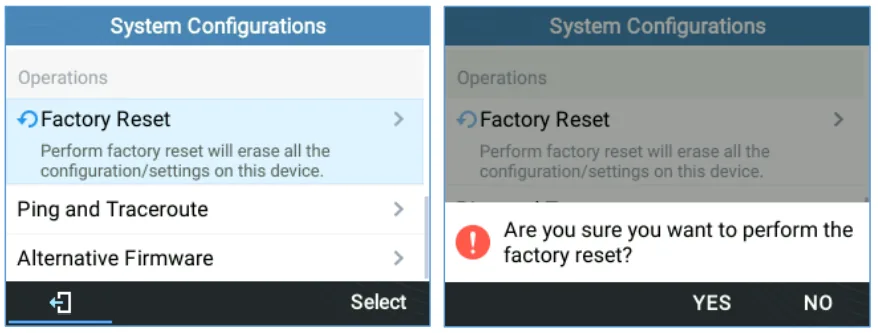 Screenshot: GRP261x/GRP262x/GRP263x Series — Administration Guide, “Restore Factory Settings Using the LCD Menu” (documentation.grandstream.com).
From the phone when the menu will not let you in (GRP26xx and GXP21xx): while the phone is booting, press and hold 1 + 9. A GRP26xx shows a recovery menu with two items — Factory Reset and Rollback Firmware; pick the first and confirm with the Submit soft key. A GXP21xx asks for confirmation with the # key and, if the administrator restricted menu access, for the administrator password.
From the browser:
- GRP26xx — Maintenance → Tools → Factory Reset → Start. The same page has Ping and Traceroute run from the phone itself: the best way to prove the problem is the venue network rather than the PBX.
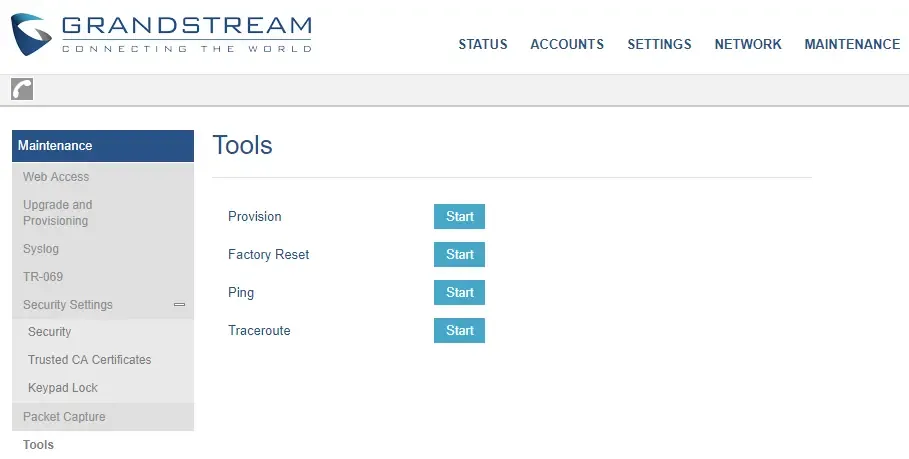 Screenshot: GRP261x/GRP262x/GRP263x Series — Administration Guide, “GRP261X/GRP2624/GRP263x/GRP2670/GRP2650 Tools” (documentation.grandstream.com).
- GXP16xx — the Factory Reset button in the top right corner of the web UI.
- GXP21xx — the reset link in the top right corner, or the button at the bottom of Maintenance → Upgrade.
- WP810/WP820/WP822/WP825 — Maintenance → Tools → Factory Reset → Start, then confirm with OK.
On WP8xx handsets, from the handset: Settings → Advanced Settings → Factory reset, confirmed with the left soft key.
On GXP16xx from the phone menu: Menu → System → Factory Reset → confirm with the OK soft key.
After a reset: language, time zone, network if needed (or Wi-Fi on a WP) — then steps 2 and 3 again with the credentials from the admin panel. Web UI access will once more go through “Login From LCD” or the label password.
To simply reboot a GRP26xx without a reset: on the idle screen press HOLD together with the left navigation key, then confirm. HOLD + right does something else — it triggers a configuration request to the provisioning server.
If the phone does not register#
In order, from common to rare:
Account Activeis stillNo. The signature Grandstream trap: the fields are right but the line is off. Accounts → Account 1 → General Settings → Account Active: Yes → Save and Apply.- The login is not complete. SIP User ID and SIP Authentication ID must contain
sip-…-<number>, not “101”. Check both fields — they are easy to mix up. - The password is stale. If somebody pressed “Reset password” in the admin panel, the old one no longer works. Do not guess — issue a new one and retype it into SIP Authentication Password (the field always shows up empty, that is normal).
- The server address is wrong. Copy SIP Server from the “Extension credentials” dialog: a venue with a dedicated PBX machine has its own address, not the shared
sip.<domain>. - SIP Transport was changed. Account 1 → SIP Settings → Basic Settings → SIP Transport must be UDP. Our credentials assume UDP; the platform does not offer TLS at all, and a phone set to TLS will stay silent without a single error.
- The network. Check from the phone itself: Maintenance → Tools → Ping the server address. No ping — a question for the venue network (router, VLAN, firewall, SIP ALG); ping works but no registration — a question for the credentials.
- Settings “change by themselves” after a reboot — the phone pulls the previous owner’s configuration from a provisioning server: clear Maintenance → Upgrade and Provisioning → Config Server Path or do a factory reset.
Still stuck — or the phone is registered but there is no audio, calls drop after 30 seconds, incoming calls do not arrive? Troubleshooting by symptom — “Phone not working”; on-screen messages and error codes — “Not registering: error codes”.
Models in the family#
The web UI and the account field names are identical across the GRP26xx line; GXP16xx and GXP21xx differ only in where the sections live, the fields are named the same. A P in the name means built-in PoE, G means gigabit ports, W means Wi-Fi.
Model table
| Model | Screen / lines | PoE | Setup specifics |
|---|---|---|---|
| GRP2601 / 2601P / 2601W | mono 2.21" (132×48), 2 lines | P only | the most common budget model; W has Wi-Fi |
| GRP2602 / 2602P / 2602G / 2602W | mono, 2 lines | P, G, W | G has gigabit ports |
| GRP2603 / 2603P | mono (132×64), 3 lines | P only | — |
| GRP2604 / 2604P | mono (132×64), 3 lines | P only | — |
| GRP2610 / 2610P | colour 2.4", 2 lines | P only | — |
| GRP2611G | colour 2.8", 3 lines | yes | — |
| GRP2612 / 2612P / 2612G / 2612W | colour 2.4", 4 lines | P, G, W | W has Wi-Fi |
| GRP2613 | colour 2.8", 6 lines | yes | — |
| GRP2614 | colour 2.8" plus a second 24-key screen | yes | Wi-Fi and Bluetooth |
| GRP2615 | colour 4.3", 10 lines | yes | Wi-Fi and Bluetooth |
| GRP2616 | colour 4.3" plus a second 24-key screen | yes | Wi-Fi and Bluetooth |
| GRP2624 | colour 2.8", 8 lines | yes | Wi-Fi and Bluetooth |
| GRP2634 | colour 2.8" plus a second 24-key screen | yes | Wi-Fi and Bluetooth |
| GRP2636 | colour 4.3", 24 line keys, up to 16 accounts | yes | Wi-Fi and Bluetooth |
| GRP2650 | colour 5", 14 line keys, up to 16 accounts | yes | Wi-Fi and Bluetooth |
| GRP2670 | 7" touchscreen, up to 16 accounts | yes | Wi-Fi and Bluetooth |
| GXP1610 / 1610P / 1615 | mono (132×48), 2 lines | P only | logs in with admin/admin, no “Login From LCD” |
| GXP1620 / 1625 | backlit mono, 2 lines | 1625 only | same |
| GXP1628 | mono, 2 lines plus 8 BLF keys | yes | same |
| GXP1630 | mono (132×64), 3 lines plus 8 BLF keys | yes | same |
| GXP2130 | colour 2.8", 3 lines | yes | logs in with admin/admin, Bluetooth |
| GXP2135 | colour 2.8", 8 lines | yes | same |
| GXP2140 | colour 4.3", 4 lines | yes | same, supports expansion modules |
| GXP2160 | colour 4.3", 6 lines | yes | same |
| GXP2170 | colour 4.3", 12 lines | yes | same |
| WP810 / WP822 / WP825 | Wi-Fi handset | no, charging cradle | label password; IP over Wi-Fi |
| WP820 | Wi-Fi handset | no, charging cradle | logs in with admin/admin |
Provisioning a fleet of phones
Grandstream pulls its configuration as a cfg<MAC>.xml file (plus a shared cfg.xml) from a TFTP/HTTP/HTTPS server. The phone learns the server address from DHCP option 66 (or 43), or takes it from Maintenance → Upgrade and Provisioning → Config Server Path. The vendor also has a cloud route — GDMS and “Plug and Play”, where the phone finds the server on the local network by itself.
Our platform does not run a provisioning server: the phone is configured with the fields from step 3. Provisioning is the route for a venue with its own configuration server; parameter names and the load order are described in the “GRP26xx — Auto-configuration Plug and Play Guide” (see “Sources”).
Frequently asked questions#
It will not let me into the web interface: admin/admin does not work#
New GRP26xx units may have no admin factory password — a random password printed on the unit label is used instead. Label gone? Click “Login From LCD” on the login page: the browser shows a one-time code, type it on the phone and choose AdminLogin. On GXP16xx and GXP21xx the login is the usual admin/admin, but the phone will immediately require a new password.
I filled in every field, and the phone still says the account is not registered#
Open Accounts → Account 1 → General Settings and check Account Active: the factory value is No, and a line with correct credentials will not come up. The second most common cause is a short extension number in SIP User ID instead of the full sip-…-<number> login.
How do I tell whether the phone cannot see the PBX or the PBX refuses it?#
From the phone itself: Maintenance → Tools → Ping the server address from the “Extension credentials” dialog. No ping — a question for the venue network (router, VLAN, firewall). Ping works but no registration — a question for the credentials: login, password, port, transport.
Is an older GXP configured the same way as a GRP?#
In principle yes: the same SIP Server, SIP User ID, Authenticate ID, Password, and the same “activate the account first” rule. The differences are where the web UI sections live, and that a GXP has a normal factory login (admin/admin) with no “Login From LCD”.
Can I set up a Grandstream with the QR code from the admin panel?#
No. The QR code in the “Extension credentials” dialog is only understood by the Zoiper and Linphone softphones. A desk phone is configured with fields; the “Copy all settings” button gives you all of them as one block of text, handy to keep in front of you while typing.
The Grandstream is connected, but audio goes only one way#
Registration has nothing to do with it: audio travels as a separate stream over UDP 10000–20000. SIP ALG on the router is almost always to blame — turn it off. If the phone and the PBX are on different networks, Accounts → Account 1 → Network Settings → NAT Traversal: Keep-Alive helps.
Can two extensions live on one phone?#
Yes, if the model has more than one line: fill in Account 2 the same way as Account 1 — a GRP2612 has four, a GRP2615 ten, a GXP2170 twelve. The GRP2601/2602 and GXP1610 have two.
Sources#
- GRP261x/GRP262x/GRP263x/GRP2670/GRP2650 Series — Administration Guide (web UI access and the factory password table, “Login from LCD”, Accounts → General Settings, Account Active defaulting to
No, SIP Transport, Preferred Vocoder, Send DTMF, NAT Traversal, Maintenance → Tools, reset from the menu and with the 1+9 combination) — https://documentation.grandstream.com/knowledge-base/grp261x-grp262x-grp263x-series-administration-guide/ - GRP261x/GRP262x/GRP263x/GRP2670/GRP2650 Series — User Guide (IP address with a long press of “up”, Menu → Status → Network Status and Account Status, the menu map) — https://documentation.grandstream.com/knowledge-base/grp261x-grp262x-grp263x-series-user-guide/
- GRP260x Series — Administration Guide (GRP2601/2602/2603/2604: factory passwords, model specifications) — https://documentation.grandstream.com/knowledge-base/grp260x-series-administration-guide/
- GXP16xx Series — Administration Guide (
admin/adminlogin with a mandatory password change, Menu → Status → Network Status, reset from the menu and with the web UI button) — https://documentation.grandstream.com/knowledge-base/gxp16xx-series-administration-guide/ - GXP21xx Series — Administration Guide (
admin/adminlogin, IP with the “up” key, three reset methods, GXP2130–GXP2170 specifications) — https://documentation.grandstream.com/knowledge-base/gxp21xx-series-administration-guide/ - WP8xx — Administration Guide (WP810/WP822/WP825: administrator password on the label on the back, Status → Network Status, reset via Settings → Advanced Settings and Maintenance → Tools) — https://documentation.grandstream.com/knowledge-base/wp8xx-administration-guide/
- WP820 — Administration Guide (
admin/adminlogin, Network Status, reset) — https://documentation.grandstream.com/knowledge-base/wp820-administration-guide/ - GRP261X BroadWorks SCA Configuration Guide (screenshot of the Accounts → General Settings page) — https://documentation.grandstream.com/knowledge-base/broadworks-sca-configuration-guide/
- GRP26xx — Auto-configuration “Plug and Play” Guide (DHCP option 66,
cfg<MAC>.xml, GAPS) — https://documentation.grandstream.com/knowledge-base/grp26xx-auto-configuration-plug-and-play-guide/ - Source registry of the catalogue:
docs/phone-knowledge/sources/grandstream.json