For salon owners, receptionists and specialists
Salon online booking and a specialist journal
Clients choose a service and an available time by link, reception manages the day in the journal and each specialist sees their own visits. Services, schedules, rescheduling and visit history stay in one system.
Free plan: ₽0 per month. Basic booking and the journal are free; reminders, email automation and deposits have their own terms.
Basic booking and the journal are included free. Notifications, AI and payments have separate terms.
Basic booking reserves a specialist; rooms and equipment are beta and enabled separately. On .ru, online payments, email autopilot and the general customer directory are unavailable.
- A booking link without a separate website
- Your services, hours and breaks
- Visit statuses and rescheduling in the journal

- your price and duration
- Service
- hours and breaks
- Specialist
- availability check
- Time
- visit workflow
- Journal
How your team works
Client
- Chooses a service and specialist
- Sees times based on your setup
- Waits for a booking result
Receptionist
- Views specialist columns and visit times
- Checks price, duration and status
- Creates, reschedules or cancels visits
Specialist
- Working hours inform availability
- Breaks and buffers are configured
- Rooms and equipment: beta, enabled separately
Owner
- Keeps one place for visits
- Tests setup with one specialist
- Measures booking handling time and manual questions
What you need to start
Services
Your prices and durations, with buffers where needed.
Specialists
Services, hours and breaks for each person. Resource specialists do not need their own login.
Booking setup
Enable location booking and publish the service. An external website widget is optional.
Team rules
Assign responsibility for new visits, changes and payments. Test reminders separately.
Your first workflow
- 1
Service and duration
Complete the Beauty profile. Enter prices, duration and buffers, then open Appointments manually.
- 2
Specialist and hours
Assign services, working hours and breaks. Enable booking for the location.
- 3
Test visit
Book through your storefront, wait for the result and check the journal, rescheduling and cancellation before sharing the link.
Try your own example
Product steps, not testimonials or promised results.
Client: online booking
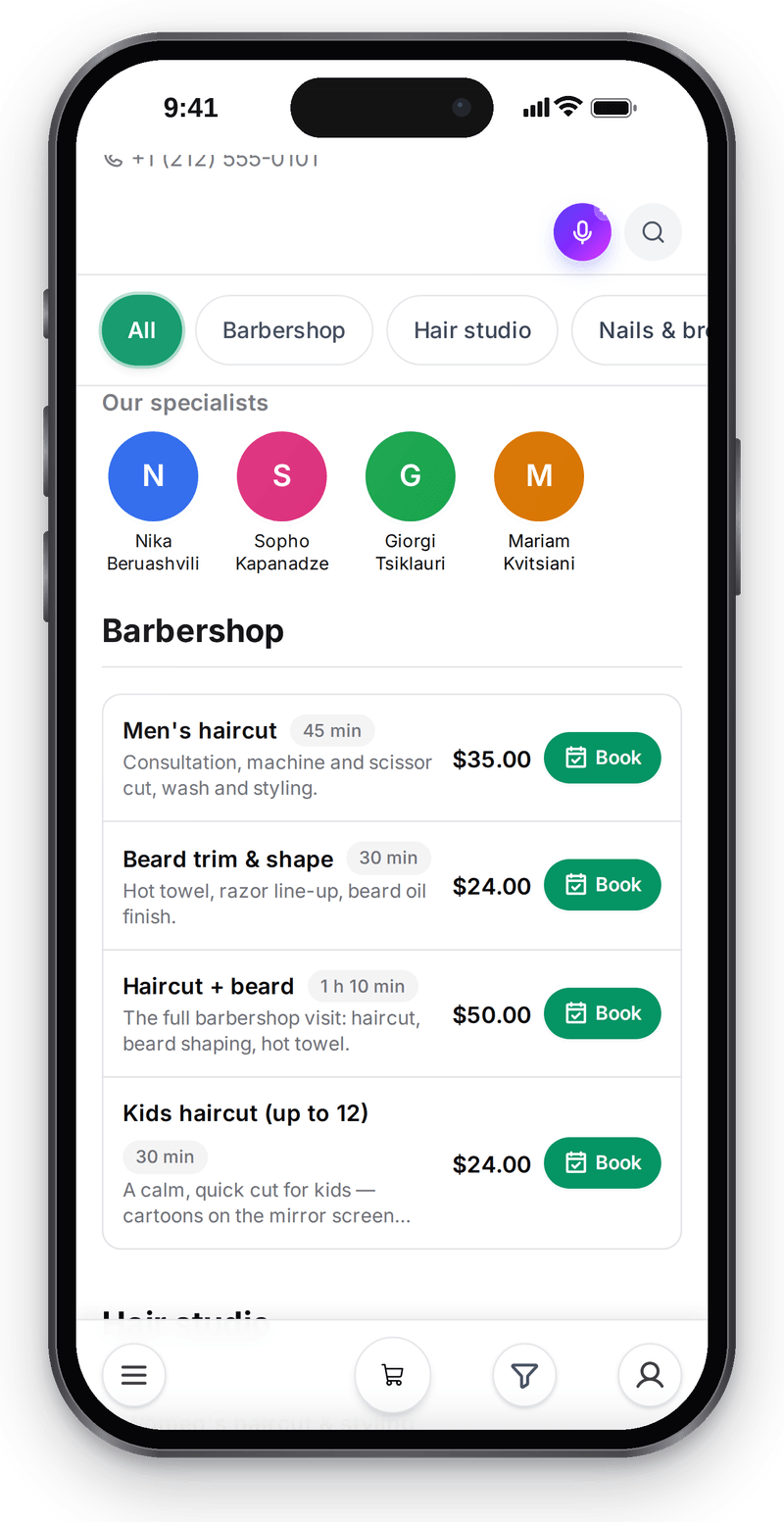
Clients pick a service and a specialist themselves, without calling

Client to journal: one booking
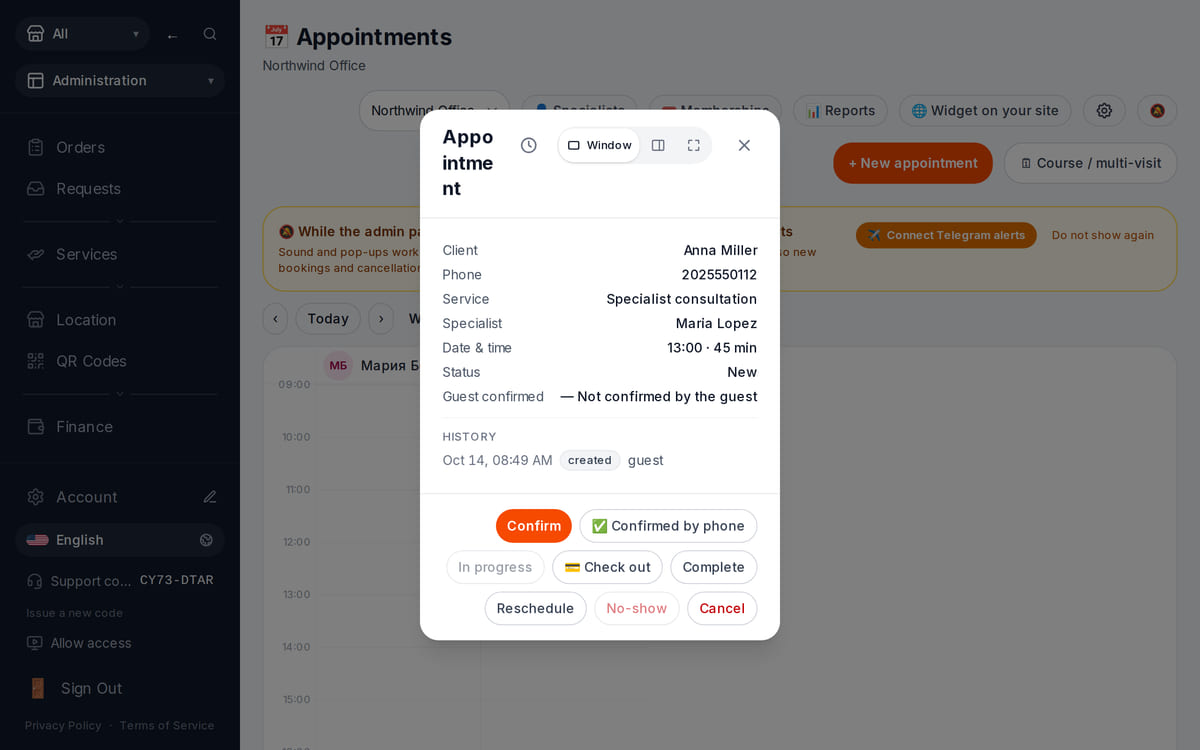
General example: a client booking is checked for conflicts and shows up in the journal at once What happens in the recording
Reception: client card
View full size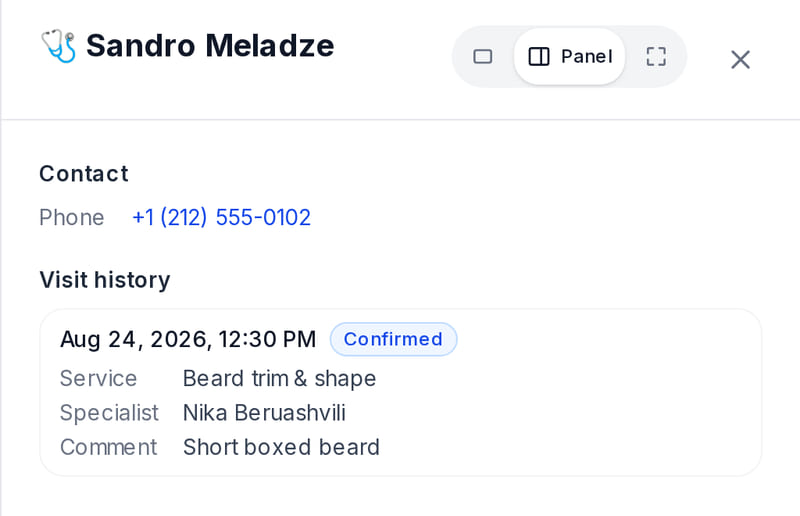
Before a visit, reception sees what the client had last time


One booking: client choices and the receptionist’s check
An online booking reaches the journal without retyping: the client picks a service and time, the server checks the specialist’s availability, and the same visit appears in the reception journal right away, for the salon to confirm. Test rescheduling, cancellation and reminders with your own trial booking using the three steps below.
- 1
The client chooses
A service with its configured duration, a specialist and an available time. Set working hours and breaks for a 45-minute haircut.
Appointment guide → - 2
Wait for confirmation
A displayed time is not an accepted booking: the server checks specialist availability after submission.
Slots and confirmation → - 3
Check the journal
For your test visit, compare the service, specialist and time with the client’s choice. Test rescheduling and cancellation before sharing the link.
First day for a salon →
How it works in practice
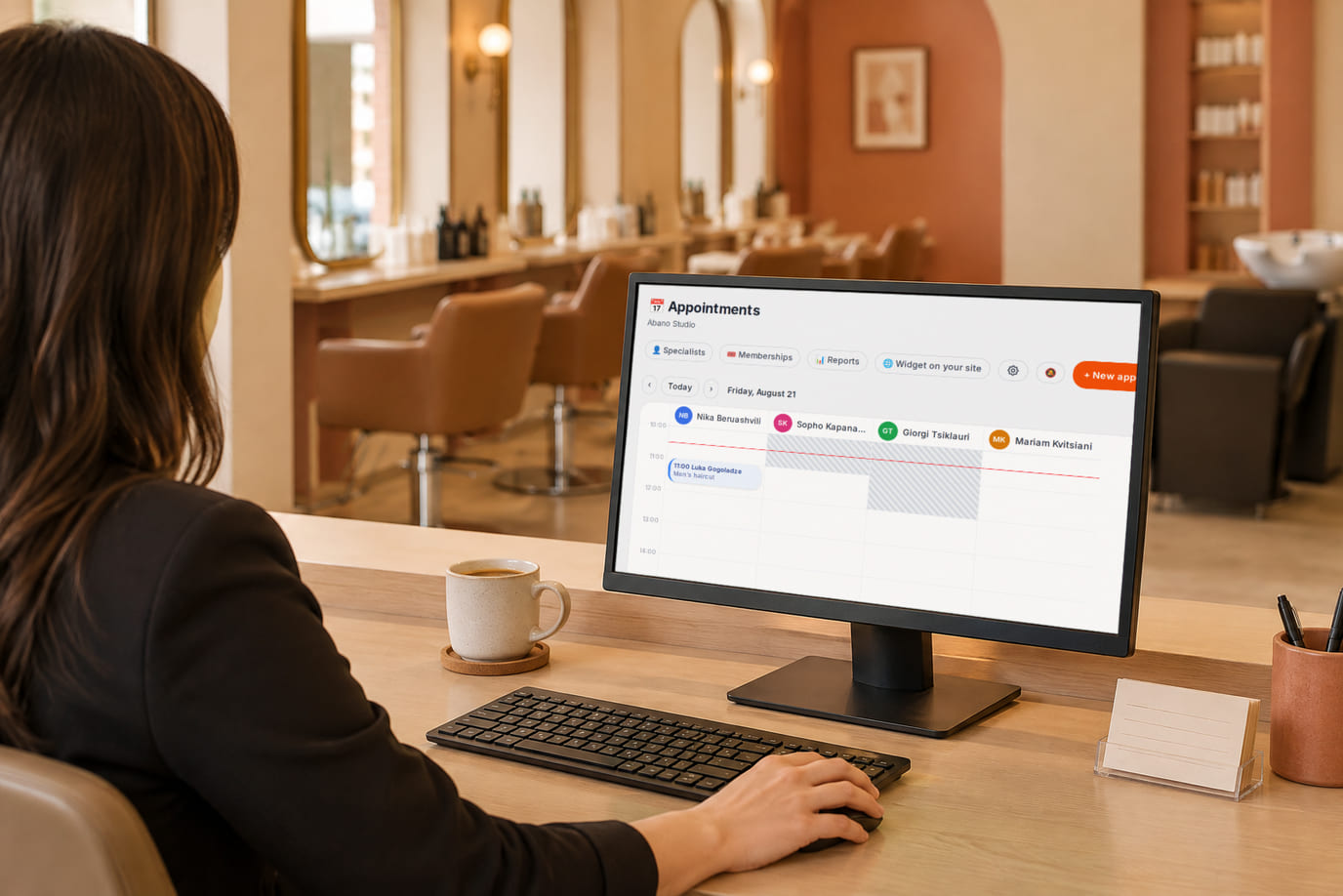
Illustration. Reception sees every specialist’s day on one screen 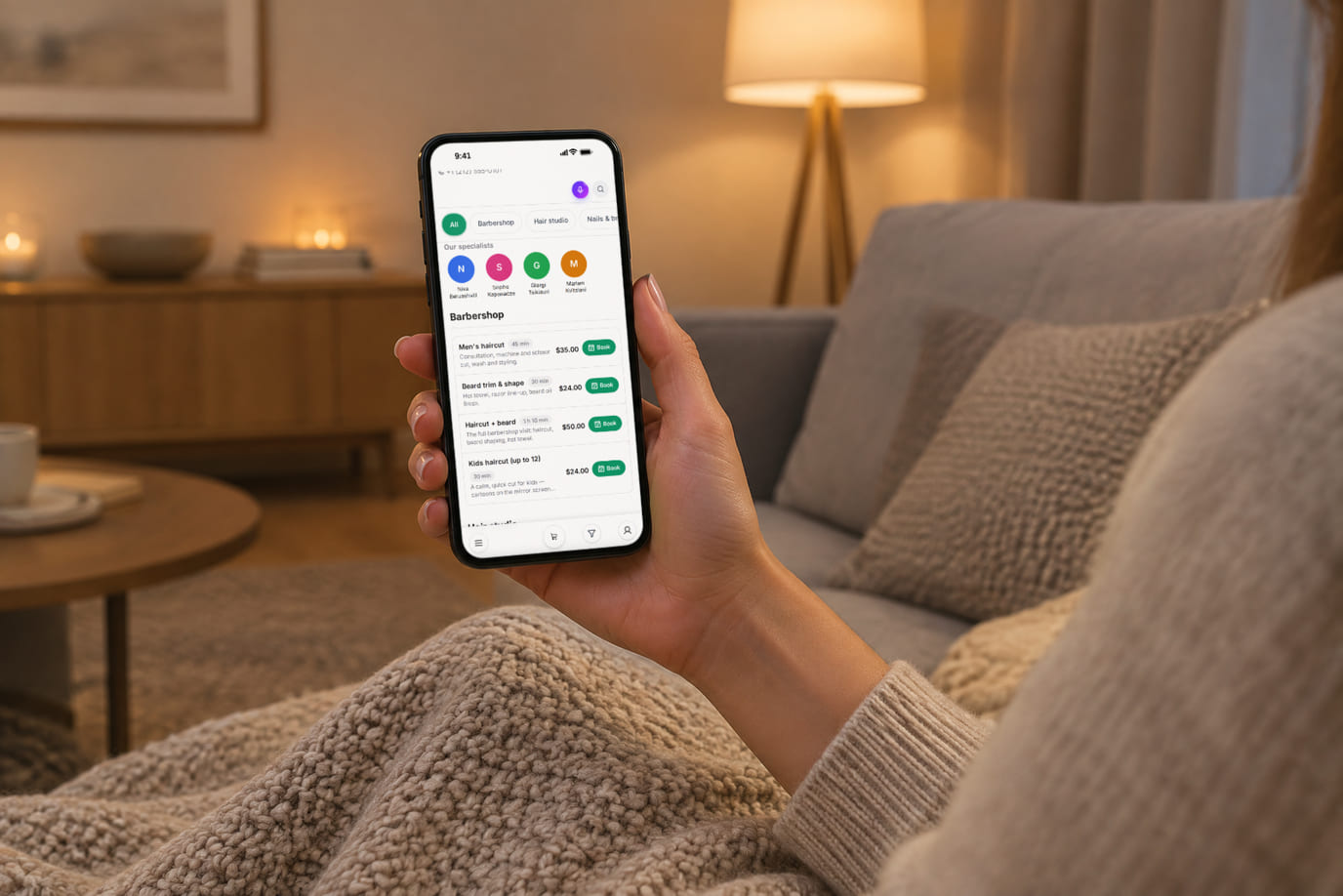
Illustration. Booking in the evening, after the salon has closed 
Illustration. The receptionist takes a call between client visits


Where it helps the owner
After-hours request
Example: share the booking link instead of discussing every available time. The booking appears in the journal right away; reception only needs to confirm it in the morning.
Different service durations
Example: a haircut and color treatment need different durations and buffers. Enter these before publishing availability.
A rescheduled visit
Example: change the time and check the result. Measure handling time; fewer no-shows are not guaranteed.
Example situations. Measure time and costs with your own operations.
What it costs
Plan for the basic workflow described here
Free
₽0 per month
Basic booking is included with your account. Catalog and location limits depend on the plan; automation and provider services are separate.
Features and terms
- Basic booking, the journal and specialist allocation are included free
- Telegram reminders need a bot and a connected client
- Email automation and the funnel are a paid add-on
- Deposits require a configured, available payment provider
What you can start for free
Basic booking, the journal and specialist allocation are included. Telegram requires a connected client; email automation is a paid add-on.
Set up salon bookingBasic booking and the journal are included free. Notifications, AI and payments have separate terms.
What to consider before you start
- Joint specialist, room and equipment booking is beta and enabled separately. Configure the service requirements and test the workflow at your location before daily use.
- Group classes with capacity quotas have a separate rollout; availability is confirmed separately.
- A visit journal does not include every CRM, payroll or campaign feature.
- On .ru, online payment, scheduled email reminders and the general customer directory/segments are unavailable.
- Screenshots show a .com account; adjacent .ru sections differ.
Test your workflow and required connections before migrating data.
Frequently asked questions
Do I need a separate website?
No. Share your storefront service link. If you already have a site, an optional booking widget can be added later.
What should I test first?
Check services, prices, duration, hours and breaks. Submit a test booking, wait for its result and verify the journal, rescheduling and cancellation.
Details for every screen are in the help centre. Where to start →
Related workflows
All solutions →Individual appointment services
Individual consultations
Tutors, consultants and specialists: clients choose a service and time; you manage visits in one journal.
Team chat and tasks
Receptionist assignments
Assignee, deadline and completion evidence remain on the board after the conversation moves on.
Test one service and one specialist
Try the client journey with your receptionist before migrating the rest of the schedule.
Basic booking and the journal are included free. Notifications, AI and payments have separate terms.