Fanvil X / V / H — setting up for our PBX
Fanvil is the most common budget IP phone brand in Georgia, Russia, Türkiye and Albania: the plain X1S and X3S for a counter, the X4U/X5U/X6U with a side screen for speed-dial keys, the touch-screen X7 and X210 for an office, the V64/V65 with a tilting screen, and the H3W/H5W hotel phones for guest rooms. All of them share the same web interface — a red menu on the left with System, Network, Line, Phone settings — so the steps below apply to the whole range; only the screen size and the number of lines differ.
The credentials, the network requirements and the universal values are on the overview page “Setting up SIP phones”. This page covers what is specific to Fanvil.
Setting up an X3S / X3SP for the first time? That model has its own detailed beginner's guide — which cable goes where, the three different passwords, both web interface looks, troubleshooting: “Fanvil X3S / X3SP — step by step”.
What you will need#
- The extension credentials from the admin panel: SIP server, user name, password, port, transport. Where to get them — “Credentials” (Telephony → Staff & groups → “Reset password”).
- The phone plugged into the same network as your computer: a cable into the staff switch (models with PoE take power over the same cable); the H5W and W610W can also work over Wi-Fi.
- A computer with a browser on that same network.
- The factory PIN of the handset is
123, the factory web login isadmin/admin. If the phone was bought second-hand and those do not work, start with a factory reset.
Step 1. Find the phone's IP address#
On the idle phone press 【Menu】 → 【Status】 and open the Network tab. The ETH IP line is the address of the phone on your network.
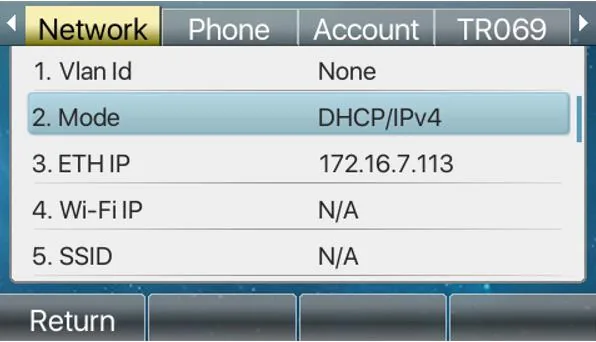 Screenshot: Fanvil XU-V2 Series User Manual (X4U/X5U/X6U), firmware 1.0.0, p. 33.
Useful details:
- Out of the box the phone takes its address over DHCP — plug the cable in and wait half a minute.
- A blinking “WAN Disconnected” icon in the middle of the screen means the cable is not plugged in or the switch port is dead; there is no point configuring anything yet.
- Network parameters (static IP, VLAN) live under 【Menu】 → 【System】 → 【Network】, and the menu asks for a PIN — the factory one is
123.
Step 2. Log in to the web interface#
Open http://<phone IP> in a browser — a login box appears with User, Password and a language selector.
| Factory value | |
|---|---|
| Address | http://<phone IP> |
| User | admin |
| Password | admin |
| PIN of the handset menu | 123 |
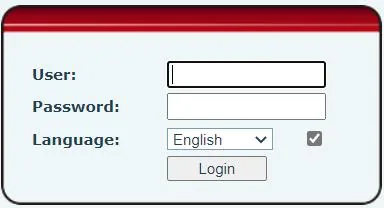 Screenshot: Fanvil XU-V2 Series User Manual, p. 34.
admin/admin is the factory login for the whole X, V and H range. If it is refused, someone has changed it: the password cannot be recovered, only reset. Right after the first login change the password under System → Account — the phone sits on the shared network of the venue.
Step 3. Enter the PBX credentials#
In the web interface open Line → SIP, pick the first line in the Line selector and fill in the Register Settings block:
| In the admin panel (“Extension credentials”) | On the phone (Line → SIP) |
|---|---|
| SIP server | Server Address in the SIP Server 1 block |
User name (sip-…-<extension>) |
Username and Authentication User — in full, in both fields |
| Password | Authentication Password |
Port 5060 |
Server Port (already 5060 by default) |
Transport UDP |
Transport Protocol |
| Extension number | Display name — the label of the line on the screen |
| — | Activate — the checkbox must be ticked |
Leave Realm, Server Name, Proxy Server Address, SIP Server 2 and Backup Proxy empty: our PBX does not need them.
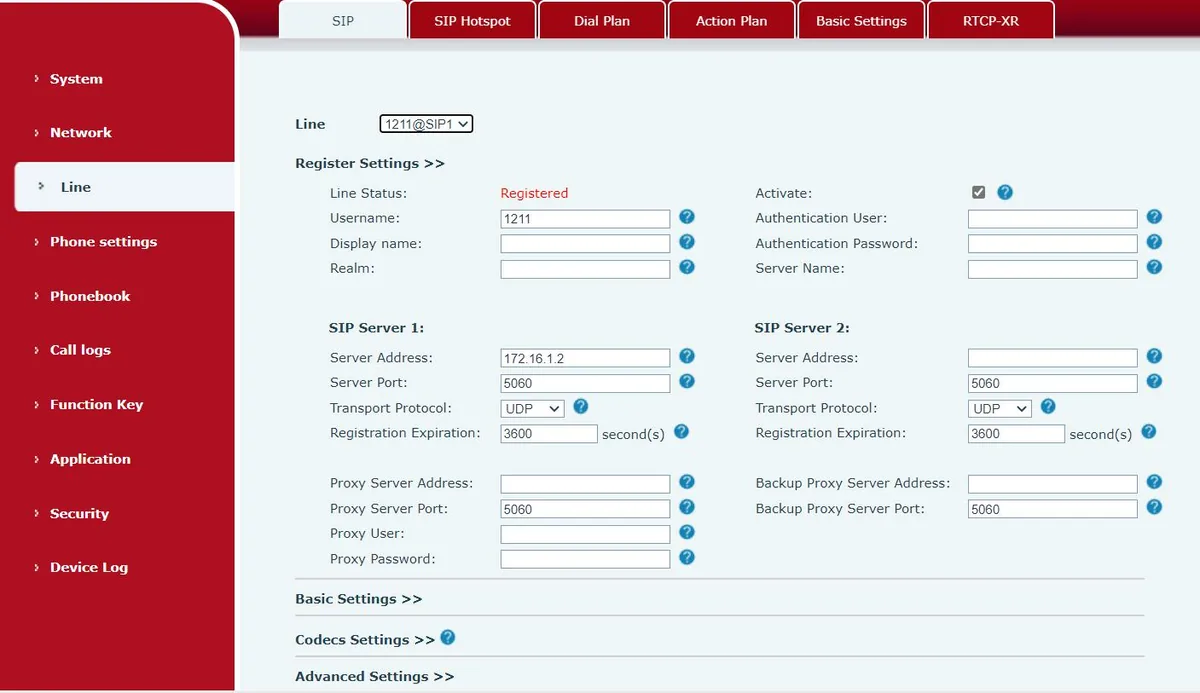 Screenshot: Fanvil XU-V2 Series User Manual, p. 36.
Press Apply at the bottom of the page. No reboot is needed — the registration goes out immediately.
Optional: codecs, NAT, time, provisioning a fleet
Everything below is on the same Line → SIP page, in the collapsed Codecs Settings and Advanced Settings blocks under the form.
- Codecs Settings — a priority list. Keep G.711A (PCMA), G.711U (PCMU) and G.722 enabled; the rest can be removed from the list.
- DTMF Type (Advanced Settings) — RFC2833. This is the factory value; you only need to touch it on a phone somebody has already reconfigured.
- Keep Alive Type (Advanced Settings) —
dummy UDPorSIP OPTIONwith an interval of about 30 seconds. Turn it on if the phone registers but drops off after a few minutes: this is what keeps the NAT pinhole of the router open. - Enable Rport and Keep Authentication, in the same block, help behind a fussy router.
- Auto TCP — the phone switches to TCP on SIP packets longer than 1500 bytes by itself. That is normal behaviour and not the same thing as TCP set manually in Transport Protocol.
- DNS Mode —
Aif the PBX address is given as a name. TheSRVandNAPTRmodes are not used here. - Time — Phone settings → Time/Date: the time zone of the venue and an SNTP server. Without correct time the call history shows wrong timestamps.
- Provisioning a fleet. The platform has no provisioning server of its own, but the phone itself supports one: System → Auto Provision (server address,
$mac.cfg, DHCP option 66). On a second-hand phone this section must be cleared — otherwise the phone overwrites your settings with someone else's on every reboot. - Hotline (Advanced Settings of the line) — the phone dials a fixed number as soon as the handset is lifted. Handy for a phone at the entrance or in the storeroom: Enable Hotline, Hotline Number — the reception extension, Hotline Delay — the delay in seconds.
Step 4. Check the registration#
- In the web interface, on the same Line → SIP page, the Line Status row shows Registered. It is only refreshed when the page is reloaded — press F5, it will not update on its own.
- On the phone: 【Menu】 → 【Status】 → the Account tab shows the line state (
register/trying/time out). The line label appears on the home screen. - In the admin panel (Telephony → Staff & groups) the operator gets a green dot and the string the phone reported about itself, for example
Fanvil X4U 2.12.0. The status comes from the PBX and is refreshed at most once a minute. - A test call: dial a colleague's extension from the phone.
Audio quality — the *43 echo test. The green dot only speaks about registration: the voice travels as a separate stream and breaks separately. Dial *43 on the phone and press Send / OK (most devices do not start dialling on a star key by themselves). The PBX answers, plays a short beep after a second and then plays your own voice back to you — speak into the handset for about ten seconds and listen to yourself. You hear both the beep and yourself: audio flows both ways. Beep but no voice: audio does not reach the PBX from the phone (SIP ALG on the router is the usual culprit). Not even a beep: audio does not reach the phone from the PBX. All outcomes and the measured numbers (loss, jitter, latency) are covered in “Checking call quality”.
Factory reset#
A reset is needed if the phone was bought second-hand, came from a previous telephony provider, the web password is lost, or the device behaves oddly. Fanvil offers three ways.
From the handset, through the menu. 【Menu】 → 【System】, enter the PIN (factory 123) → 【Restore factory Settings】 → choose what to erase → 【OK】. If you choose to clear the configuration file or clear everything, the phone reboots by itself.
From the handset, without the menu (when nobody remembers the PIN): on the idle screen press and hold 【OK】 for 6 seconds — the phone performs the reset.
From the web interface. System → Configurations: the Reset Phone button wipes the configuration and the local data tables completely. Next to it, Clear Configurations does it selectively, per module: SIP (accounts), AUTOPROVISION (the address of someone else's provisioning server), TR069, MMI (web interface passwords), DSS Key. On the H3W/H5W hotel phones the button lives under System → Configuration → Reset Phone.
What is erased: the line accounts, network settings, language, the directory, the call history and the passwords (the web interface goes back to admin/admin, the PIN to 123). The firmware stays. After the reset the phone asks for a language, then set the time zone, the network (if not DHCP) and the account as in step 3.
If the phone does not register#
- The
Activatecheckbox is off for the line (Line → SIP → Register Settings). The fields are filled in, the line is disabled — the most common mistake on Fanvil. - The user name is not entered in full. Username and Authentication User need the whole
sip-…-<extension>, not the short extension number. The PBX answersForbidden, and Line Status hangs onTryingand then goes toTimeout. - The password is stale. Somebody pressed “Reset password” in the admin panel — the old one no longer works. Issue a new one instead of guessing.
- Transport Protocol is not UDP. A second-hand phone often keeps TCP or TLS from the previous provider, and then it goes silent with no clear error.
- A typo in the server address, or the wrong address. A venue with a dedicated machine has its own; copy it from the “Extension credentials” dialog with “Copy all settings”.
WAN Disconnectedon the screen — the phone is not on the network at all: cable, switch port, PoE.- The registration appears and disappears after a few minutes — NAT. Turn on Keep Alive Type (Advanced Settings) and disable SIP ALG on the router.
- The settings “come back on their own” — someone else's provisioning is running: see factory reset.
The generic network causes (ports, SIP ALG, guest Wi-Fi) are listed in “If it does not register” on the overview page.
Still stuck — or the phone is registered but there is no audio, calls drop after 30 seconds, incoming calls do not arrive? Troubleshooting by symptom — “Phone not working”; on-screen messages and error codes — “Not registering: error codes”.
Models in the family#
The web interface, the menu paths, the factory admin/admin and the PIN 123 are the same on every model below — the screen, the number of lines and PoE differ.
| Model | Screen / lines | PoE | Setup specifics |
|---|---|---|---|
| X1S / X1SP / X1SG | 128×48 dot matrix, 2 SIP lines | X1SP and X1SG only | The simplest counter phone; the setup matches the steps above exactly |
| X3S / X3SP / X3SG | 2.8″ colour, 2 SIP lines (4 on the X3SG) | X3SP and X3SG only | Same menu; the X3SG has gigabit ports |
| X3U / X3U Pro | 2.8″ colour, up to 20 SIP lines | Yes | Part of the XU series — the interface is exactly the one on the screenshots here |
| X4U | 2.8″ main + 2.4″ side screen, 12 SIP lines | Yes | The side screen holds speed-dial (DSS) keys and has no effect on registration |
| X5U / X5U-R | 3.5″ main + 2.4″ side screen, 16 SIP lines | Yes | Same |
| X6U | 4.3″ main + two 2.4″ side screens, 20 SIP lines | Yes | Up to 60 DSS keys across 5 pages |
| X7 / X7C | 7″ touch screen, 20 SIP lines, up to 116 DSS keys | Yes | Configured through the web interface; the on-screen menu items are the same |
| X7A | 7″ touch screen (1024×600), Android, 20 SIP lines | Yes | An Android shell, but the SIP lines are configured in the same web interface |
| X210 / X210i | Colour screen plus side screens, 20 SIP lines, up to 106 DSS keys | Yes | An executive phone; the X210i has a camera |
| V64 / V65 | 4.3″ (480×272) tilting screen, 20 SIP lines | Yes | Wi-Fi and Bluetooth on board; when working over Wi-Fi read the address from the Wi-Fi IP row of the Network tab |
| H3W / H5W | H5W — 3.5″ colour, 2 SIP lines | Yes | Hotel models: fewer keys, Wi-Fi on board. Web reset is at System → Configuration → Reset Phone |
| W610W / W611W ⚠️ verify | 2″ (240×320) colour, 4 SIP lines, 2.4/5 GHz Wi-Fi | No (portable) | A portable Wi-Fi handset of the LINKVIL range. The Fanvil document centre currently publishes the W610W manual; use it for the W611W too — the interface is shared |
FAQ#
Fanvil does not register even though the login and password are right#
Check two things on the Line → SIP page: the Activate checkbox of the line and Transport Protocol = UDP in the Advanced Settings block. That is two causes out of three; the third is a short extension number typed into Username instead of the full sip-…-<extension>.
The web password or the phone PIN is lost#
The factory values are admin/admin for the web interface and 123 for the handset menu. If they were changed and forgotten, there is no recovery: press and hold 【OK】 for 6 seconds on the idle screen — the phone resets to factory defaults, after which the account has to be entered again.
The phone was configured and stopped registering overnight#
Almost always this is someone else's provisioning: the phone came from a previous provider, its address is still in System → Auto Provision, and on every reboot the phone downloads that configuration over yours. Do a full reset (System → Configurations → Reset Phone) and set it up again.
How do I make the phone at the entrance call reception as soon as the handset is lifted?#
Line → SIP → Advanced Settings → Enable Hotline, put the reception extension in Hotline Number and the delay in seconds in Hotline Delay (0 — immediately). The setting lives in the phone itself; nothing has to be done on the PBX side.
Can the side screen of the X4U/X5U/X6U show colleagues?#
Yes, those are DSS keys: Function Key → Function Key, type BLF/NEW CALL, value — the colleague's extension. The key both dials the number and shows whether the person is busy. It has nothing to do with registration — get the line to Registered first.
Sources#
- Fanvil XU-V2 Series User Manual (X4U / X5U / X5U-R / X6U, firmware 1.0.0, 2022-04-06) — https://www.fanvil.com/upload/files/20220610/10350h4b62.pdf
- Fanvil X7-V2 & X7C-V2 User Manual — https://www.fanvil.com/upload/files/20220623/1426nf82l0.pdf
- Fanvil H3W / H5W User Manual (hotel models) — https://www.fanvil.com/upload/files/20240716/153488fhfj.pdf
- LINKVIL by Fanvil W610W User Manual — https://www.fanvil.com/upload/files/20231115/11304600bf.pdf
- Fanvil Document Center — manuals and datasheets for every model: https://www.fanvil.com/service/doc/file/index.html
- Model specifications (screen, number of lines, PoE) — the datasheets of the corresponding models in the same document centre.