Gigaset N670 / N870 IP PRO — setup for our PBX
Gigaset PRO is a DECT system: a base station on the wall (N670 IP PRO — a single cell for one venue, N870/N870E IP PRO — many cells across a large building) and handsets in your staff's hands (R700H, S700H, SL800H, SL850H) or the Maxwell C desk handset. The handset itself has no SIP settings: everything is entered once into the base, and the handset is then simply attached to the right line.
The N530, N610, N670, N770, N870 and N870E bases run the same firmware and share one web configurator, so this page applies to all six. Common credentials, ports and network requirements are on the overview page “SIP phone setup”.
What you need#
- Extension credentials from the admin panel: Admin panel → Telephony → Staff & groups tab → “Reset password” on the operator (how to get them). Each handset needs its own extension.
- The base connected by cable to the same network as your computer. Power comes from a PoE switch or a power adapter.
- A charged handset — you will need it switched on and nearby during registration.
- A computer with a browser on the same network.
Step 1. Find the base station's IP address#
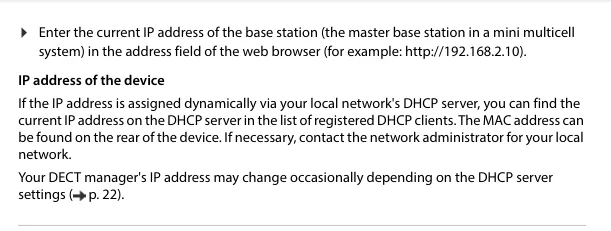
The base has no display, so it cannot show you its own address. Out of the box it takes an address over DHCP, and there are two ways to find it:
- From the DHCP client list. Open your router's page, find the list of leased addresses and look for the device with the base station's MAC address. The MAC is printed on the rear of the device (label).
- Ask whoever set up the network. If the venue uses static addresses, the network administrator knows which one the base got.
 Screenshot: Gigaset N670 IP PRO System manual (en INT), 15-04-2024, p. 17.
Step 2. Log in to the web configurator#
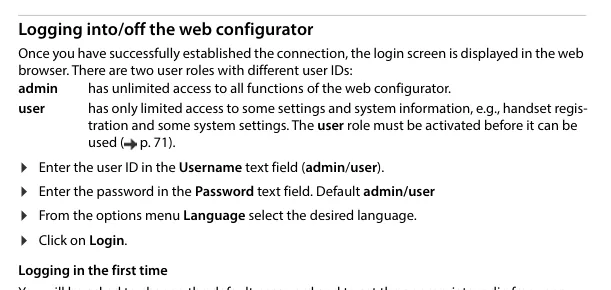
Type http:// and the base station's address into your browser — for example http://192.168.2.10. The login screen opens.
| Factory value | |
|---|---|
| Address | http://<base station IP> |
| Username | admin — full access; user — handset registration and some settings only |
| Password | admin for the admin role, user for the user role |
On the first login the base will require a new password. It must be 8 to 74 characters long and contain at least one upper-case letter, one digit and one special character. Write it down: the password cannot be recovered, only reset together with the base.
The same first screen asks for the radio frequency band of your region and offers a device role. So that you get both multiple lines and internal calls between handsets, pick the All in one + internal telephony - dynamic IP role from the Reset to device list and click Set.
 Screenshot: Gigaset N670 IP PRO System manual (en INT), 15-04-2024, p. 17.
Step 3. Enter the PBX credentials#
On Gigaset this takes two passes: first you describe the PBX itself once (a profile), then you create a SIP account per member of staff.
3.1. The PBX profile (once)#
Open Settings → Provider or PBX profiles, click the pencil next to a free row (IP1) and fill in:
| In the admin panel (“Extension credentials”) | On the Gigaset base (Provider or PBX profiles) |
|---|---|
| — | Connection name or number — any clear name, e.g. Cenaly |
| SIP server | Domain and Proxy server address — the same address from the window |
Port 5060 |
Proxy server port (the factory value is already 5060) |
Transport UDP |
Transport protocol → UDP |
| — | Registration refresh time — leave the factory 600 seconds |
Leave Use SIP Security (SIPS) and SRTP options alone: our PBX does not offer TLS/SRTP encryption, and SIPS switched on will break registration. Click Set.
3.2. A SIP account per member of staff#
Open Settings → SIP accounts → Administration, click Add and fill in:
| In the admin panel (“Extension credentials”) | On the Gigaset base (SIP accounts) |
|---|---|
| — | SIP account name — a person or a place: “Bar”, “Reception” |
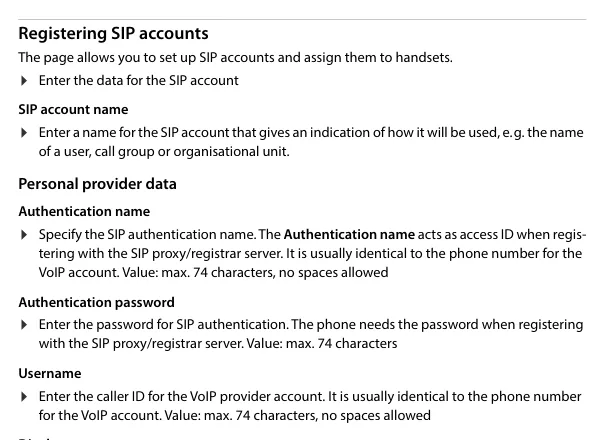
| Login | Authentication name and Username — the whole sip-…-<extension> string, in both fields |
| Password | Authentication password |
| Extension number | Display name — the line label shown on the handset |
SIP server, port 5060, transport UDP |
already set by the profile from step 3.1: select it in the VoIP provider list |
 Screenshot: Gigaset N670 IP PRO System manual (en INT), 15-04-2024, p. 41.
At the bottom of the same page are the Available handsets and Assigned handsets lists: use the arrows to move the handset that should call from this number into the assigned list. If no handsets are registered yet, you can do this later.
3.3. Register the handset with the base#
Open Settings → Mobile devices → Administration → Add. The base shows a PIN — the registration code. Start registration on the handset (on Gigaset handsets that is Settings → Registration → Register handset) and enter the PIN. In the DECT column the status changes from To register to Registered.
Optional: codecs, time, language
- Codecs. G.711 A-law (PCMA), G.711 µ-law (PCMU) and G.722 are all we need — the Gigaset factory set already contains them, so nothing has to be changed. G.729 is not required.
- Time. Settings → System → Date and time: pick your venue's time zone. Without it the call history shows the wrong time; the NTP servers are already filled in at the factory.
- Interface language is chosen from the drop-down in the top right corner of any configurator page.
- Several handsets on one number. One SIP account can be assigned to several handsets for incoming calls (Receive), while for outgoing calls each handset uses a single account (Send) — Settings → SIP accounts → Assignments.
Step 4. Verify the registration#
- In the web configurator: the account in Settings → SIP accounts shows the “registered” status — the connection to the server is up. Any other status means the account is misconfigured or the PBX is unreachable.
- On the handset: in idle state the line name appears on the display (whatever you entered in Display name) and the no-connection warning disappears.
- In the admin panel: Telephony → Staff & groups — a green dot lights up next to the operator, together with the string the device used to identify itself. The status comes from the PBX and refreshes at most once a minute.
- A test call: dial a colleague's extension from the handset.
Audio quality and radio coverage — the *43 echo test. Dial *43 on the handset and press call: the PBX answers, plays a short beep and then plays your own voice back to you. On DECT this doubles as the only honest coverage test: without hanging up, walk the handset through the floor, the kitchen, the storeroom and the stairs and keep listening to yourself — wherever the echo starts to break up, hiss or drop out, a call with a guest will drop too. Beep but no voice: audio does not reach the PBX from the base (SIP ALG on the router); not even a beep: it does not reach the base from the PBX. Outcomes and numbers are covered in “Checking call quality”.
Factory reset#
A reset is needed if the base came to you second-hand (it still holds someone else's SIP accounts and, worse, someone else's provisioning server address, which will overwrite your settings on every reboot), if the administrator password has been forgotten, or if the base behaves unpredictably. A reset erases everything: SIP accounts, registered handsets, network settings, the password.
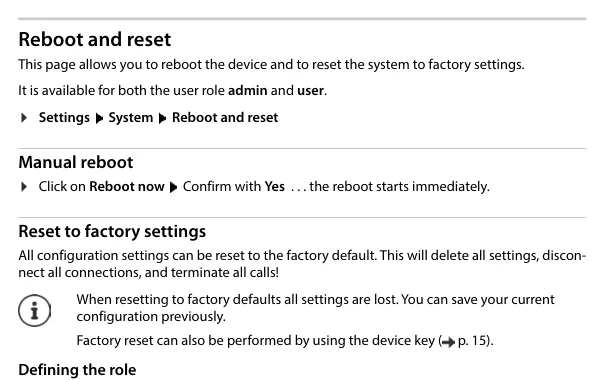
Method 1. From the web configurator (if you know the password). Settings → System → Reboot and reset → Reset to factory settings. In the drop-down, choose the role the base will come back with:
- All in one + internal telephony - dynamic IP — what an ordinary venue needs: address over DHCP, multiple lines, internal calls between handsets;
- All in one - static IP — the base comes back at
192.168.143.1, mask255.255.0.0, gateway192.168.1.1. Choose it only if you know why.
 Screenshot: Gigaset N670 IP PRO System manual (en INT), 15-04-2024, p. 81.
Method 2. With the button on the case (if the password is lost). The button is on the front of the base:
- Press and hold the button for at least 10 seconds, until all LEDs go off; release it — the base is now in programming mode.
- Short-press the button until both LEDs light up blue.
- Press and hold the button for at least 3 but less than 10 seconds — the base resets and reboots.
If the base will not finish booting at all, the same trick works while it is booting: hold for 10 seconds until the LEDs go off, release, press until both LEDs are blue, then hold for at least 4 seconds (the “emergency reset”).
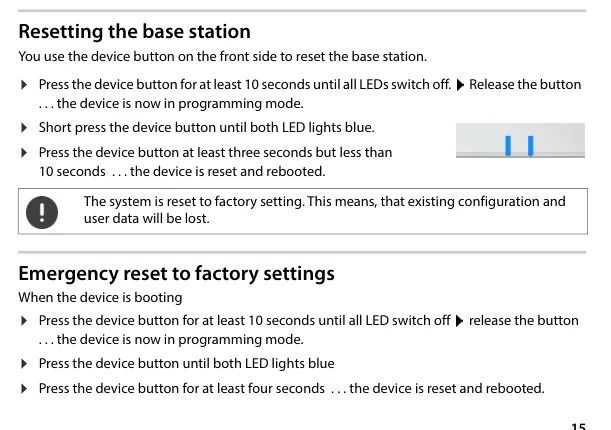 Screenshot: Gigaset N670 IP PRO System manual (en INT), 15-04-2024, p. 15.
After the reset: the base takes an address over DHCP again (it will most likely change — see step 1), the password is admin again, handsets have to be registered from scratch and SIP accounts recreated. Before resetting a configured base it is worth saving the configuration (Settings → System → Save and restore).
About the handset. Resetting the base does not clear the handset — it still “remembers” the old base. If a handset will not register after the reset, de-register it in its own settings menu and register it again as in step 3.3.
If the base does not register#
- A stray space in the login, or the extension number entered instead of it. Authentication name and Username must both hold the whole
sip-xxxxxxxx-<extension>string with no spaces — the Gigaset manual warns about this directly. - The password came from the wrong window. An extension password is shown once. If you did not save it, click “Reset password” in the admin panel and enter the new one.
- The account is not bound to a profile. The VoIP provider field of the SIP account must point to the profile you created in step 3.1, not be left empty.
- SIPS or SRTP is on. Our PBX works over UDP without encryption: in the profile, Transport protocol =
UDPand Use SIP Security (SIPS) off. - The PBX address is mistyped or entered only in
DomainwhileProxy server addresswas left empty — fill in both fields. - SIP ALG on the router. If registration succeeds but the call drops after half a minute or only one side is audible, switch SIP ALG off (details in the overview).
- The handset is registered but no line is assigned. The Registered status under Mobile devices covers DECT only. Check the assignment under Settings → SIP accounts → Assignments.
Still stuck — or the phone is registered but there is no audio, calls drop after 30 seconds, incoming calls do not arrive? Troubleshooting by symptom — “Phone not working”; on-screen messages and error codes — “Not registering: error codes”.
Models in this family#
| Model | What it is | PoE | Setup differences |
|---|---|---|---|
| N670 IP PRO | one DECT cell, up to 20 handsets | yes (802.3af) | the reference for this page |
| N870 IP PRO / N870E IP PRO | multicell system, dozens of bases per building | yes | same steps; configured through an “integrator”, with cells added under Settings → DECT Manager / Base stations |
| N770 IP PRO | one cell, the junior N870 build | yes | same steps |
| N610 IP PRO | one cell, up to 10 handsets | yes | same steps |
| N530 IP PRO | one cell, entry level | yes | same steps |
| R700H / S700H / SL800H / SL850H PRO | handsets | — | no SIP settings of their own: registered on the base with a PIN (step 3.3) |
| Maxwell C | DECT desk handset | mains adapter | as far as the PBX is concerned it is just another handset: registered on the base with a PIN |
| N510 IP PRO, N720 DECT Manager | previous generation, discontinued | yes | ⚠️ verify: a different web interface (Settings → Telephony → Connections); no current manual remains on the Gigaset PRO site, and the steps on this page do not apply to them |
| Maxwell Basic / 2 / 3 / 4 / 10, P series (P150/P710/P810/P82x) | desk IP phones, not DECT bases | yes | a separate class of device with its own web interface — not covered here |
| A510IP / A540IP / C530IP / C610IP / A690IP | Gigaset home bases (not PRO) | no | sold for home use and rare in venues; configured under Settings → Telephony → Connections in their own web interface, not as described here |
Frequently asked questions#
Does every handset need its own extension?#
Yes, if staff need to call each other and be told apart in the call history. One extension can also be assigned to several handsets at once (they will then ring together) — that is done under Settings → SIP accounts → Assignments, the Receive field.
Why did “Check license status” appear after resetting an N870?#
A Gigaset multicell system counts 35 days from first start-up and from every full reset: for the first 35 days everything works without a licence, for the next 35 it still works but warns on the handsets, and after 70 days the number of simultaneous calls per DECT manager drops to one until a licence file is uploaded. A single N670 base is not affected.
Can the base be configured from a handset, without a computer?#
No. The Gigaset manual states it plainly: system settings — SIP accounts, handset registration and handset names — are made only through the base station's web configurator. From a handset you can change only its own settings: volume, ringtone, language.
Does auto-provisioning work with your PBX?#
No. The platform has no provisioning server — the base is configured by hand as described above. If a second-hand base still holds someone else's provisioning server address, it will overwrite your settings on every reboot: start with a factory reset.
Only one side of the call is audible — is that a base station setting?#
No, that is the network. Registration succeeded, so the login and password are right, but the voice (RTP) is not getting through: almost always SIP ALG on the router, less often blocked outgoing UDP ports 10000–20000. See the section overview.
Sources#
- Gigaset N670 IP PRO — System manual (en INT), edition 15-04-2024 — https://pro-wiki.gigaset.com/bin/view/GPPPO/Documentation/Manuals/Manuals%20-%20N670%20IP%20PRO/ (factory username and password — p. 17, SIP account fields — p. 41, button reset — p. 15, web reset — p. 81, licence grace period — p. 74)
- Gigaset N870 IP / N870E IP PRO — Multicell System manual (en INT), edition 15-04-2024 — https://pro-wiki.gigaset.com/bin/view/GPPPO/Documentation/Manuals/Manuals%20-%20N870%20IP%20PRO/
- Gigaset PRO Wiki — https://pro-wiki.gigaset.com/ (the single entry point to documentation and firmware; the shared N870(E)/N770/N670/N610/N530 firmware confirms that these bases have one web configurator)
- Open question: current manuals for the N510 IP PRO and the N720 DECT Manager are no longer on the Gigaset PRO site — the steps for them are marked
⚠️ verifyand have not been checked against a vendor document.