Mitel 6800/6900 (SIP) — setup for our PBX
Mitel 6800 is the former Aastra line (6863i, 6865i, 6867i, 6869i, 6873i), and 6900 is its successor (6920, 6930, 6940, 6970). They share one web interface, called the Mitel Web UI, and are configured the same way.
⚠️ The main thing about the 6900 series. The 6920/6930/6940 ship from the factory with MiNet firmware — Mitel's proprietary protocol for the MiVoice Business system. With that firmware the phone does not connect to an ordinary SIP PBX at all: it needs the SIP firmware, which has to be loaded manually. The 6800 series (the models with an “i”) is SIP from the start.
⚠️ The second quirk. On Mitel the PBX address goes in twice — into Proxy Server and into Registrar Server. The factory value of Registrar Server is 0.0.0.0, which means “do not register at all”: the phone will work but stay grey in the admin panel.
Shared credentials, network requirements and when a phone has to be reset are on the overview page SIP phone setup.
What you need#
- The extension credentials from the admin panel: Admin panel → Telephony → Staff & groups → “Reset password” — the “Extension credentials” dialog (details).
- The phone cabled into the same network as your computer. Power comes from PoE or an external supply.
- A computer with a browser in the same network.
- For the 6920/6930/6940 — make sure in advance that the phone carries SIP firmware, not MiNet.
Step 1. Find the phone's IP address#
The phone picks up an address over DHCP. You can read it on the unit without a password — the Phone Status section is open to the user as well:
- 6863i, 6865i: the Options key (⚙) → Phone Status → IP&MAC Addresses.
- 6867i, 6869i, 6873i, 6920, 6930, 6940, 6970: the Options key (⚙) → Status → Network → the IP Address line.
The same address is on the web interface's first page after login (Status → System Information, the Network Status block).
If the network has no DHCP, a static address is set under Options → Advanced (administrator password) → Network.
Step 2. Log in to the web interface#
| Factory value | |
|---|---|
| Address | http://<phone IP> |
| Login | admin |
| Password | 22222 |
The same 22222 opens the Advanced section (on the 6863i/6865i it is the Administrator Menu) on the unit itself. ⚠️ Mitel phone passwords accept digits only — if you change it, pick a numeric one.
The user account with an empty password gives a reduced set of settings — the PBX credentials cannot be entered there, you need admin.
The password is rejected (the phone came second-hand)? Only a factory reset helps.
Step 3. Enter the PBX credentials#
Everything you need is under Advanced Settings → Line 1 (the page is titled Configuration Line 1) and splits into two blocks.
1. The Basic SIP Authentication Settings block — who we are:
| In the admin panel (“Extension credentials”) | On the phone (Advanced Settings → Line 1) |
|---|---|
| Login | Phone Number — and the same value in Authentication Name |
| Password | Password |
| Extension number | Caller ID (what the called party sees) and Screen Name — the label on the phone's screen |
Leave Line Mode at Generic.
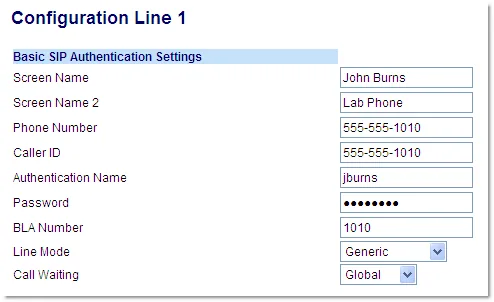 Screenshot: Mitel 6800/6900 Series SIP Phones Administrator Guide 58015750 REV03 (5.1.0), page 4-75.
2. The Basic SIP Network Settings block — where we talk to:
| In the admin panel | On the phone |
|---|---|
| SIP server | Proxy Server and Registrar Server — the same address in both fields |
Port 5060 |
Proxy Port and Registrar Port — 5060 in both (the factory value is 0) |
Transport UDP |
Advanced Settings → Global SIP → Advanced SIP Settings, the Transport Protocol parameter — UDP |
Leave Backup Proxy Server, Backup Registrar Server and Outbound Proxy Server at 0.0.0.0 — we have no backup servers and no proxy.
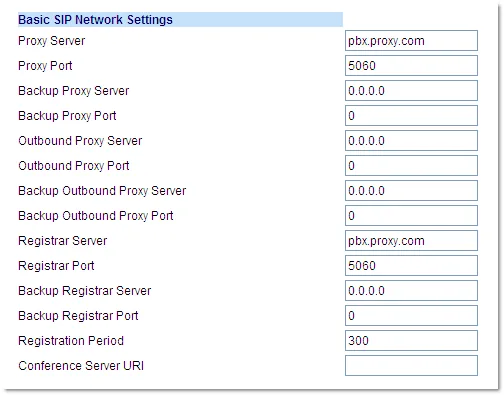 Screenshot: Mitel 6800/6900 Series SIP Phones Administrator Guide 58015750 REV03 (5.1.0), page 4-79.
Click Save Settings, then restart the phone — Mitel applies SIP settings only after a restart (Operation → Reset → Restart Phone).
The same from the phone keypad, without a browser
The Options key → the Advanced soft key (on the 6863i/6865i the Administrator Menu item) → password 22222 → SIP → Call Server. The same fields are there: Screen Name, User Name (our login), Display Name, Auth Name, Password, Proxy Server, Proxy Port, Registrar Server, Registrar Port. Save with the Save soft key, then restart the phone.
Optional: codecs, DTMF, time, provisioning
- Codecs — Advanced Settings → Global SIP → Codec Preference List. We need G.711 A-law, G.711 µ-law and G.722.
- DTMF — Advanced Settings → Global SIP → RTP Settings, the DTMF Method parameter: RFC 2833.
- Re-registration period — Registration Period in the Basic SIP Network Settings block.
- Time — Basic Settings → Preferences → Time and Date: the time zone and the NTP server; otherwise the call history shows someone else's time.
- Fleet provisioning — at boot Mitel fetches
startup.cfg,<model>.cfgand<MAC>.cfgfrom your server over TFTP/FTP/HTTP(S). The platform runs no provisioning server of its own.
Step 4. Check the registration#
- On the phone the No Service message disappears and the line gets the label from the Screen Name field.
- In the phone web interface: Status → System Information — errors show up there too: a SIP Error Number appears on the account when registration with the proxy fails.
- In the admin panel: Telephony → Staff & groups — the operator gets a green dot and a line with the name the phone reported. It refreshes no more than once a minute.
- A test call: dial a colleague's extension.
Audio quality — the *43 echo test. The green dot only speaks about registration: the voice travels as a separate stream and breaks separately. Dial *43 on the phone and press Send / OK (most devices do not start dialling on a star key by themselves). The PBX answers, plays a short beep after a second and then plays your own voice back to you — speak into the handset for about ten seconds and listen to yourself. You hear both the beep and yourself: audio flows both ways. Beep but no voice: audio does not reach the PBX from the phone (SIP ALG on the router is the usual culprit). Not even a beep: audio does not reach the phone from the PBX. All outcomes and the measured numbers (loss, jitter, latency) are covered in “Checking call quality”.
Factory reset#
A reset is needed on a second-hand unit (someone else's account and the previous owner's provisioning address are still inside), when the administrator password has been forgotten, and when the phone behaves oddly.
From the phone (6863i, 6865i): the Options key → Administrator Menu → password 22222 → Factory Default → answer the “Restore Defaults?” prompt with #.
From the phone (6867i, 6869i, 6920, 6930): Options → the Advanced soft key → password 22222 → Enter → the Reset item → Factory Default → answer “Factory Default?” with Yes.
From the phone (6873i, 6940): Options → Advanced → password 22222 → the blue Enter key → the Reset icon (swipe left if it is not visible) → Factory Default → Yes.
From the web interface: Operation → Reset → Current Settings → click Restore in the Restore To Factory Defaults row.
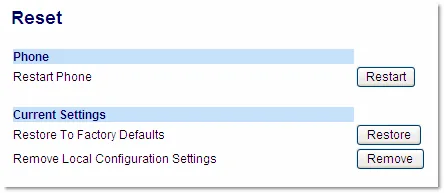 Screenshot: Mitel 6800/6900 Series SIP Phones Administrator Guide 58015750 REV03 (5.1.0), page 9-27.
What is erased: the settings from startup.cfg, <model>.cfg, <MAC>.cfg and the local configuration — that is, the accounts, the server addresses, the network, the administrator password (back to 22222) and the directory. The firmware stays: a MiNet unit stays on MiNet after the reset and a SIP phone stays on SIP.
There is a gentler option next to it — Remove Local Configuration Settings (Erase Local Cfg. on the unit): it wipes only the latest changes made from the phone and the web interface and keeps the settings from the provisioning files. If someone “broke” the phone by hand, start with that.
If the phone does not register#
- Registrar Server is still
0.0.0.0. The most common cause on Mitel specifically: that value means “do not register”, and the phone does not even show No Service. Put the PBX address in both Proxy Server and Registrar Server. - The ports are still
0. The factory value of Proxy Port and Registrar Port is zero; both need5060. - The login is not entered in full. It has to be
sip-xxxxxxxx-<extension>, not the short extension number, and identical in Phone Number and Authentication Name. - The phone was not restarted. Mitel applies SIP settings after a restart: Operation → Reset → Restart Phone.
- The password is stale — someone pressed “Reset password” in the admin panel. Issue a new one.
- A 6920/6930/6940 carries MiNet firmware. The phone looks for a MiVoice Business system and has no SIP sections in its menu. It needs the SIP build.
- Outbound Proxy Server is filled in from an earlier setup — put
0.0.0.0back. - Global settings clash with per-line settings. If something is set both in Global SIP and in Line 1, line 1 uses what is set in Line 1. It is simpler to fill in one level — Line 1.
- The phone pulls a foreign configuration — the previous operator's provisioning address is still inside, and the settings come back after every reboot. A reset fixes it.
- The network. The router blocks UDP 5060, SIP ALG is on, the phone sits in the guest Wi-Fi — see the overview.
Still stuck — or the phone is registered but there is no audio, calls drop after 30 seconds, incoming calls do not arrive? Troubleshooting by symptom — “Phone not working”; on-screen messages and error codes — “Not registering: error codes”.
Models in this family#
| Model | Screen / lines | PoE | Setup specifics |
|---|---|---|---|
| 6863i | monochrome 2.63″, 2 lines | 802.3af | IP address under Options → Phone Status → IP&MAC Addresses; the admin menu is called Administrator Menu |
| 6865i | monochrome 3.4″, 9 lines | 802.3af | same |
| 6867i | colour 3.5″, 9 lines | 802.3af | IP address under Options → Status → Network; the admin menu is the Advanced soft key |
| 6869i | colour 4.3″, 12 lines | 802.3af | same |
| 6873i | colour 7″ touchscreen | 802.3af | reset via the Reset icon after swiping the screen left |
| 6920 | monochrome 3.4″ | 802.3af | ships with MiNet firmware, needs SIP |
| 6930 | colour 4.3″ | 802.3af | same |
| 6940 | colour 5″ touchscreen | 802.3at | same; reset as on the 6873i |
| 6970 | conference phone, touchscreen | 802.3at | reset via Settings → Reset → Factory Default |
About the other units mentioned in the catalogue:
- 6905, 6910 — newer Mitel models; they are absent from the guide edition this page is written from (5.1.0), so we could not verify their menu items against the document ⚠️ verify. Judging by the family the setup is the same — but check the guide for your own release.
- 6730i, 6731i, 6735i, 6737i, 6739i, 6753i, 6755i, 6757i — older Aastra units. The logic is the same (Options → Administrator Menu, password
22222, Proxy and Registrar), but the menu wording in their firmware differs and they are not described in this guide ⚠️ verify. - Mitel 6800/6900 headsets — accessories; they have no SIP setup of their own.
Frequently asked questions#
How do I tell whether my phone has MiNet or SIP?#
The easiest way is the menu: SIP firmware has a SIP section under Options → Advanced with Proxy and Registrar fields; MiNet has none, and the phone looks for a MiVoice Business “call server” at boot. The exact version is under Options → Status → Firmware Info: the SIP build names the model file with an .st extension and a SIP version like 5.x. Converting MiNet → SIP means loading the SIP firmware from the Mitel site.
Why does the server address go into two fields?#
They are different roles in SIP: the Proxy is where the phone sends calls, the Registrar is where it registers. Large systems may split them across machines; we have one, so the same address goes into both. Leave the Registrar empty (0.0.0.0) and the phone can dial out but cannot take incoming calls.
What goes into Screen Name, Caller ID and Phone Number — aren't they all different?#
Phone Number is the login the phone registers with (ours is the long sip-…). Caller ID is what the called party sees: the extension number is a good fit. Screen Name is simply the label on the unit's own screen, such as “Bar” or a staff member's name.
Can one phone carry two extensions?#
Yes: the 6863i holds 2 lines, the 6865i and 6867i 9, the 6869i 12. The second extension is created in the admin panel as a separate operator, and on the phone you fill in the Advanced Settings → Line 2 page.
I saved the settings and nothing changed#
Mitel applies SIP parameters only after the phone restarts. Click Operation → Reset → Restart Phone in the web interface (or pull and re-plug the power) and wait a minute.
Sources#
- Mitel 6800/6900 Series SIP Phones Administrator Guide, 58015750 REV03, release 5.1.0 — https://productdocuments.mitel.com/AEM/Business-Phone-Systems/MX-ONE/7.2/MiVoice%20Feature%20MX-ONE%20Devices%20and%20Accessories/HTML5/58015750_REV03_6800_6900_Series_5.1.0_Admin_Guide.pdf
- Open questions: the 6905/6910 models and the older Aastra 67xx units are not described in this edition of the guide — we did not verify their menu items against the document.