Yeastar TA and Dinstar DAG gateways — setup for our PBX
The venue already has ordinary analogue phones — in the kitchen, the back room, the front desk — and replacing them with IP sets is not appealing. That is what an FXS gateway is for: a box with RJ-11 telephone sockets for the old handsets and a single network port. To the PBX every socket is a separate extension.
The two most common brands of such gateways are Yeastar's TA series (from the single-port TA100 to the 32-port TA3200) and Dinstar's DAG series (DAG1000 with 1–8 ports, DAG2000 with 16–32). Both are configured through a web interface, and both have a voice menu: the gateway reads its own IP address into the handset.
General credentials, ports and network rules are on the overview page “SIP phone setup”.
What you will need#
- Extension credentials from the admin panel — one set per occupied FXS port: SIP server, extension number, login, password, port
5060, transportUDP. Where to get them — “Credentials” (Telephony → Staff & groups → “Reset password”). - An analogue phone plugged into an
FXS(Line,Phone) port of the gateway — without it you cannot hear the voice menu. - The gateway on the same network as your computer: a cable into the
WAN/Ethernetport. - A computer with a browser on that same network.
- FXO ports (on the Yeastar TA410/TA810 and on DAG models with an
Oin the name) are for something else: they take incoming analogue city lines, not phones. This page is about FXS.
Step 1. Find out the gateway's IP address#
Out of the box the gateway takes its address over DHCP, and it announces that address by voice.
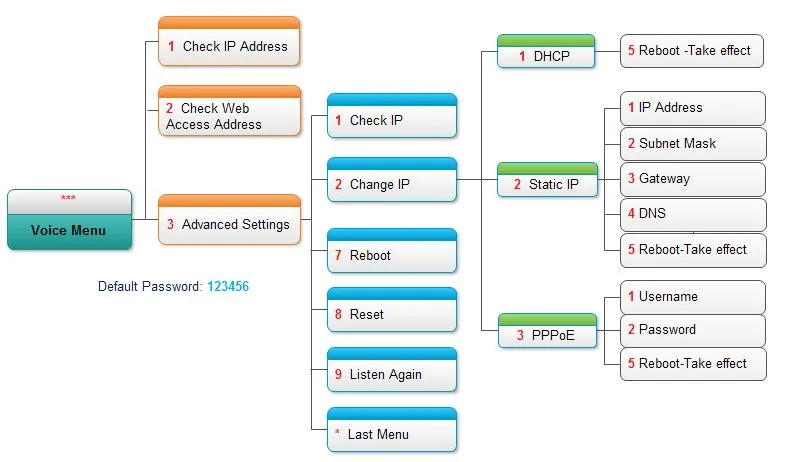
Yeastar TA: pick up the analogue phone plugged into an FXS port and dial *** — the voice menu starts. Press 1 to hear the IP address, or 2 to hear the web access address.
 Screenshot: Yeastar TA400/800 User Manual, p. 8.
The Advanced Settings branch of the same menu (key 3, default password 123456, entered with a hash — 123456#) switches the gateway to a static address or PPPoE when there is no DHCP on the network.
Dinstar DAG: pick up the handset the same way and dial *158# — the gateway reads out the LAN port address; *159# gives the WAN port address. If there is no network at all, a DAG always answers on the fixed LAN port address 192.168.11.1: connect it to your computer with a cable, give the computer an address in the same subnet and open that address in a browser.
Step 2. Log in to the web interface#
Open the address from step 1 in your browser.
| Yeastar TA | Dinstar DAG | |
|---|---|---|
| Address | http://<gateway IP> |
http://<gateway IP> or http://192.168.11.1 over the LAN port |
| Login | admin |
admin |
| Password | password |
admin |
Both vendors advise changing the factory password right after setup; on Yeastar this is System → System Preferences → Password Settings. If the password has been changed and nobody knows it, there is no way to recover it — only a factory reset helps.
Step 3. Enter the PBX credentials#
A gateway is configured in two passes: first you describe the server (our PBX) once, then you hang its own account on every port.
Yeastar TA — the “server” pass. Open Gateway → VoIP Settings → VoIP Server Settings and create a template:
| In the admin panel | In the gateway (VoIP Server Settings) |
|---|---|
| SIP server | Hostname/IP and Domain — the same address in both |
Port 5060 |
the port field next to Hostname/IP; 5060 is the standard value, leave it |
Transport UDP |
Transport — UDP (the factory value) |
| — | Type — SIP; Register Mode — Port Register, so each port gets its own account |
Leave Enable Outbound Proxy Server and Failover Hostname/IP empty and Enable SRTP off.
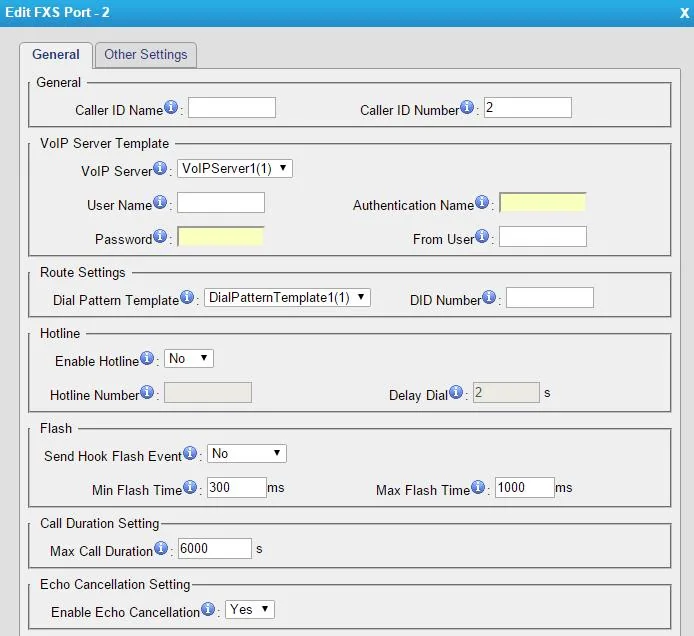
Yeastar TA — the “port” pass. Open Gateway → Port List and press Edit on the port you need:
| In the admin panel (“Extension credentials”) | In the gateway (Edit FXS Port → General) |
|---|---|
| SIP server | VoIP Server — pick the template you created |
| Login | User Name and Authentication Name — the whole sip-…-<extension> string in both fields |
| Password | Password |
| Extension number | Caller ID Name and Caller ID Number |
Port 5060, transport UDP |
set in the server template |
Leave From User empty. Save and press Apply Changes at the top of the page.
 Screenshot: Yeastar TA400/800 User Manual, p. 12.
Dinstar DAG — the “server” pass. Open the SIP Server section:
| In the admin panel | In the gateway (SIP Server) |
|---|---|
| SIP server | Primary SIP Server Address |
Port 5060 |
Primary SIP Server port — 5060 (the default) |
Transport UDP |
SIP Transport Type — UDP (the default) |
Leave Secondary SIP Server and Outbound Proxy empty.
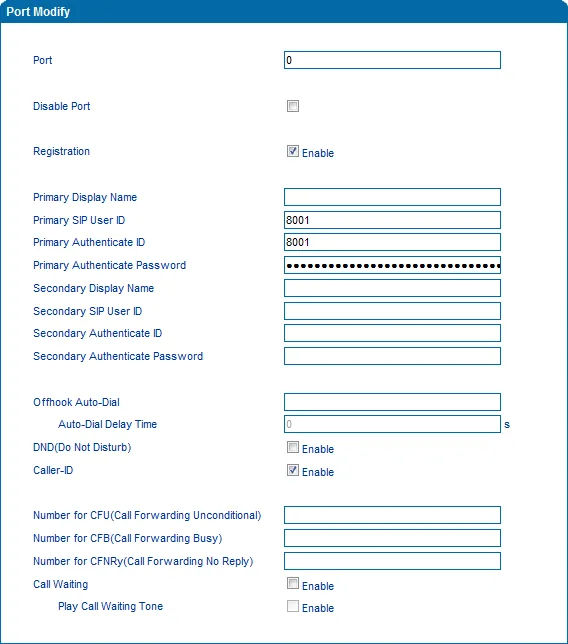
Dinstar DAG — the “port” pass. Open the Port section and edit the port you need:
| In the admin panel (“Extension credentials”) | In the gateway (Port Modify) |
|---|---|
| Login | Primary SIP User ID and Primary Authenticate ID — the whole sip-…-<extension> string in both fields |
| Password | Primary Authenticate Password |
| Extension number | Primary Display Name |
Tick Registration → Enable and clear Disable Port. Leave every Secondary field empty — that is the backup server.
 Screenshot: Dinstar DAG1000-4S FXS Gateway User Manual, p. 34.
Optional: codecs, fax, encryption
- Codecs. Keep G.711A and G.711U on top; G.729 and G.723 are not needed for our PBX. On Yeastar this lives in the port's “Other Settings”, on Dinstar in Advanced → Media Parameter.
- Fax. If a fax machine is plugged into the port, keep the T.38 mode (it is the factory value on Dinstar). Voice codecs do not carry fax.
- Encryption. Do not turn on SRTP and do not pick the
TLStransport — the platform does not offer them. - Direct IP calls. The service codes
*96(Yeastar) and*47(Dinstar) dial an IP address bypassing the PBX — useful for a connectivity check, not for daily work. - The voice menu. Its advanced-section password is changed on Yeastar in Gateway → Gateway Settings → Feature Codes → Voice Menu Password Settings.
Step 4. Check the registration#
- In the gateway: on Yeastar the Status → System Status page, the FXS Port Status block; on Dinstar the front page with the port list. The port should read Registered.
Unregisteredmeans the registration did not go through. - In the admin panel: Telephony → the Staff & groups tab — a green dot lights up next to every operator whose extension is bound to a port. The status refreshes no more than once a minute.
- On the handset: pick up the analogue phone — you should get a dial tone. Dial a colleague's extension: the call should go through.
- Check every port separately: they register independently, and “the first one works, the second does not” is the usual sign of a half-filled account.
Audio quality — the *43 echo test. Pick up the analog handset and dial *43: the PBX answers, plays a short beep and then plays your own voice back to you — speak into the handset for about ten seconds. This is the only way to test the audio of an adapter without dragging a real person into it: beep and voice — both directions are fine; beep but no voice — audio does not reach the PBX from the gateway; not even a beep — it does not reach the gateway from the PBX (and if the handset also hisses or hums, the analog phone or its wiring is to blame, not the network). ⚠️ A phone with old pulse (rotary) dialling cannot send a star key: switch it to tone mode with the Pulse/Tone switch, and if there is no such switch, test the audio with an ordinary call to a colleague. Outcomes and numbers are covered in “Checking call quality”.
Factory reset#
A reset is needed if the gateway came second-hand (it holds someone else's accounts and someone else's provisioning address that restores its own settings on every reboot), if the web password has been forgotten, or if the device behaves unpredictably.
Yeastar TA, from the handset: pick up, dial ***, press 3 (Advanced Settings), enter the password 123456# and press 8 — Reset.
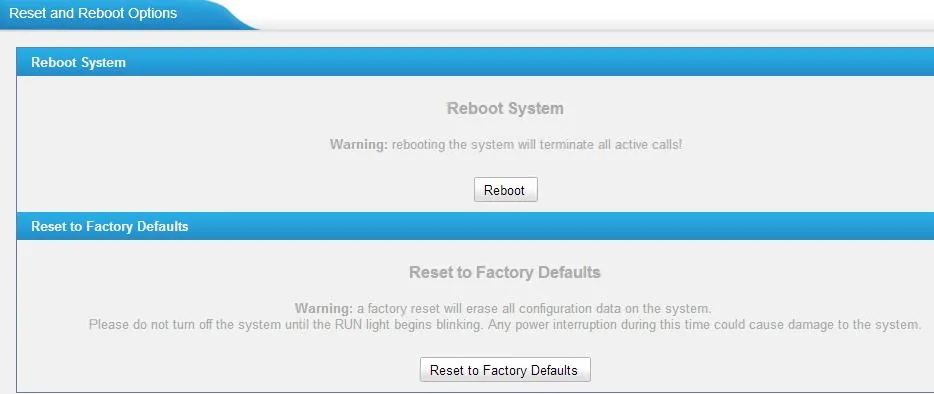
Yeastar TA, from the web interface: System → System Preferences → Reset and Reboot → the Reset to Factory Defaults button. The gateway warns that it will erase the whole configuration; do not cut the power until the RUN light starts blinking.
 Screenshot: Yeastar TA400/800 User Manual, p. 60.
Dinstar DAG, from the handset: pick up and dial *166*000000#. After the “setting successfully” prompt hang up — the gateway is reset. To reboot it separately, dial *111#. A DAG also has a Reset button on the case.
Dinstar DAG, from the web interface: the Tools → Factory Reset section → the Apply button.
The reset wipes every port account, the network settings, the dial plans and the passwords; the firmware stays. Afterwards the login is admin/password (Yeastar) or admin/admin (Dinstar), the gateway takes its address over DHCP, and the setup starts from step 1.
If the gateway does not register#
- The port is disabled. On Dinstar clear Disable Port and tick Registration → Enable; on Yeastar make sure the port has a VoIP Server template assigned.
- The wrong register mode. The Yeastar server template must be on
Port Register: withService Providerthe gateway does not register at all, andTemplate Registerregisters every port under one account. - The login is incomplete. You need
sip-…-<extension>, not the extension number alone, and in both fields — User Name / Authentication Name (Yeastar) or SIP User ID / Authenticate ID (Dinstar). - One extension across all ports. Every port needs its own account from the admin panel, otherwise only one of them registers.
- The password is stale. Somebody pressed “Reset password” in the admin panel — issue a new one and type it again.
- Transport or encryption. The transport must be
UDP; SRTP orTLSproduces silence with no error message. - The outbound proxy is filled in. If the previous provider's address is still there, the registration goes to the wrong place — clear it.
- The changes were not applied. On Yeastar settings take effect only after Apply Changes at the top of the page.
- The venue network. SIP ALG on the router, UDP 5060 blocked — see the overview.
Still stuck — or the phone is registered but there is no audio, calls drop after 30 seconds, incoming calls do not arrive? Troubleshooting by symptom — “Phone not working”; on-screen messages and error codes — “Not registering: error codes”.
Models in the family#
| Model | Ports | PoE | Setup specifics |
|---|---|---|---|
| Yeastar TA100 / TA200 | 1 / 2 FXS ports | no | the popular “one or two handsets” option; has its own vendor manual |
| Yeastar TA400 / TA800 | 4 / 8 FXS ports | no | Yeastar's most detailed manual covers this pair |
| Yeastar TA1600 / TA2400 / TA3200 | 16 / 24 / 32 FXS ports | no | rack-mount; the V3 and V4 revisions have separate manuals |
| Yeastar TA410 / TA810 | 4 / 8 FXO ports | no | a different job: these take incoming city analogue lines, not phones |
| Dinstar DAG1000-1S / 2S | 1 / 2 FXS ports | no | a compact desktop adapter |
| Dinstar DAG1000-4S / 8S | 4 / 8 FXS ports | no | the LAN port answers on the fixed 192.168.11.1 |
| Dinstar DAG2000-16S / 24S / 32S | 16 / 24 / 32 FXS ports | no | rack-mount, the ports come out on an RJ-21 connector |
| Dinstar DAG1000-4S4O, DAG2000-8S8O | mixed FXS + FXO | no | some ports for handsets, some for city lines |
The larger models from both vendors (Dinstar DAG2500/DAG3000 with 48–312 ports, Yeastar TA1610/TA3210) are configured the same way but usually live at the carrier rather than in the venue. FXO gateways and GSM gateways (Yeastar TG, Dinstar UC) solve a different problem — they bring external lines into the PBX; ask our support about connecting those.
Frequently asked questions#
How many extensions does a gateway need?#
As many as the analogue phones you plug into it: every FXS port is a separate extension with its own login and password. An eight-port gateway with eight handsets needs eight operators in the admin panel. Unused ports need no configuration.
Can one gateway serve the whole venue?#
Yes, if it has enough ports and the existing telephone wiring reaches every handset: the gateway goes into the server cabinet and the sets connect over the pairs already in the walls. Without that wiring, single-port gateways next to the handsets — or DECT handsets — usually work out cheaper.
Will an old rotary phone work?#
Gateways generally do not accept pulse dialling — the number simply will not go through. Such a set will still take incoming calls (it rings and you can talk), but you cannot dial from it. Dialling needs a tone (DTMF) phone or a mode switch on the set itself.
Will a fax work through the gateway?#
A fax machine can be plugged into an FXS port, and the default mode is T.38. But the result depends on the network: a voice channel forgives packet loss, a fax does not. If the fax is critical, leave it on a separate city line.
How do I tell which extension sits on which port?#
By the field with the extension number: Caller ID Name / Caller ID Number on Yeastar, Primary Display Name on Dinstar. Fill them with the employee's number or the place (“Kitchen”, “Store room”) and the port list in the gateway becomes readable without cross-checking the admin panel.
Sources#
- Yeastar TA400/TA800 FXS Gateway User Manual — https://help.yeastar.com/download/docs/ta400-ta800-user-manual-en.pdf
- Yeastar TA100/TA200 FXS Gateway User Manual — https://help.yeastar.com/download/docs/ta100-ta200-user-manual-en.pdf
- Yeastar TA1600/TA2400/TA3200 User Manual V4 — https://help.yeastar.com/download/docs/ta1600-ta2400-ta3200-v4-user-manual-en.pdf
- Yeastar TA410/TA810 FXO Gateway User Manual — https://help.yeastar.com/download/docs/ta410-ta810-user-manual-en.pdf
- Dinstar DAG1000-4S FXS Gateway User Manual — https://www.dinstar.com/WEB/files/13121/2023-07-11/DAG1000-4S_FXS_Gateway_User_Manual.pdf
- Dinstar DAG2000-16S FXS Gateway User Manual — https://www.dinstar.com/WEB/files/13121/2019-04-25/DAG2000-16S_FXS_Gateway_User_Manual.pdf
- Vendor line-ups: https://help.yeastar.com/en/voip-gateways/index.html and https://www.dinstar.com/download/