AudioCodes 400HD — setup for our PBX
AudioCodes 400HD is the desk phone family from the Israeli vendor AudioCodes: 405HD, 420HD, 430HD, 440HD, 445HD, 450HD and the “team” C450HD/C455HD. They share one web interface, one factory password and one setup logic: first the PBX address on the Signaling Protocols page, then the account on the Line Settings page.
⚠️ The main thing before you buy or configure. AudioCodes sells the very same models with Microsoft Teams and Skype for Business firmware — those have neither the usual SIP menu nor these web interface pages, and they do not register to an ordinary PBX. You need the Generic SIP build. How to tell them apart is in the FAQ.
Shared credentials, network requirements and when a phone has to be reset are on the overview page SIP phone setup.
What you need#
- The extension credentials from the admin panel: Admin panel → Telephony → Staff & groups → “Reset password” — the “Extension credentials” dialog (details).
- The phone cabled into the same network as your computer. Power comes from PoE or an external power supply.
- A computer with a browser in the same network.
Step 1. Find the phone's IP address#
The phone picks up an address over DHCP. To read it on the unit:
MENU key → Status → Network Status — then scroll down to the IP Address line.
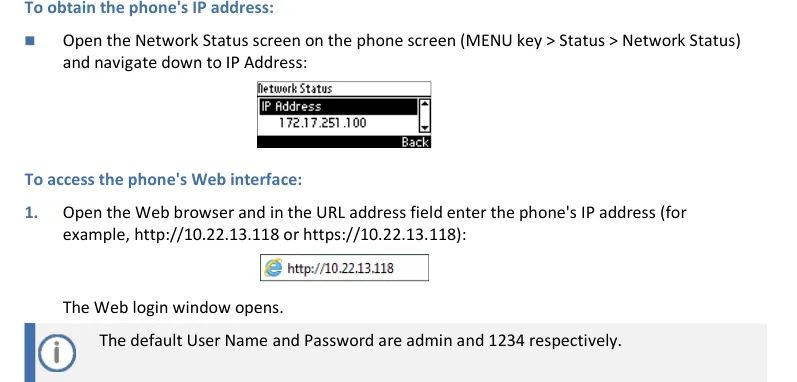 Screenshot: AudioCodes 400HD Series IP Phone Administrator's Manual Ver. 2.2.16 (M28) — Generic SIP, page 234.
If the network has no DHCP, set a static address like this: MENU → Administration → password 1234 → Network Settings, turn automatic addressing off and enter IP Address, Netmask, Gateway and DNS.
Step 2. Log in to the web interface#
| Factory value | |
|---|---|
| Address | http://<phone IP> (https:// works too) |
| Login | admin |
| Password | 1234 |
The same 1234 opens the Administration menu on the unit itself. Once you enter the password, access carries over to all submenus until you leave.
The login page does not open? On some models the web interface is off from the factory: it is allowed on the 445HD and C450HD and disallowed on the 425HD (the system/web_management_enable parameter). Then the phone is configured from the keypad or with a provisioning file — see the collapsed block in step 3.
The password is rejected (the phone came second-hand)? Only a factory reset helps.
Step 3. Enter the PBX credentials#
The setup is split across two pages of the web interface.
1. The PBX address. Open Configuration → Voice Over IP → Signaling Protocols, the SIP Proxy and Registrar block:
- Use SIP Proxy → Enable (the factory value is Disable);
- Proxy IP Address or Host Name → the address from the admin panel dialog;
- Proxy Port →
5060; - Use SIP Proxy IP and Port for Registration → Enable, so you do not have to enter a separate registrar address;
- Use SIP Outbound Proxy → Disable.
The transport lives higher on the same page, in the SIP General block: SIP Transport Protocol → UDP (which is also the factory value). Click Submit.
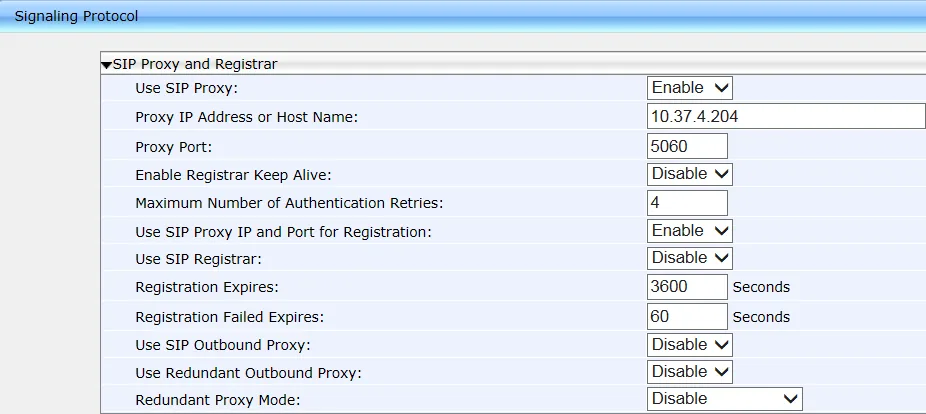 Screenshot: AudioCodes 400HD Series IP Phone Administrator's Manual Ver. 2.2.16 (M28) — Generic SIP, page 62.
2. The account. Open Configuration → Voice Over IP → Line Settings, choose Line Number: 1 and fill in:
| In the admin panel (“Extension credentials”) | On the phone |
|---|---|
| SIP server | Proxy IP Address or Host Name (Signaling Protocols page) |
| Login | Line 1 User ID — and the same value in Line 1 Authentication User Name |
| Password | Line 1 Authentication Password |
Port 5060 |
Proxy Port (Signaling Protocols page) |
Transport UDP |
SIP Transport Protocol (Signaling Protocols page) |
| Extension number | Line 1 Display Name — the line label, which the called party sees as Caller ID |
Line 1 Activate has to be Enable and Line 1 Mode — Private. Click Submit.
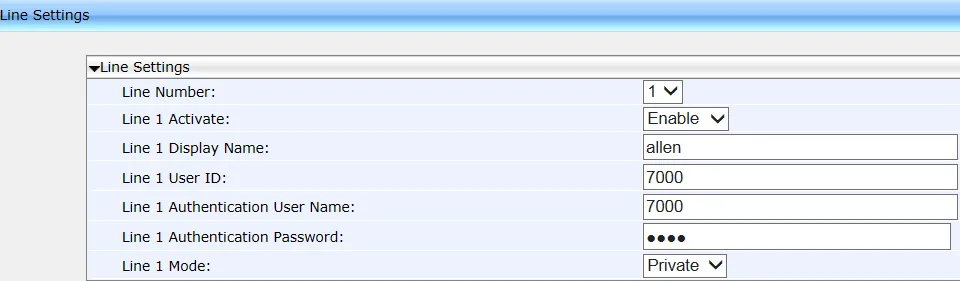 Screenshot: AudioCodes 400HD Series IP Phone Administrator's Manual Ver. 2.2.16 (M28) — Generic SIP, page 69.
If the web interface is closed: configuration by file
AudioCodes is built around provisioning from a text file named <phone MAC address>.cfg, which the phone fetches from your server over TFTP/HTTP. The lines are the same parameters as the fields above:
voip/line/0/enabled=1
voip/line/0/id=<login from the admin panel>
voip/line/0/auth_name=<the same login>
voip/line/0/auth_password=<password>
voip/line/0/description=<extension number>
voip/signalling/sip/use_proxy=1
voip/signalling/sip/proxy_address=<PBX address>
voip/signalling/sip/proxy_port=5060
voip/signalling/sip/transport_protocol=UDP
The platform runs no provisioning server of its own — the file goes on a server you host. For one or two phones the web interface is simpler.
Optional: codecs, DTMF, time
- Codecs — Configuration → Voice Over IP → Media Streaming. We need G.711 A-law, G.711 µ-law and G.722.
- DTMF — Configuration → Voice Over IP → Dialing, the DTMF Transport Mode parameter: choose RFC 2833.
- Keep-alive — Enable Registrar Keep Alive on the Signaling Protocols page; not required, but it helps behind a strict router.
- Time — the phone takes it over NTP; the time zone and NTP server are set in MENU → Settings → Date and Time, otherwise the call history shows someone else's time.
Step 4. Check the registration#
- On the phone the “not registered” warning disappears and the line label shows up on screen.
- In the phone web interface: Status & Diagnostics → System Status → VoIP Status shows the line state.
- In the admin panel: Telephony → Staff & groups — the operator gets a green dot and a line with the name the phone reported. It refreshes no more than once a minute.
- A test call: dial a colleague's extension.
Audio quality — the *43 echo test. The green dot only speaks about registration: the voice travels as a separate stream and breaks separately. Dial *43 on the phone and press Send / OK (most devices do not start dialling on a star key by themselves). The PBX answers, plays a short beep after a second and then plays your own voice back to you — speak into the handset for about ten seconds and listen to yourself. You hear both the beep and yourself: audio flows both ways. Beep but no voice: audio does not reach the PBX from the phone (SIP ALG on the router is the usual culprit). Not even a beep: audio does not reach the phone from the PBX. All outcomes and the measured numbers (loss, jitter, latency) are covered in “Checking call quality”.
Factory reset#
A reset is needed on a second-hand unit (someone else's account and the previous owner's provisioning address are still inside), when the password has been forgotten, and when the phone behaves oddly.
From the phone menu: MENU → Administration → password 1234 → Restore Defaults → the Select soft key → answer Yes to the warning.
If the administrator password is unknown, AudioCodes documents a power-cycle reset that needs no menu access:
- Press and hold OK and MENU together and, while holding them, unplug the power cable.
- Plug the power back in and keep holding OK + MENU for about 5 more seconds while the phone boots.
- Release the keys — the settings are back to factory defaults.
A PoE-powered phone is “unplugged” by pulling the network cable.
What is erased: the line accounts, the PBX address, the network settings, the administrator password (back to 1234), the language and the directory. The firmware stays. After the reset the phone is set up again from step 1.
If the phone does not register#
- Use SIP Proxy is still Disable. The factory value means “no proxy in use”; the phone registers nowhere and shows no error.
- The login is not entered in full. It has to be
sip-xxxxxxxx-<extension>, not the short extension number, and identical in Line 1 User ID and Line 1 Authentication User Name. - Only one of the two login fields is filled in — authorisation will fail.
- Line 1 Activate is Disable — the line is switched off.
- The password is stale — someone pressed “Reset password” in the admin panel. Issue a new one.
- SIP Transport Protocol is not UDP. If the phone stays silent without any error, switch back to UDP.
- Use SIP Outbound Proxy is on with a foreign address — turn it off.
- The phone carries Teams or Skype for Business firmware. Then the Signaling Protocols and Line Settings pages simply do not exist in its web interface. You need the Generic SIP build.
- The phone pulls a foreign configuration. Settings “change by themselves” after a reboot — the previous operator's provisioning address is still inside; a reset fixes it.
- The network. The router blocks UDP 5060, SIP ALG is on, the phone sits in the guest Wi-Fi — see the overview.
Still stuck — or the phone is registered but there is no audio, calls drop after 30 seconds, incoming calls do not arrive? Troubleshooting by symptom — “Phone not working”; on-screen messages and error codes — “Not registering: error codes”.
Models in this family#
| Model | Screen / lines | PoE | Setup specifics |
|---|---|---|---|
| 405, 405HD | monochrome, up to 2 lines | 802.3af | uses Line Display Name instead of a line label |
| 420HD | monochrome, up to 2 lines | 802.3af | same |
| 430HD | monochrome, up to 6 lines | 802.3af | has Line Label and a shared line mode |
| 440HD | monochrome, up to 6 lines | 802.3af | same, gigabit ports |
| 445HD | colour, up to 6 lines | 802.3af | web interface allowed from the factory |
| 450HD | colour, up to 6 lines | 802.3af | — |
| C450HD, C455HD | colour touchscreen | 802.3af | web interface allowed from the factory; also sold as Teams editions — you need the Generic SIP build |
| 425HD | monochrome | 802.3af | web interface is off from the factory — configure from the keypad or by file |
About the other AudioCodes devices mentioned in the catalogue:
- RX50 is a conference device rather than a desk phone; its setup is not covered here ⚠️ verify;
- MP-112, MP-114, MP-118 are analogue telephone adapters (ATA) with their own web interface; this page does not apply to them ⚠️ verify.
Frequently asked questions#
How do I tell that a phone is not running the Teams firmware?#
By the boot screen and the menu: a Teams or Skype for Business unit shows the Microsoft logo and signs in with a Microsoft 365 account, and its menu has no familiar Administration → Network Settings. The “plain” version shows only the time, the date and the line label on its first screen. The exact firmware type is under MENU → Status → Firmware Version: the SIP build has SIP in its name, the others have Teams or SFB. Switching between builds means reflashing from the AudioCodes site and is not always possible on a second-hand unit.
Why are the PBX address and the account on different pages?#
That is how the AudioCodes web interface is laid out: Signaling Protocols describes where the phone talks to (the same for all lines), while Line Settings describes who it presents itself as on each line. Fill in only one page and there will be no registration.
Can one phone carry two extensions?#
Yes: the 405/405HD and 420HD hold two lines, the 430HD/440HD/445HD/450HD up to six. The second extension is created in the admin panel as a separate operator, and on the phone you pick Line Number: 2 on the Line Settings page.
We have a dozen AudioCodes phones — configure each by hand?#
No. AudioCodes is designed around provisioning: a <MAC>.cfg file on your HTTP or TFTP server, whose address is handed to the phones over DHCP (options 66/67). The platform runs no provisioning server of its own — the server is yours, and the parameters for the file are in the collapsed block of step 3.
The web interface says it is “for debugging only” — is that normal?#
Yes. Recent AudioCodes documentation declares the web interface auxiliary (the main path being the provisioning file and Device Manager), but it works, and a single phone can still be configured through it. That is exactly why some models ship with it switched off.
Sources#
- AudioCodes 400HD Series IP Phone Administrator's Manual Ver. 2.2.16 (M28) — Generic SIP (the web interface and its screens) — https://www.audiocodes.com/media/y1zljbeb/400hd-series-ip-phone-administrators-manual-ver-2216-m20-generic-sip.pdf
- AudioCodes 400HD Series IP Phones Administrator's Manual Ver. 3.5.4 — Generic SIP (the factory password
1234, the factory reset, the configuration file parameters) — https://www.audiocodes.com/media/czoishws/400hd-series-ip-phones-administrators-manual-ver-354-generic-sip.pdf - Open questions: we did not verify the setup of the RX50 conference device or the MP-11x gateways against the documentation, and there are no separate pages for them.