Karel IP1xx — setup for our PBX
Karel is a Turkish manufacturer of PBXs and telephones based in Ankara, and in Turkish venues you meet its handsets more often than Yealink or Grandstream: they arrive together with a local PBX, and when the venue later moves to cloud telephony the phones stay. Every Karel model is a plain SIP phone: it connects to our PBX like any other handset, and there is no proprietary “Karel protocol” standing in the way.
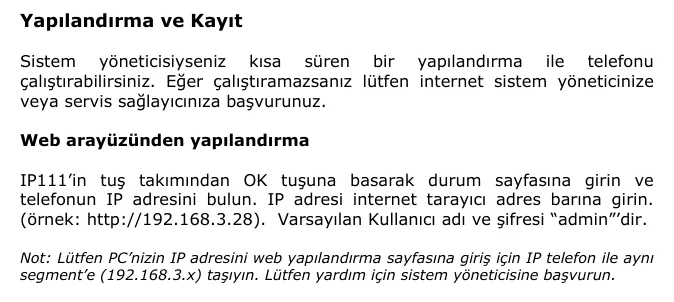
The whole line-up is configured the same way: the OK key opens the status page with the IP address, then you log in to the phone’s web interface (factory credentials admin / admin) and fill in the Hesap (“Account”) section. The phone interface is Turkish or English — both names of every item are given below.
Shared credentials, network requirements and typical mistakes are on the overview page “Setting up SIP phones”.
What you need#
- A Karel phone cabled into the same network as your computer. Power comes from PoE (802.3af) or from the bundled power supply.
- The extension credentials from the admin panel: Admin panel → Telephony → Staff & groups → “Reset password” — the “Extension credentials” window (details).
- A computer with a browser in the same subnet as the phone (the Karel manual warns explicitly: from another subnet the phone’s configuration page will not open).
- The phone’s administrator password. The factory value is
admin; if somebody has already configured the phone, it may have been changed — then you need a factory reset.
Step 1. Find the phone’s IP address#
The phone gets its address over DHCP and shows it on the status page:
- Press OK on the phone keypad — the status page (durum sayfası) opens.
- Find the line with the IP address, for example
192.168.3.28.
If there is no DHCP server in the network, set the address by hand: MENU → Ayarlar → Gelişmiş (Settings → Advanced) → password admin → Ağ → WAN Portu (Network → WAN port) → the “Aşağıdaki IP Adresini Kullan” (“use the following IP address”) option.
 Screenshot: Karel IP111 IP Telefon Kullanım Kılavuzu (2009-11-09), p. 9.
Step 2. Log in to the web interface#
Type the phone’s address in a browser — for example http://192.168.3.28.
| Factory value | |
|---|---|
| Address | http://<phone IP> |
| Login | admin |
| Password | admin |
The phone asks for the same admin password on the device itself when you enter Ayarlar → Gelişmiş (advanced settings) — it is one and the same administrator password. You can change it both from the phone (Menü → Ayarlar → Gelişmiş → Yönet. Şifre Ayar.) and from the web interface (the Güvenlik, “Security”, section).
Password changed and unknown? It cannot be recovered — only a factory reset helps.
Step 3. Enter the PBX credentials#
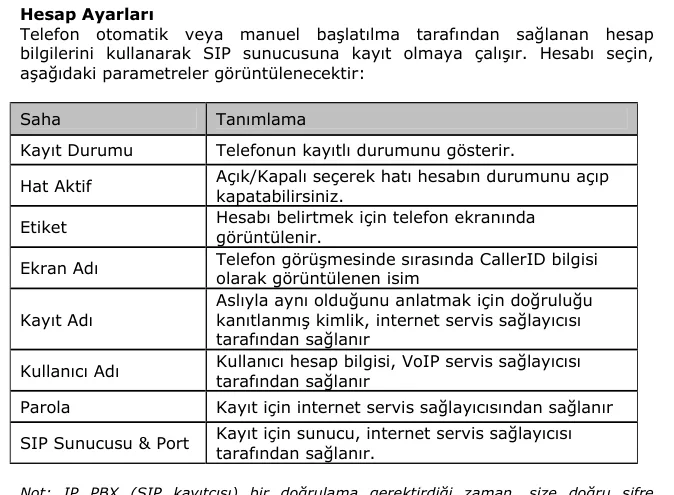
In the web interface open Hesap → Basit (Account → Basic) and select the first account (Hesap 1).
| In the admin panel (“Extension credentials”) | On the phone (Hesap → Basit) |
|---|---|
| SIP server | SIP Sunucusu (SIP Server) |
Login (the whole sip-xxxxxxxx-101) |
Kullanıcı Adı (User Name) and Kayıt Adı (Register Name) — the same value in both fields |
| Password | Parola (Password) |
Port 5060 |
Port — the field next to the server address |
Transport UDP |
Transport — leave it at UDP (the same field offers TLS, but our PBX does not provide TLS) |
| Extension number | Etiket (Label) and Ekran Adı (Display Name) — the line label on the screen |
Do not forget to switch the line on: Hat Aktif (Line Active) → Açık (“on”). The Kayıt Durumu (Registration Status) field is not a setting but an indicator — it is where the phone reports whether it registered.
 Screenshot: Karel IP111 IP Telefon Kullanım Kılavuzu (2009-11-09), p. 10.
The same fields exist on the handset itself — MENU → Ayarlar → Gelişmiş → Hesaplar (password admin) — but typing a long login on a keypad is painful; the browser is faster.
Optional: codecs, time, DTMF
Codecs — Hesap → Hesap X → Kodekler (Codecs). The phone supports G.722, G.723, G.726, G.729, PCMU and PCMA. Our PBX needs PCMA (G.711 A-law), PCMU (G.711 µ-law) and G.722 — keep those enabled, the rest can be switched off.
Time — MENU → Ayarlar → Basit → Saat & Tarih, or Telefon → Ayarlar in the web interface. ⚠️ Karel’s factory time zone is +8 (China) — that is stated in the vendor manual. Set your own (Istanbul +3, Tbilisi +4, Moscow +3), otherwise call history timestamps will be wrong.
DTMF. The account settings include a DTMF type selector; our PBX expects RFC 2833 (some firmware labels it “RFC 2833” or “Out-of-band”). If tone dialling in an IVR does not work, the Karel manual points at exactly this parameter.
Keep-alive. The advanced account settings have “UDP devamlılık” (UDP keep-alive) — leave it on, it helps the phone stay reachable behind NAT.
When you are done, press Onayla / Kaydet (“Confirm/Save”). If the settings did not take effect, reboot the phone: Güncelleme → Basit → Şimdi Yeniden başlat (“Upgrade → Basic → Restart now”).
Step 4. Verify the registration#
- On the phone. The status page (the OK key) and the
Kayıt Durumufield in the web interface show the registration state; the idle screen shows the line label you typed intoEtiket. - In the admin panel. Admin panel → Telephony → Staff & groups: the operator gets a green dot and the identity string the phone reported. The status comes from the PBX and refreshes at most once a minute.
- Test call. Dial a colleague’s extension. If the call connects but only one side is audible, the problem is not registration but RTP: check SIP ALG on the router (overview).
Audio quality — the *43 echo test. The green dot only speaks about registration: the voice travels as a separate stream and breaks separately. Dial *43 on the phone and press Send / OK (most devices do not start dialling on a star key by themselves). The PBX answers, plays a short beep after a second and then plays your own voice back to you — speak into the handset for about ten seconds and listen to yourself. You hear both the beep and yourself: audio flows both ways. Beep but no voice: audio does not reach the PBX from the phone (SIP ALG on the router is the usual culprit). Not even a beep: audio does not reach the phone from the PBX. All outcomes and the measured numbers (loss, jitter, latency) are covered in “Checking call quality”.
Factory reset#
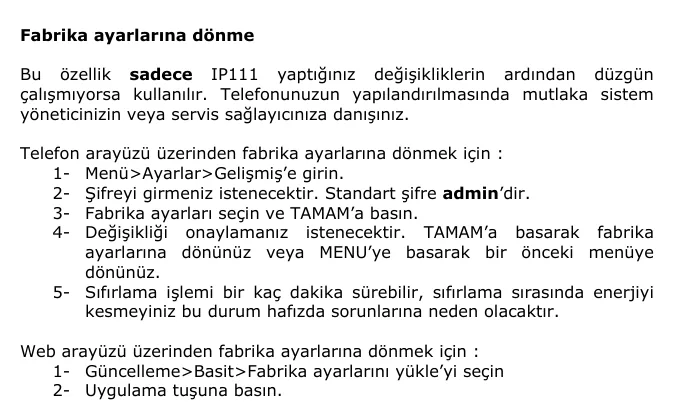
From the phone:
- Menü → Ayarlar → Gelişmiş (“Settings → Advanced”).
- The phone asks for a password — the factory value is
admin. - Choose Fabrika ayarları (“Factory settings”) and press TAMAM (OK).
- Confirm once more with TAMAM.
- The reset takes a few minutes — do not cut the power; the manual warns that doing so damages the phone’s memory.
From the web interface: Güncelleme → Basit → Fabrika ayarlarını yükle (“Upgrade → Basic → Load factory settings”) → the Uygulama (“Apply”) button.
 Screenshot: Karel IP111 IP Telefon Kullanım Kılavuzu (2009-11-09), p. 32.
What is erased: SIP accounts, the phone book (fihrist), call history and network settings — the manual lists exactly that and recommends exporting the configuration first (Güncelleme → Gelişmiş → Gönder/Al — “Send/Receive”). The administrator password goes back to admin.
When you need it: the phone came from a previous owner or a previous operator (it keeps their accounts and their provisioning server address); the administrator password is lost; the phone stopped working after a settings change — the Karel manual recommends a reset for exactly this case.
After the reset the phone reboots, picks up an address over DHCP and returns to the admin password — repeat steps 1–3. Do not forget the time zone: after a reset it becomes +8 again.
If the phone does not register#
- The login is not in every field.
Kullanıcı AdıandKayıt Adımust both hold the same full loginsip-xxxxxxxx-101, not the short extension number. - The line is off. Check that
Hat Aktif=Açık. - The password is stale. The admin panel shows the password once; if you closed the window, press “Reset password” on the operator and enter the new one.
- Extra text in
SIP Sunucusu. The address goes in withoutsip:and without a port — the port has its ownPortfield (5060). - Transport switched to TLS.
Hesap → Basit → Transportmust beUDP: our PBX does not provide TLS. - Your computer is in another subnet. Then the phone’s web page simply will not open and it looks as if “the phone is dead”. Put the computer in the same network.
- The phone came from a previous operator and receives their provisioning server address over DHCP, which restores the old settings after every reboot. Only a reset fixes this.
- General network causes — SIP ALG on the router, client isolation on Wi-Fi, blocked ports: see the overview.
Still stuck — or the phone is registered but there is no audio, calls drop after 30 seconds, incoming calls do not arrive? Troubleshooting by symptom — “Phone not working”; on-screen messages and error codes — “Not registering: error codes”.
Models in the family#
Karel’s current line-up as of September 2026 (from the vendor catalogue) plus older handsets still found in venues:
| Model | Screen / lines | PoE | Setup specifics |
|---|---|---|---|
| IP111 / IP112 / IP113 / IP116 | monochrome, 1–2 lines | on some models | The generation whose manual this page is based on; everything as described above |
| IP131 / IP132G | monochrome | 802.3af | Entry models of the current line-up; IP132G has gigabit ports |
| IP136 | 4.3″ colour (480×272) | 802.3af, class 2 | 16 SIP accounts, gigabit, USB, EXP40 expansion modules; Russian UI available |
| IP138 | colour | 802.3af | Top model of the IP1xx line |
| IP1131 / IP1141 | monochrome / colour | 802.3af | Previous generation of the current line-up |
| IP202P / IP203G / IP204P | monochrome | 802.3af | The IP2xx series |
| IP212G / IP213G / IP214G / IP216G | monochrome / colour | 802.3af | IP2xx series with more programmable keys |
| IP310 / IP310P / IP311P / IP313G | colour | 802.3af (the “P” models) | The top IP3xx series |
| VP129 | Android video phone | 802.3af | Configured as an Android device, not via this page |
| WE105 | Wi-Fi phone | — | Needs Wi-Fi configured before the SIP account |
⚠️ verify: Karel publishes a full user manual only for the IP111 line; for IP131–IP138, IP1131/IP1141, IP2xx and IP3xx the website carries brochures, not manuals. The menu items carry the same names, but we cannot confirm the exact paths in recent firmware against a vendor document — if you have a newer model and the path differs, tell us and we will refine this page.
FAQ#
The phone has a Turkish interface — can I switch it to English or Russian?#
Older models (IP111 and its relatives) ship with a Turkish interface and a limited language set. For current models such as the IP136 the vendor lists Turkish, English, Arabic, Chinese, Spanish, Hindi, Portuguese, Russian and Japanese — the language is switched in the phone settings or in the web interface.
The Karel phone used to work with a local Karel PBX — will it work with ours?#
Yes. Karel does not use a closed protocol in its IP phones: the handset speaks ordinary SIP, and moving to us means changing the server address, the login and the password. Do a factory reset first so that no settings of the previous PBX are left in the phone.
I lost the phone’s administrator password — what now?#
It cannot be recovered. A factory reset restores the admin password, but the reset itself asks for a password on the handset — so if the password was changed and is unknown, what is left is the web interface (if its password still works) or the person who configured the phone. Make a habit of storing a changed password next to your extension credentials.
Do I need a provisioning server?#
No. Our platform has no provisioning server of its own — the phone is configured field by field as described here. Somebody else’s provisioning server, however, is harmful: a phone inherited from a previous operator may receive its address over DHCP and restore the old settings after every reboot.
Call history timestamps are off by several hours — why?#
Karel’s factory time zone is +8 (China, the Philippines, Malaysia) — it says so in the vendor manual. Set your own zone in MENU → Ayarlar → Basit → Saat & Tarih or in the web interface (Telefon → Ayarlar).
Sources#
- Karel IP111 IP Telefon Kullanım Kılavuzu (2009-11-09) — https://www2.karel.com.tr/karel/dokumanlar/IP111_kullanim_kilavuzu_09112009_A5.pdf
- KAREL IP136 IP TELEFON — brochure (2023) — https://www.karel.com.tr/sites/default/files/2023-12/karel_ip136_brosur-v2s.pdf
- Karel phone catalogue (current model line-up, checked 2026-09-09) — https://www.karel.com.tr/iletisim-teknolojileri/iletisim-urunleri/telefonlar
- Multitek — documentation catalogue (checked 2026-09-09: no desk SIP phones in the line-up; its SIP devices are intercoms and entry panels) — https://multitek.com.tr/kullanim-kilavuzlari/