Alcatel-Lucent 80x8s Cloud Edition, Myriad and Halo — setup for our PBX
Alcatel-Lucent Enterprise (ALE) makes several desk phone lines, and not all of them register to a third-party PBX such as ours. Open SIP is supported by:
- Cloud Edition DeskPhone — 8008 CE, 8008G CE, 8018 CE, 8058s CE, 8068s CE, 8078s CE;
- Myriad — M3s, M5s, M7s, M7s Pro, M8;
- Halo — H3G, H6.
All three lines share the same web interface (ALE calls it WBM, Web Based Management) and the same factory administrator password, so the steps below are common. The only difference is the name of the on-phone menu: Admin on Cloud Edition, Advanced Settings on Myriad and Halo.
Phones from the SIP Business / Premium DeskPhone line (8028s, 8038s, 8078s Premium), the IP Touch 4008/4018 and the 8082 My IC Phone are built for ALE's own OmniPCX systems. ALE's official guide for third-party SIP systems does not list them — see Models in this family.
Shared credentials, network requirements and when a phone has to be reset are on the overview page SIP phone setup.
What you need#
- The extension credentials from the admin panel: Admin panel → Telephony → Staff & groups → “Reset password” — the “Extension credentials” dialog (details).
- The phone cabled into the same network as your computer. Power comes from PoE (IEEE 802.3af) or an external power supply plugged into the DCSV socket.
- A computer with a browser in the same network.
- Ten minutes: the phone reboots itself twice — after you save network settings and after you save the account.
Step 1. Find the phone's IP address#
The phone picks up an address over DHCP automatically (dynamic mode is the factory default). You can read it on the phone itself:
- Cloud Edition (8008/8008G/8018/8058s/8068s/8078s CE): on the home screen select the settings icon (⚙) → Network. The screen shows the IP address, mask and gateway.
- Myriad and Halo (M3s/M5s/M7s/M7s Pro/M8, H3G/H6): with the phone idle press OK on the navigator — the Status page opens with the IP address, MAC address and firmware version. More shows network details and the registration state of the accounts.
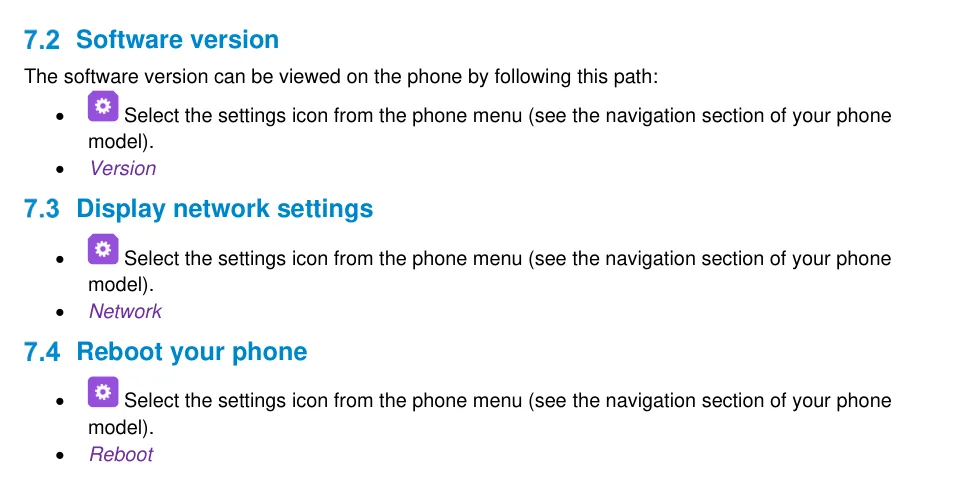 Screenshot: Alcatel-Lucent Cloud Edition DeskPhone User Manual 8AL90362ENAB ed01, page 62.
If there is no DHCP in the network, set the address by hand: Admin (Cloud Edition) or Advanced Settings (Myriad/Halo) → password 123456 → IP param → IP Config → IPv4 settings, switch IPv4 mode to Static and fill in IP, S/net (mask) and Router (gateway). The phone reboots after saving.
Step 2. Log in to the web interface#
| Factory value | |
|---|---|
| Address | https://<phone IP> — for example https://192.168.0.10 |
| Login | admin |
| Password | 123456 |
The phone accepts both http:// and https:// — if the browser complains about a self-signed certificate, continue past the warning.
Password rejected? Then it has been changed — on a second-hand unit or by the previous owner's provisioning server. It cannot be recovered, only reset to factory settings.
Step 3. Enter the PBX credentials#
In the web interface open Accounts → Basic, pick Account1 in the Account list and fill in the fields:
| In the admin panel (“Extension credentials”) | On the phone (Accounts → Basic) |
|---|---|
| SIP server | SIP Server |
| Login | User Name — and the same value in Register Name |
| Password | Password |
Port 5060 |
SIP Server Port |
Transport UDP |
Transport Mode |
| Extension number | Display Name (the line label on screen) and SIP Label Name |
Leave the rest of the page as it is: Register Expire Time 3600, Secondary SIP Server and OutBound Proxy Address empty (we need neither a second server nor a proxy). Click Submit.
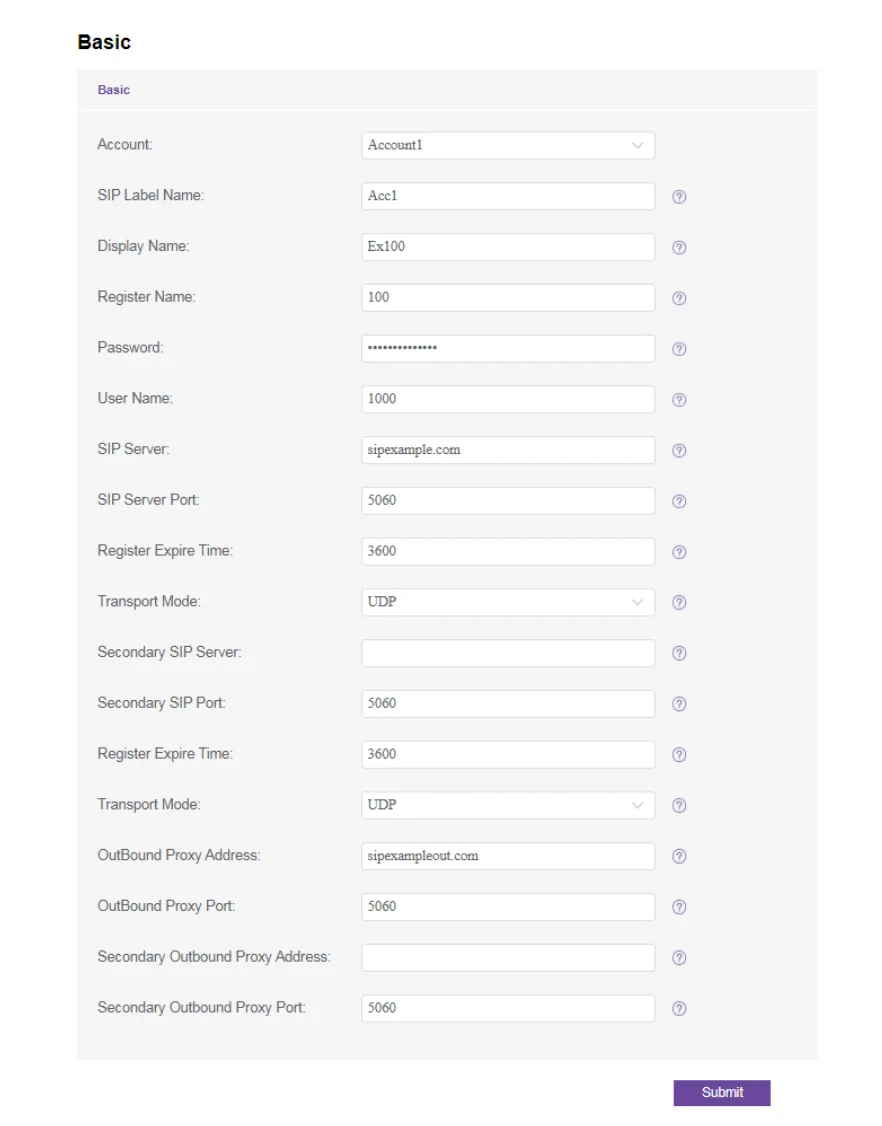 Screenshot: Cloud Edition and Myriad Series SIP Phones Deployment Guide with Open SIP PBXs, 2020 July V1, page 21.
The same from the phone keypad, without a browser
- Cloud Edition: settings icon → Admin → password
123456→ press “down” to the last page → soft key Sip servers → pick an account and fill in the parameters → OK. - Myriad and Halo: menu → Advanced Menu (Advanced Settings on some firmware) → password
123456→ Account → pick an account → OK.
Entering letters and dots: on 8008/8008G/8018 CE use the 123<>abc soft key, on 8058s/8068s/8078s CE press and hold the i key. The @ sign is on the # key, the dot on the 0 key. The phone reboots by itself after saving.
Optional: codecs, DTMF, NAT, time
- Codecs — Account → Codec → Audio Codec. Keep G.711 A-law (PCMA), G.711 µ-law (PCMU) and G.722; the rest can be removed.
- DTMF — Account → Advanced → DTMF Mode, value RFC2833 (which is also the factory default).
- NAT — Account → Advanced → Rport can stay enabled; STUN is not needed.
- Time — the phone takes time over NTP from the network's DHCP server; the time zone is set in the phone settings. Without the right zone the call history shows someone else's time.
- Fleet provisioning — Settings → Auto Provision, the Provision URL field (plus HTTP digest login and password if your server requires them). The platform runs no provisioning server of its own: this field is for a server you host.
Step 4. Check the registration#
- On the phone. The 8058s/8068s/8078s CE home screen lists the accounts: a registered one gets a registration icon, and pressing its line key dials from that account. On Myriad and Halo: OK → Status → More shows the accounts' registration state.
- In the admin panel. Telephony → Staff & groups: the operator gets a green dot and a line with the name the phone reported. It refreshes no more than once a minute.
- A test call. Dial a colleague's extension and ask them to call this phone back.
Audio quality — the *43 echo test. The green dot only speaks about registration: the voice travels as a separate stream and breaks separately. Dial *43 on the phone and press Send / OK (most devices do not start dialling on a star key by themselves). The PBX answers, plays a short beep after a second and then plays your own voice back to you — speak into the handset for about ten seconds and listen to yourself. You hear both the beep and yourself: audio flows both ways. Beep but no voice: audio does not reach the PBX from the phone (SIP ALG on the router is the usual culprit). Not even a beep: audio does not reach the phone from the PBX. All outcomes and the measured numbers (loss, jitter, latency) are covered in “Checking call quality”.
Factory reset#
A reset is needed if the phone came second-hand, the administrator password is unknown, or the settings “come back on their own” — the last one means the previous operator's Provision URL is still in the phone and it downloads a foreign configuration on every reboot.
From the phone (Cloud Edition): press the right navigator key to open the settings menu → Admin → password 123456 → press “down” to the last page → Restore factory → OK.
From the phone (Myriad and Halo): right navigator key → Advance Setting → password 123456 → “down” to the last page → Restore factory → OK. Myriad phones also have a shortcut: hold the Conference key for more than 10 seconds, then confirm the reset with the soft key.
From the web interface: Maintenance → Restore factory → the Restore factory button.
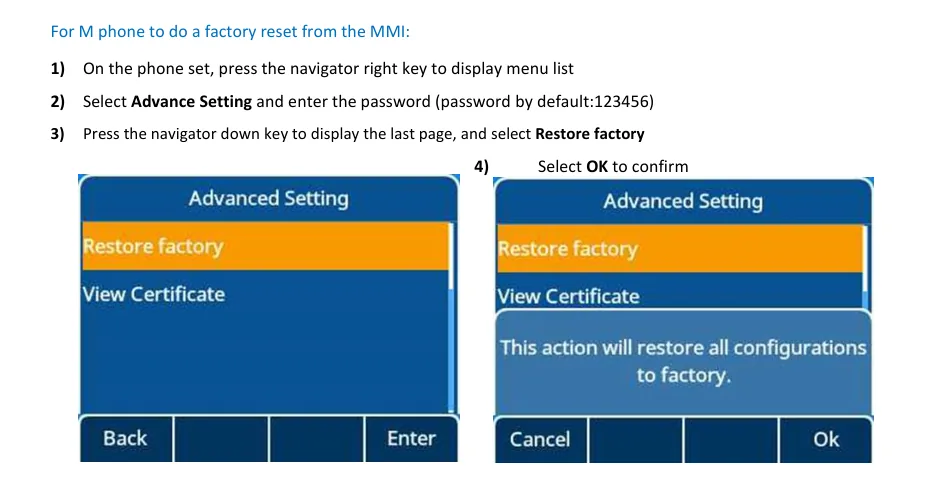 Screenshot: Cloud Edition and Myriad Series SIP Phones Deployment Guide with Open SIP PBXs, 2020 July V1, page 37.
What is erased: the SIP accounts, the provisioning server address, the administrator password (back to 123456), the language and the network settings — the phone returns to dynamic mode and takes its address from DHCP again. The firmware stays. After the reset the phone reboots and has to be set up from step 1.
If the phone does not register#
- The login is not entered in full. It has to be
sip-xxxxxxxx-<extension>, not the short extension number, and identical in User Name and Register Name. - Only one of the two fields is filled in. An empty Register Name with a filled User Name (or the other way round) is the classic cause of an authorisation failure.
- The password is stale — someone pressed “Reset password” in the admin panel. Issue a new one and type it again.
- The wrong address in SIP Server. A venue with a dedicated machine has its own; copy it from the admin panel dialog instead of typing from memory.
- Transport Mode is not UDP. If the phone stays silent without any error, switch back to UDP.
- OutBound Proxy Address is filled in. Left over from an earlier setup, it sends calls nowhere — clear the field.
- The phone pulls a foreign configuration — the previous operator's Provision URL is still in Settings → Auto Provision. Clear the field or do a reset.
- The settings were not applied. Changes made from the phone menu take effect only after the automatic reboot: wait for it instead of pulling the power.
- The network. The router blocks UDP 5060, SIP ALG is on, the phone sits in the guest Wi-Fi — see the overview.
Still stuck — or the phone is registered but there is no audio, calls drop after 30 seconds, incoming calls do not arrive? Troubleshooting by symptom — “Phone not working”; on-screen messages and error codes — “Not registering: error codes”.
Models in this family#
| Model | Screen / lines | PoE | Setup specifics |
|---|---|---|---|
| 8008 CE, 8008G CE | monochrome, 1 main + 1 secondary account | 802.3af (8008G — gigabit) | letters via the 123<>abc soft key |
| 8018 CE | monochrome, 1 main + 1 secondary account | 802.3af | same as the 8008 |
| 8058s CE | colour, 1 main + 3 secondary | 802.3af | letters via a long press on the i key |
| 8068s CE, 8078s CE | colour, 1 main + 3 secondary | 802.3af | same as the 8058s |
| M3s, M5s, M7s, M7s Pro | colour, up to 8 accounts | 802.3af | on-phone menu is Advanced Settings, IP behind the OK key |
| M8 | colour, up to 20 accounts | 802.3af | same; Wi-Fi built in |
| H3G | monochrome, up to 3 accounts | 802.3af | same as Myriad |
| H6 | colour, up to 4 accounts | 802.3af | same; Wi-Fi via an ALE USB dongle |
What does not fit, and why:
- 8028s, 8038s, 8078s Premium DeskPhone, IP Touch 4008/4018, 8082 My IC Phone — units for ALE OmniPCX systems. ALE's deployment guide for third-party (Open SIP) systems does not cover them, and ALE does not document connecting them to a PBX like ours.
- Temporis IP150/IP151/IP300/IP600/IP800, IP2015/IP2215 — these are not ALE but office phones from Atlinks sold under the Alcatel brand. They have their own web interface and their own passwords and are out of scope here: use the administrator guide for the specific model from the Atlinks site. ⚠️ verify — we found no current Atlinks document in open access.
Frequently asked questions#
How do I tell a Cloud Edition phone from the OmniPCX version?#
By the boot screen and the label under the unit: Cloud Edition has CE in the model name (for example “8018 Cloud Edition DeskPhone”). The OmniPCX version of the same model looks identical but will not register to a third-party SIP system.
The phone asks for an activation code on first boot — what is that?#
That is EDS (Easy Deployment Server), ALE's cloud provisioning service, enabled on new units from the factory. We do not use the code: skip that step and configure the phone by hand following steps 1–3. If the screen cannot be skipped, do a factory reset.
Can one phone carry two extensions?#
Yes. The 8008/8008G/8018 CE hold a main account and one secondary, the 8058s/8068s/8078s CE a main one and three, Myriad up to 8 (M8 up to 20), the H3G up to 3 and the H6 up to 4. The second extension is created in the admin panel as a separate operator and added on the phone under Accounts → Basic as Account2.
Why are there two login fields on the account page?#
They are different things in SIP: User Name is who the phone calls as, Register Name is the name it authenticates with on the server. Some systems keep them apart; we do not — the same long login from the admin panel goes into both fields.
The phone worked for its previous owner and our settings roll back every night#
The previous operator's provisioning address is still in it (Settings → Auto Provision → Provision URL): on every reboot the phone downloads a foreign configuration over yours. Clear the field or perform a factory reset.
Sources#
- Cloud Edition and Myriad Series SIP Phones Deployment Guide with Open SIP PBXs, 2020 July V1 — https://www.aledevice.com/uploads/5f649faf/ALE_Myriad_CE_SIPTPPhoneDeploymentGuide%20V1.pdf
- Alcatel-Lucent Enterprise Myriad and Halo Series DeskPhone Administration Manual, 8AL91477ENAA ed04 — https://www.al-enterprise.com/-/media/assets/internet/documents/am-ale-myriad-and-halo-series-deskphone-8al91477enaa-1-en.pdf
- Cloud Edition DeskPhone User Manual (8078s/8068s/8058s/8018/8008G/8008), 8AL90362ENAB ed01 — https://www.al-enterprise.com/-/media/assets/internet/documents/ce-um-78s-68s-58s-18-08-r5x0-8al90362enab-1-en.pdf
- Open question: we found no current Atlinks administrator guide for the Temporis IP line on the manufacturer's site, so that section has not been written.