Cenaly Phone: View and settings
You can make Cenaly Phone simpler or more detailed with the “View” button. Everything about your number and the app itself is collected in Settings.
The “View” button#
“View” is at the top right of every tab. It opens the “Customize interface” window. Changes apply right away; “Done” just closes the window, and the “View changed” banner with an “Undo” button reverts the last change.
The same screen opens from Settings → “Interface”.
Ready-made view#
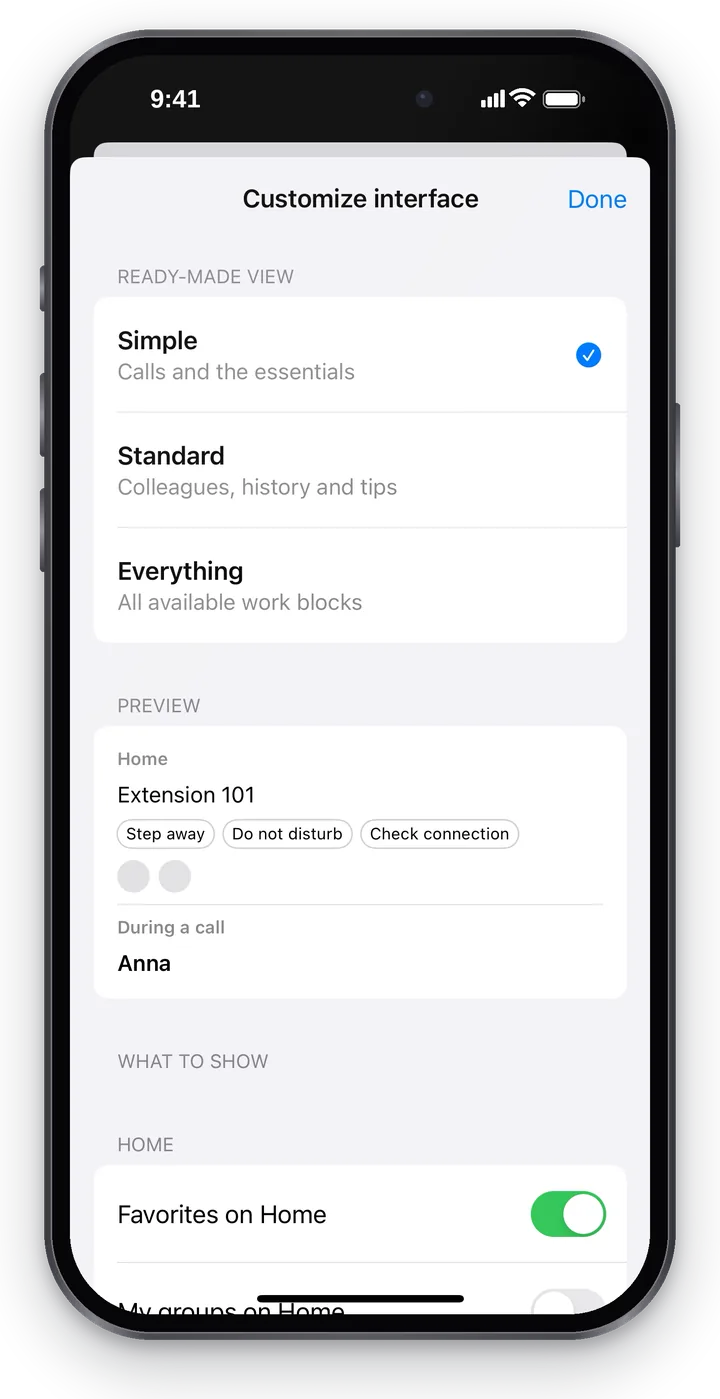 Screenshot: Cenaly Phone for iPhone, the ready-made interface views.
| View | Who it's for | What's on the screens |
|---|---|---|
| Simple — “Calls and the essentials” | Staff who only need to take and make calls; a shared phone of the business | Readiness, the “Available”, “Do not disturb” and “Auto-answer” buttons, 2 favorites, a call log without extra details |
| Standard — “Colleagues, history and tips” | Managers and staff who work with calls | Plus my groups on Home, recent numbers on Keypad, the duration and recording mark in the log, filters in Contacts, the number under the name and the caller card during a call |
| Everything — “All available work blocks” | Anyone who wants to see everything | Plus queue load, my hours and devices on Home, favorites and line readiness on Keypad, who answered in the log, the “On a call” filter, the connection quality rating |
The app picks the starting view itself: signing in with a code or a “regular” employee — “Simple”, a manager or a call-center operator — “Standard”. After the first sign-in a hint is shown at the bottom of the screen, for example “Simple view is on. To change it: View”.
The tabs, the “View” button, the readiness line, colleagues' statuses, the “Back to call” bar and the main call buttons are there in every view.
What to show#
Below the ready-made view, each block can be turned on or off separately — grouped under “Home”, “Keypad”, “Calls”, “Contacts”, “During a call”. A turned-off block tells you where it can still be found: for example, “My groups on Home” → “Still in Settings → My groups”. Nothing disappears for good.
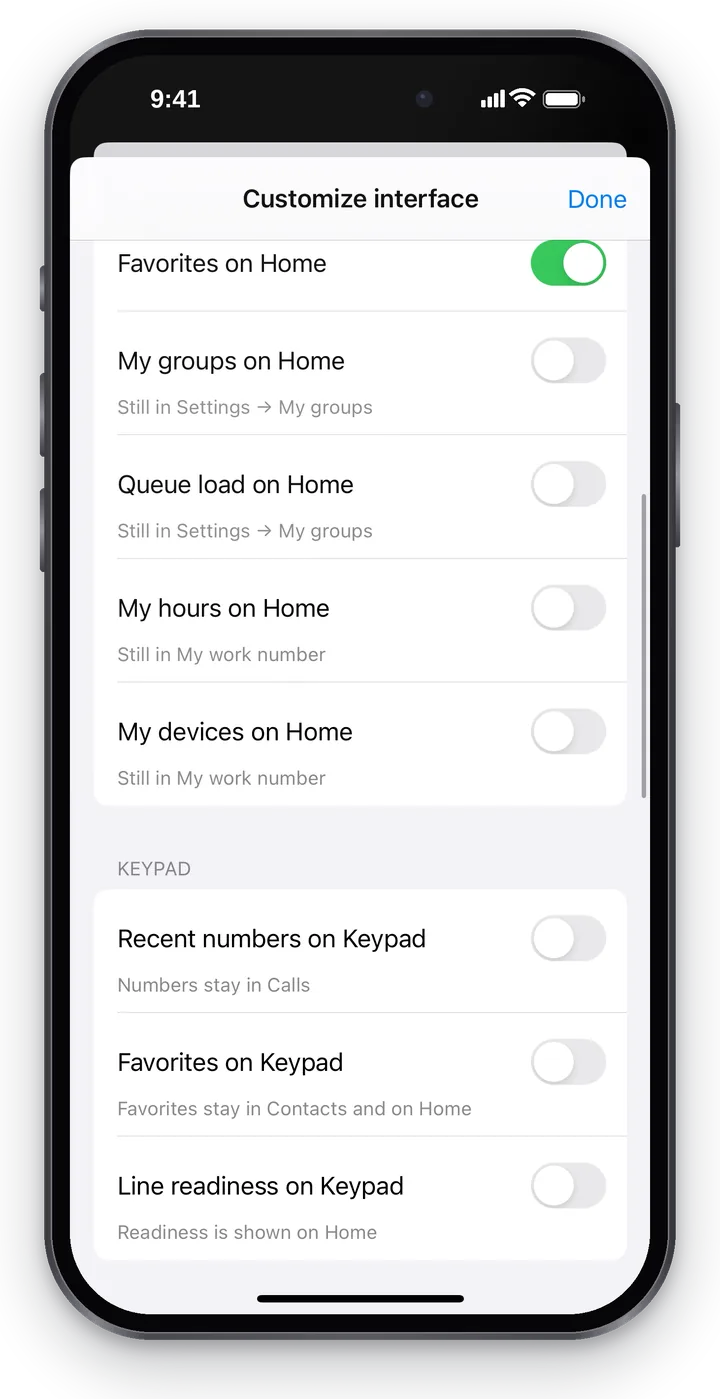 Screenshot: Cenaly Phone for iPhone, interface blocks.
For calls, you can choose how to show the caller card (“In the "More" menu”, “Brief”, “Brief, can expand”), tips and connection quality. Changes to the call screen apply from the next call.
If you change anything, the ready-made view gets a “customized by you” mark, and the “Restore the selected view's settings” button puts everything back.
Comfort#
At the end of the “View” window is the “Comfort” section:
- “Element size” — “Normal” or “Larger”;
- “Theme” — “System default”, “Light” or “Dark”;
- “On launch” — which tab the app opens with.
Settings#
The “Settings” gear is at the top left of Home.
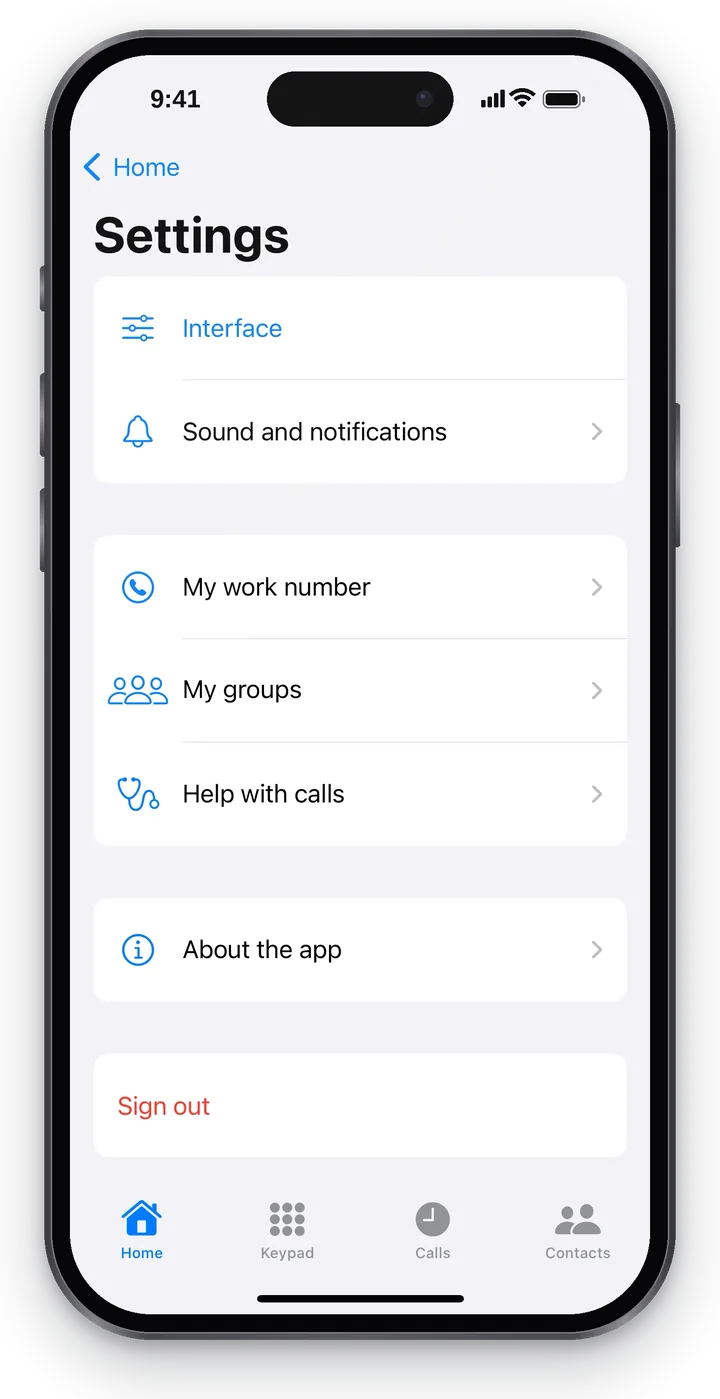 Screenshot: Cenaly Phone for iPhone, Settings.
| Item | What's there |
|---|---|
| Interface | The same window as the “View” button |
| Sound and notifications | The ringtone for incoming calls and calls while the app is closed |
| My work number | The number's devices, “When this phone rings”, “Disconnect this phone from …” |
| My groups | The groups and queues you belong to |
| Help with calls | Checks and sending a report to support — see Help with calls and troubleshooting |
| AI help during calls | Shown if the prompter is available to you: the AI hints switch and “Details” — what is shared and with whom (from version 1.0.1). See AI hints: what is shared |
| About the app | Version, iPhone model, privacy policy, technical details |
| Sign out of account | Sign out and disconnect this iPhone from all places |
AI hints: what is shared#
From version 1.0.1, if the prompter is available to you at your workplace, the app shows the “AI help during calls” screen the first time you sign in — before anything is sent to AI services:
- What is sent — the call audio and the recognised text of what is said, and the questions you type when searching for a tip.
- Who receives it — speech recognition and AI providers: for cenaly.com, OpenAI (including through the polza.ai gateway) and Amazon Transcribe; for cenaly.ru, Yandex SpeechKit and YandexGPT.
- Why — to recognise speech and find matching tips during the call.
“Allow” — tips appear during calls, and “Find a tip” and ratings work. “Not now” — the app sends nothing to AI services, there are no tips, and calls work as usual. You can change your mind in Settings → AI help during calls: turning it on shows this screen again, turning it off takes effect at once. Your answer is stored only on this iPhone and only for you.
Sound and notifications#
The ringtone and vibration for work calls follow the iPhone settings: the app has no ringtone of its own. The “Notification settings” button opens the iOS settings for Cenaly Phone. Below it is “Incoming calls in the background”: whether calls will reach you while the app is closed (see Calls when the app is closed).
“Incoming calls on the lock screen” → “Show who is calling”: turn it off, and while the iPhone is locked the call screen shows only “Incoming work call”, without name or number; the real details appear after you unlock. Swipe to answer on the lock screen always works on iPhone — iOS does not let apps turn it off.
Answering calls: auto-answer and intercom#
“Sound and notifications” → “Answering calls”:
- “Auto-answer” — “Off” or “All calls”. This is the same setting as the “Auto-answer” button on Home: press the button and this shows “All calls”; choose “All calls” here and the button is pressed. An incoming call is answered by itself right on speaker (if a headset, Bluetooth headphones or a car are connected, the sound goes there), right away or after the number of seconds you choose (up to 10). It works only while “Available” and “Auto-answer” are pressed on Home and “Do not disturb” isn't — see Home.
- “Intercom: answer automatically on speaker” (on) — when the phone system asks for it: a colleague’s intercom (
*9and the extension), an announcement (*6— your microphone stays off) and “Call” from Cenaly. Turn it off and such calls will just ring.
Never answered by themselves: a second call during a conversation and a monitoring call. The setting applies to all places connected on this iPhone.
A call the iPhone picked up by itself is checked by the dedicated phone system's auto-answer guard: if no voice is heard from the phone in the first seconds, the phone system returns the call (to the same queue at its previous place, or on along the number's route), and “Auto-answer” is released on the iPhone — “The phone system returned the call”. Details — If the phone system returned the call.
My work number#
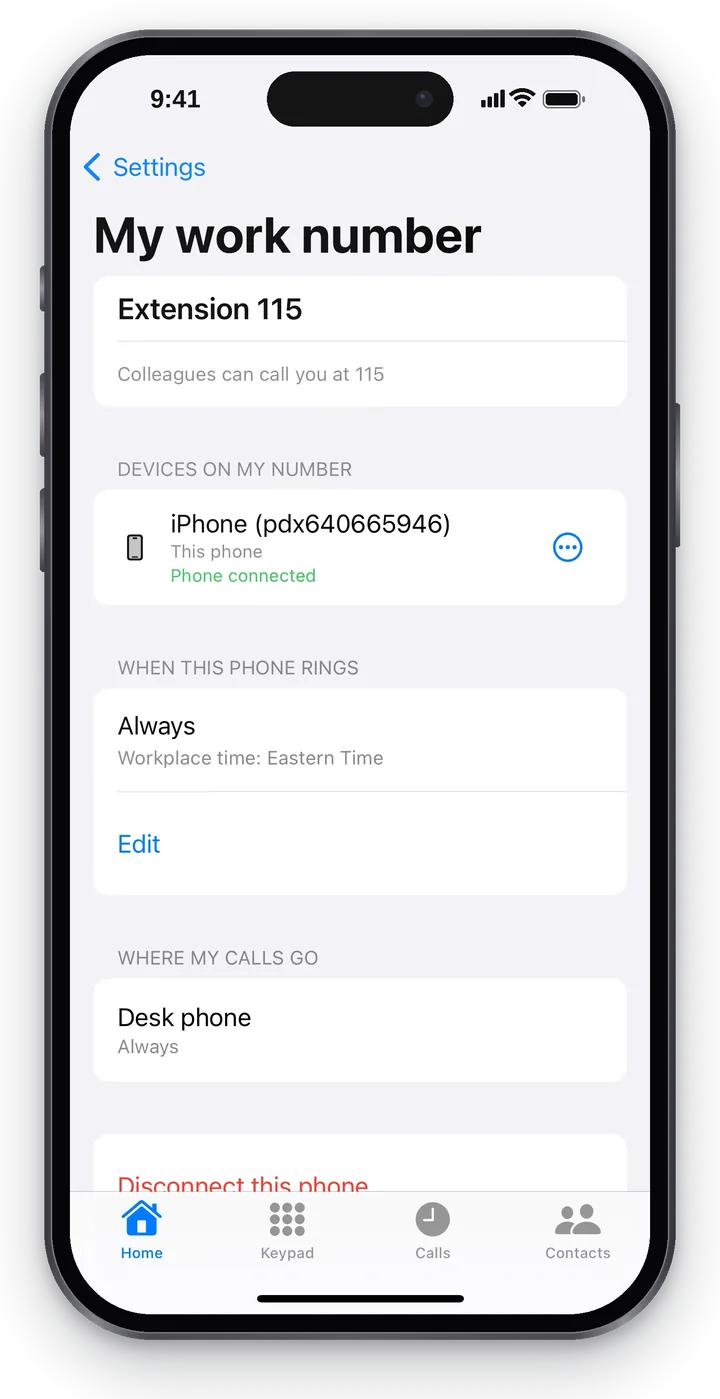 Screenshot: Cenaly Phone for iPhone, My work number.
- Extension and “Colleagues can call you at …”.
- “Devices on my number” — all devices that receive the number's calls: “This phone” and your other phones; each shows “Phone connected” or “Offline”. In a device's “…” menu:
- “Edit” — rename it (if your manager allows it);
- “Disconnect” — disconnect your other device that you no longer use. The app asks again: “Calls will stop coming to “…”. Your other devices will keep working.”
- “Where my calls go” — the number's other connections (for example, a desk phone) and their hours — view only.
- “Disconnect this phone from …” — disconnect the iPhone from this place without leaving the app: “Calls of … will stop coming to this phone. You will stay signed in and can connect the place again.” The other places keep working.
When this phone rings#
This block shows the hours when calls come to this iPhone: “Always” or “On schedule”, the workplace time (the business's time zone, not your iPhone's) and the next change — for example, “From 18:00 calls will stop coming”.
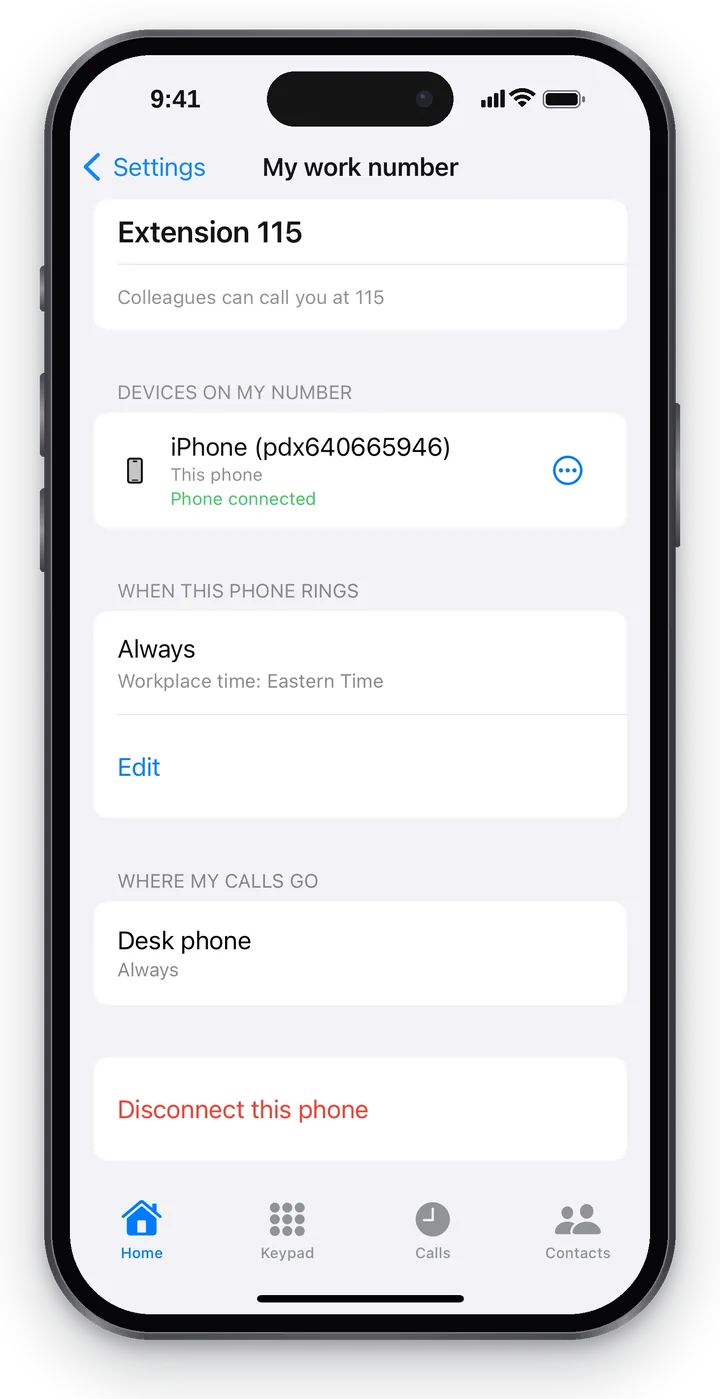 Screenshot: Cenaly Phone for iPhone, When this phone rings.
To change the hours:
- Tap “Edit”.
- Choose “On schedule”.
- Tick the days and set the “From” and “To” times — they are in the workplace's time zone. You can add several periods (“Add hours”); an overnight period such as “22:00–06:00” ends the next day.
- Tap “Save”.
Mistakes are shown before you save: “Choose at least one day”, “The start and the end are the same”. If there is no “Edit” button — “Only a manager can change this”. Without internet the change is saved on the phone and sent automatically once there is a connection.
My groups#
The call groups and queues you belong to: for each — whether its calls come to you (“You receive calls”, “Paused: you stepped away”, “Outside your hours in this group”, “The owner switched you off in this group”) and, for queues, “Waiting: … · Can answer: … of …”. If you have no groups — “You aren't in any call groups”.
About the app#
The app version, the iPhone model and iOS version, the “Privacy Policy” link and the collapsed “Technical details” — support may ask for them.
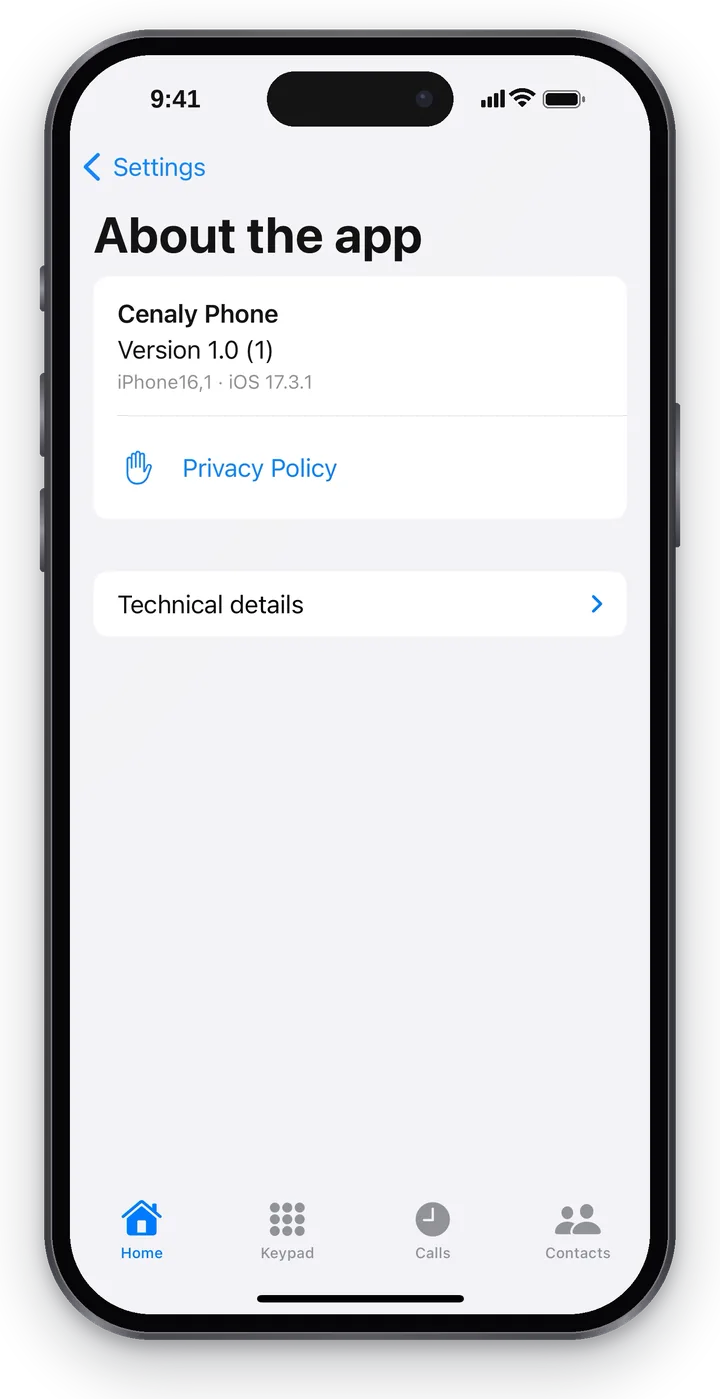 Screenshot: Cenaly Phone for iPhone, About the app.
Sign out of account#
Settings → “Sign out of account” → “Sign out of your Cenaly account?” — “You'll sign out of … and this device will be disconnected from: “Hall”, “Terrace”. Calls will stop coming here; your other devices will keep working.” Signing out disconnects the iPhone from all places, including the places of a second company. To disconnect only one place — “My work number” → “Disconnect this phone from …”. You can't sign out during a call: “End the call first”.
Forgot the password for the next sign-in — “Forgot password?” on the sign-in screen, see “Forgot your password”.
FAQ#
Does “View” change anything for my colleagues?#
No. “View” is stored on this phone and changes only what you see.
Why doesn't the time in “When this phone rings” match my iPhone's clock?#
The hours are set in the workplace's time — so the schedule doesn't shift if you are in another time zone.