Cenaly Phone: Home
Home is the first tab of Cenaly Phone. It shows whether the iPhone is ready to take calls, and with three buttons right here you tell colleagues and the phone system whether you are available, whether you don't want to be disturbed and whether the phone should pick up calls by itself.
What's on Home#
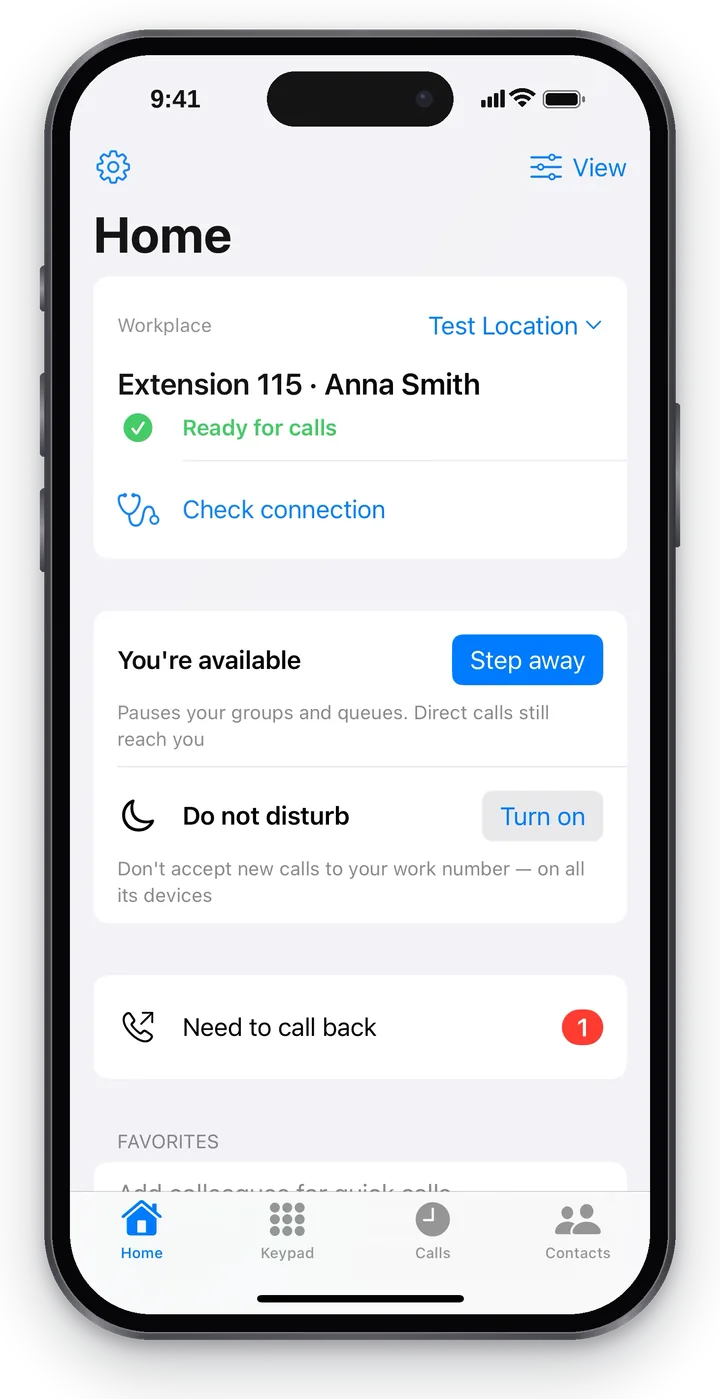 Screenshot: Cenaly Phone for iPhone, the Home tab. Taken before the October 2026 update: it still shows the former “Step away” and “Do not disturb” blocks — they are now replaced by a row of three buttons (see below).
From top to bottom:
- Workplace and your extension with your name.
- The readiness line — a green “Ready for calls”, or the reason why calls won't reach you right now.
- “Check connection” — opens “Help with calls” with the sound and incoming-call checks.
- The “Your availability” row — the “Available”, “Do not disturb” and “Auto-answer” buttons, with a line in words under it.
- “Need to call back” — if there are calls waiting for you to call back.
- Favorite colleagues.
At the top left is the “Settings” gear, at the top right — “View” (see View and settings). To refresh everything on the screen, pull it down.
Is the phone ready for calls#
| Line | What it means | What to do |
|---|---|---|
| 🟢 “Ready for calls” | The iPhone is connected, calls will reach you | — |
| 🟠 “Connected” | The iPhone is connected, but your workplace's phone system can't wake a closed app yet: calls arrive only while Cenaly Phone is open | Keep the app open; see Calls when the app is closed |
| ⚪ “Connecting the phone…” / “Updating access…” | Connecting or updating access is in progress | Wait a few seconds |
| 🔴 “Phone not connected” | The iPhone is not connected to your work number | Tap “Connect this phone” right here |
| 🔴 “No connection to the phone system” | The iPhone could not reach the phone system | Check the internet; “Check connection” → “Check the phone” |
| 🔴 “Access turned off by your manager” | Your manager turned off your number or this device | Contact your manager |
| 🔴 “Couldn't confirm the connection is secure” | The network is tampering with the secure connection | Switch networks; see Help with calls and troubleshooting |
Three buttons: “Available”, “Do not disturb”, “Auto-answer”#
Under your number is the “Your availability” row of three buttons. They are not switches but buttons that stay pressed down: a pressed button is filled with color and has a check mark, a released one is just an outline. A pressed “Do not disturb” is orange, as a warning. The labels don't change — the state is visible on the button itself, and VoiceOver reads it as “Pressed” or “Not pressed”. The ⓘ icon next to the row title opens explanations for all three buttons. With a large text size the buttons stack vertically.
One line in words under the row tells you what is in effect right now:
| Line under the buttons | When |
|---|---|
| “Auto-answer: an incoming call is picked up by itself, on speaker” | “Available” and “Auto-answer” are pressed |
| “You're paused in groups and queues. Direct calls still come in” | “Available” is released |
| “Do not disturb is on — new calls don't come in” | “Do not disturb” is pressed |
When only “Available” is pressed, there is no line — you are available and calls ring as usual.
The buttons are linked:
| What you did | What happens |
|---|---|
| Pressed “Do not disturb” | “Available” and “Auto-answer” are released for that time. Release “Do not disturb” and both come back as they were |
| Released “Available” | “Auto-answer” is released too, but the app remembers it: press “Available” again and “Auto-answer” comes back if it was on |
| Pressed “Available” during “Do not disturb” | “Do not disturb” is turned off, and you are available again |
| Pressed “Auto-answer” while “Available” is released or “Do not disturb” is pressed | “Available” is pressed too and “Do not disturb” is turned off — otherwise auto-answer would have nothing to pick up |
| Released “Auto-answer” | Only it changes: “Available” stays pressed |
The buttons show what the phone system has confirmed. Until it confirms, you see “Waiting for confirmation… Usually up to a minute” under the row; if the state hasn't arrived yet — “Status not known yet”. If your status changed elsewhere — on another of your devices, with a code from a desk phone or by your manager — the buttons redraw themselves.
“Available”#
Pressed — calls from groups and queues come to you. Release it when you are away from your post for a while: calls from groups and queues stop coming to you and go to colleagues, while direct calls to your number still reach you. Colleagues see your status as “Stepped away”. From a desk phone the codes *71 (stepping away) and *72 (back) do the same.
If your workplace's phone system doesn't support it, you'll see “Stepping away isn't available on your phone system yet” under the row — then “Available” can't be released.
“Do not disturb”#
Press it — new calls to your work number are not accepted on any of its devices (both the iPhone and the desk phone). Colleagues see your status as “Do not disturb”. Release it — calls come in again, and “Available” and “Auto-answer” return to how they were before “Do not disturb”.
On older phone system versions “Do not disturb” is turned on and off with a short service call (*78 / *79). Before the first time the app warns you: “The phone will make a short service call to change Do not disturb. It ends on its own.” The button is then not available during a call — “Not available during a call”.
“Auto-answer”#
Pressed — an incoming call is picked up by itself and right on speaker, like in a car: you can talk without picking up the phone. If a headset, Bluetooth headphones or a car are connected, the sound goes there.
- Auto-answer works only while the button is pressed. Release “Available” or press “Do not disturb” — the button goes out, and the phone rings as usual.
- How soon to pick up — Settings → “Sound and notifications” → “Answering calls”: “Answer right away” (the default) or after 1–10 seconds. The button and the “All calls” mode on that card are the same setting: press the button and the card shows “All calls”, and the other way round. Details — Answering calls: auto-answer and intercom.
- Not picked up by itself: a second call during a conversation and a monitoring call.
- A call picked up by itself is marked “Answered automatically”.
- The button works for all workplaces connected on this iPhone.
If the phone system returned the call#
The dedicated phone system of your workplace runs an auto-answer guard. When the phone picks up a call by itself, the phone system listens to the sound from your phone for the first few seconds (up to 5 by default; your manager can set 3 to 8), while the caller hears hold music or ringing:
- It hears a voice — the phone system connects the call at once, usually within a fraction of a second. So when a call is picked up by itself, just start talking.
- It looks like nobody is at the phone — silence or steady room noise (with the “bold” sensitivity, also a TV or music without a voice). Then a call from a group or queue goes back to the same queue, to its previous place, and on to the next colleague, and a direct call continues along the number's route as unanswered — to your other devices, call forwarding or voicemail.
After that, “Auto-answer” is released on the iPhone, and Home shows “The phone system returned the call · It looks like you weren't at the phone — auto-answer is off” with a “Done” button; if the app was closed, you get the same as a notification. “Available” stays pressed: the next calls come in as usual — they ring instead of being picked up by themselves (the queue's next attempt may come to you too). Back at the phone — press “Auto-answer” again.
When in doubt, the guard keeps the conversation. It does not record the sound — it only counts numbers (loudness and frequencies) and learns the “usual” sound of your phone from the calls you answered by hand. Your manager turns the guard on and sets it up — see Telephony: your own PBX. On a phone system without the guard, auto-answer simply picks up the call.
If you tap without internet#
You can tap “Available” and “Do not disturb” even without a connection — the change will wait:
- You'll see the line “The change is waiting for a connection. Telephony now: …” and an “Undo” button. As soon as the connection is back, the change is sent automatically.
- If the connection comes back more than 2 minutes after the tap, the app asks: “You asked to “…” at 10:15. Apply it now?” — “Apply” or “Not needed”. That way an old tap won't take effect unexpectedly.
- If the server did not accept the change, the line “Not accepted by the server: …” stays until you tap “Done”.
“Auto-answer” is a setting of the iPhone itself, so it changes at once, even without a connection.
Several workplaces#
The iPhone takes calls from all connected workplaces at the same time: an incoming call from any of them arrives on the system call screen in its workplace's name and runs on that workplace's line. The workplace name on Home is a menu:
- the menu lists all your workplaces; the current one is marked ✓, and the ones where this iPhone is already connected have a phone icon;
- choosing another workplace changes only what is shown (the number, the log, “Ringing at…”); calls from the other workplaces keep coming in;
- “Connect another workplace” — opens the “Where do you take calls?” window, where you can tick more workplaces.
Outgoing calls use the workplace on the screen; with several workplaces the Keypad has “Calling from: … ▾”. If a call is in progress when you switch, it stays with its workplace: the app says “The current call stays with “…”. We'll switch after the call ends” and switches on its own when you hang up. Details — “Cenaly Phone: several places, auto-answer, sign-out and password”.
Favorites and “Need to call back”#
“Need to call back” with a counter — calls waiting for you to call back. Tap it to open the Calls tab with the “Call back” filter.
Favorites — the colleagues you call most often. To add a colleague: Contacts → the colleague's name → “Add to favorites”, or on Home, “Choose colleagues”. Tapping a name opens the colleague's card; the green handset calls right away.
What else you can show on Home#
In the “Standard” and “Everything” views (the “View” button) Home gets extra blocks:
| Block | What it shows | Where to find it in the “Simple” view |
|---|---|---|
| My groups | Which groups and queues you belong to and whether their calls come to you (“You receive calls”, “Paused: you stepped away”, “Outside your hours in this group”) | Settings → “My groups” |
| Queue load | “Waiting: N · Can answer: N of N” | Settings → “My groups” |
| Where my calls go | Your devices and connections: “Always” or “On schedule” | Settings → “My work number” |
| Devices on my number | Which of the number's devices are connected right now | Settings → “My work number” |
Troubleshooting#
| Symptom | What to do |
|---|---|
| A red readiness line | See the table above; then “Check connection” |
| “Available” is released, but group calls still come in | Wait for confirmation (“Waiting for confirmation…”); a released “Available” doesn't stop direct calls to your number — use “Do not disturb” for that |
| “Auto-answer” is pressed, but the call isn't picked up by itself | Check that “Available” is pressed and “Do not disturb” isn't; a second call during a conversation isn't picked up by itself; if the iPhone didn't show the call (Do Not Disturb Focus, a blocked number), there is no auto-answer |
| “Auto-answer” released by itself | The phone system returned the call: the guard decided nobody was at the phone. If you were there — start talking as soon as the call is picked up; if it keeps happening, ask your manager to listen longer or to choose the cautious sensitivity |
| “Do not disturb isn't available for this number” | The number is connected through a provider, and the mode isn't supported for it |
| No workplace menu | You work at one workplace — no menu is needed |
FAQ#
How is a released “Available” different from “Do not disturb”?#
A released “Available” takes you off group and queue calls only — people can still reach you directly. “Do not disturb” stops all new calls to your number on all devices.
Do colleagues see that I've stepped away?#
Yes: in Contacts and when transferring a call, your status will be “Stepped away” or “Do not disturb”.
What does the caller hear while the phone system checks an auto-answered call?#
Hold music or ringing — as if the phone were still ringing. When the phone system hears a voice, it connects within a fraction of a second; if nobody is at the phone, the caller stays in the queue at their place or the call continues along its route.