Free desk phones: set up once, assign to anyone
In Cenaly, a desk phone is set up for a place. You connect "Desk 3" or "Front desk" once and then assign it to an employee: in the admin panel or right from the phone, by dialing your own extension. When an employee changes, moves desks or leaves, nothing has to be changed on the phone.
How it works#
- Every phone has its own account: server, username and password. They stay the same when the phone passes from one employee to another, so you never reconfigure the phone when its owner changes.
- While a phone is not assigned to anyone, it is free. From it you can call colleagues and emergency services, and call outside numbers from the business number under its outbound rules. On a colleague's screen and in the call log such a call shows as "Desk 3 (free)". You can't call a free phone: it has no number of its own.
- You can give a phone a home extension — a shared line without an employee, for example "Front desk, 100". Then the free phone makes and receives calls as that line, and the assigned phone works as the employee.
- An assigned phone makes and receives calls as the employee's extension. The next call after assignment already goes out "from the employee". A call in progress is not interrupted, and the phone doesn't need to re-register.
- Yealink, Grandstream, Fanvil and Snom phones with MAC auto-provisioning update the label on their screen right away: "Desk 3 · 105 John Smith" or "Desk 3 · free". The phone doesn't reboot, and the label doesn't change mid-call.
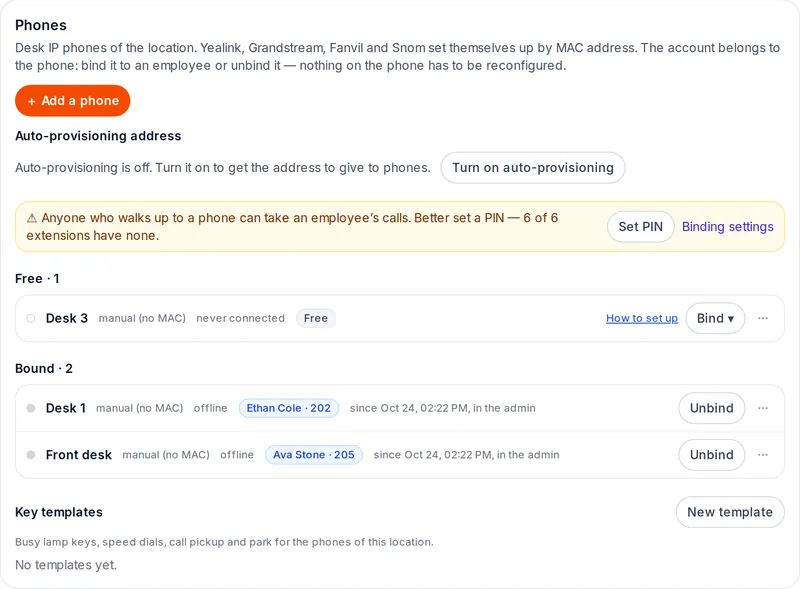 Screenshot: Cenaly admin panel, Telephony → Phones.
Add a free phone#
- Open Telephony → Phones and click "Add a phone".
- In "Where it stands" write where the phone stands: "Desk 3", "Front desk", "Storeroom".
- In "How we set it up" choose one of the options:
- "Automatically by MAC" — for Yealink, Grandstream, Fanvil and Snom. The MAC address is printed on the sticker on the back of the phone. The auto-provisioning address is shown at the top of the Phones section. Enter it in the phone or hand it out with DHCP option 66 from the router — then the phone fetches its settings by itself;
- "Manually — we will show the login and password" — for any other brand. The admin panel shows the server, username, password, transport and port once. Copy them with "Copy all" or print them. Where to enter these fields on your model is explained in the "SIP phone setup" articles.
- In "Who uses it" leave "Nobody yet — a free phone". You can also pick an employee right away — then the phone is added already assigned.
The phone appears in the Free block. A green dot next to it means it's online. Check the audio with the echo test:
pick up the handset and dial *43 — the PBX repeats what you say.
Is a phone already asking for settings at the auto-provisioning address but not added yet? It's in the "Phones that knocked" block. Click "Add as free".
Assign a phone in the admin panel#
- In the Phones section. On the phone's row click "Bind" and find the employee by name, position or extension. The assignment happens immediately. A message "Desk 3 → John Smith · 105" with an "Undo" button appears at the bottom. If the employee has no extension yet, the list shows "no extension · issue one and bind". The admin panel issues them a number and assigns the phone in one action. "Unbind" also works immediately and can be undone too.
- In the employee card: Access → Telephony → Desk phones → "+ Bind a phone", then pick one of the free phones.
- In the phone window. Click the phone in the list, Binding tab. This is also where you set the home extension, allow or block assigning by dialing, and turn on auto-release. The Log tab shows who assigned the phone, when and how.
A phone can be assigned to a shared line without an employee ("Front desk 100", "Kitchen") only in the admin panel. It can't be done by dialing.
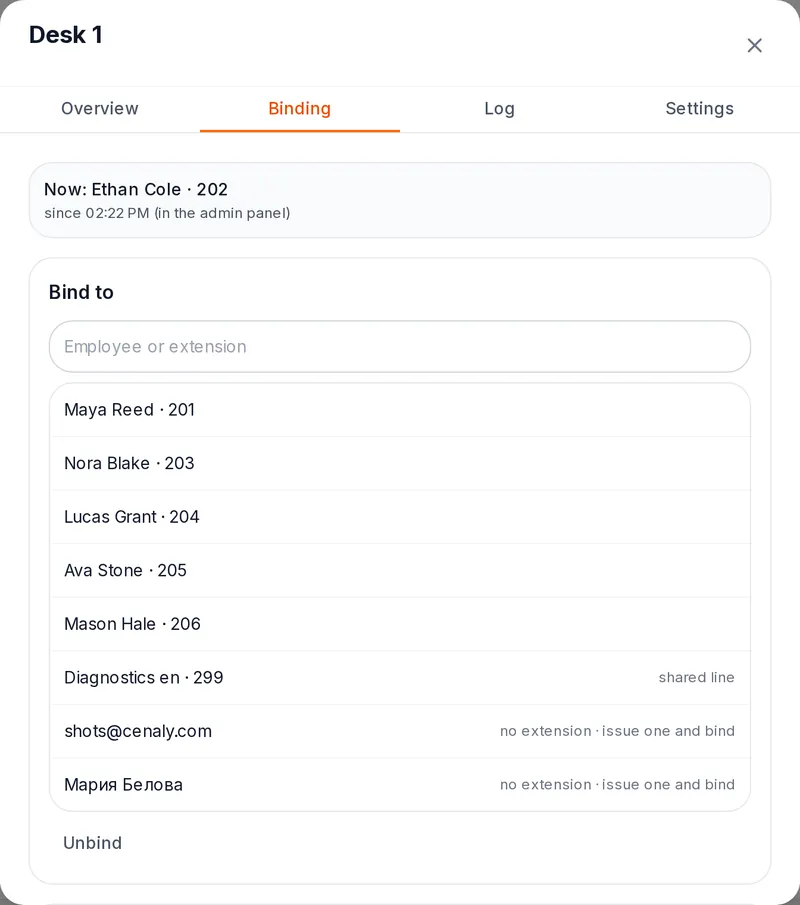 Screenshot: Cenaly admin panel, phone window, Binding tab.
Assign a phone from the phone itself#
- Pick up the handset of a free phone and dial your extension, for example
105. - The phone says: "Assign this phone to John Smith, extension 105? Press the hash key. To just place a call, please wait." If your extension has a PIN, the phone asks: "Enter your PIN followed by the hash key."
- Press
#(or enter the PIN and#). You'll hear "This phone is now assigned to John Smith, extension 105." Your calls now ring on this phone.
If nothing is pressed within 4 seconds, an ordinary call to 105 starts. That's why you can still call colleagues from a free phone. The owner can change the wait time in settings: from 2 to 8 seconds.
If assignment fails, the phone says why: "Incorrect PIN", "Too many attempts", "This extension can't be assigned from a phone", "No PIN is set for this extension". "Couldn't assign the phone" means the PBX didn't get an answer from the cloud in time. In that case the phone stays where it was.
After assignment by dialing, the employee gets a notification: "Desk 3 was assigned to your extension 105 at 14:02. Not you?" If it wasn't them, they can unassign the phone with the button in the notification or in the Cenaly Phone app: Settings → My phones.
Where to turn off assigning by dialing: Telephony → Office → "Binding phones by a call". There you also find:
- the mode: "Off" (assign only in the admin panel), "Without PIN (default)" (a PIN is asked only for extensions that have one) or "PIN only" (without a PIN nobody can assign);
- "Offer binding when an extension is dialled" — if you clear it, only the
*11code works; - "Wait for the decision" — how many seconds the phone waits for
#before starting an ordinary call; - "Extensions without binding by a call" — for example, the director or accounting: a phone is assigned to them only in the admin panel.
A single phone, for example in a shared hall, can be closed for assigning by dialing: phone window → Binding → "Allow binding by a call from this phone".
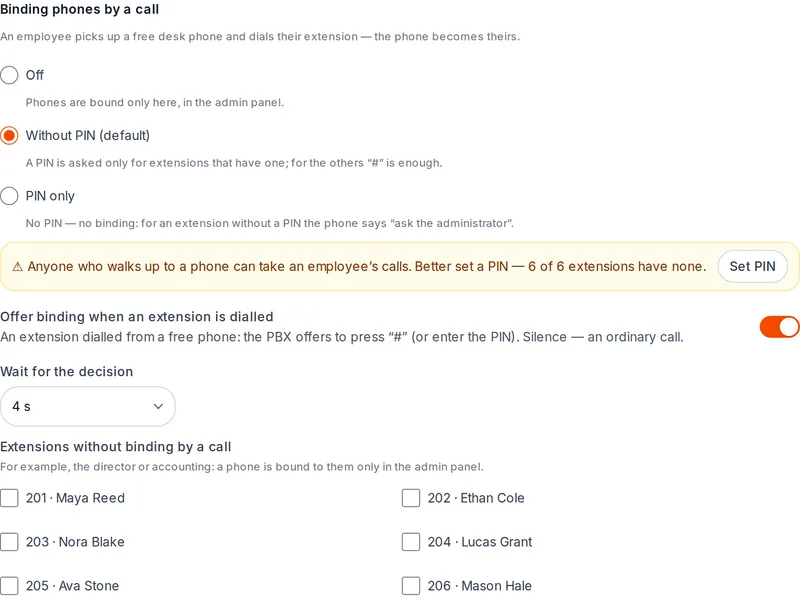 Screenshot: Cenaly admin panel, Telephony → Office.
Codes on any desk phone#
| Dial | What happens |
|---|---|
| your extension (from a free phone) | an offer to assign the phone to you: # or the PIN and #; silence means an ordinary call |
*11 |
assign the phone to yourself or to another employee: extension and #, then the PIN and # if needed. Also works on a phone that's already assigned — that's how you reassign it |
*10 |
release the phone, for example when leaving a shared desk at the end of a shift. The phone goes back to its home extension or becomes free |
*12 |
the phone says who it is assigned to now, or that it's free |
*43 |
echo test: check the audio |
The *10, *11 and *12 codes work only on desk phones from the Phones section. In the Cenaly Phone app and in the
browser the phone answers "This command only works on a desk phone": they are always tied to their own employee. The
list of codes, with a note on which ones are on, is in Telephony → Office.
So the codes are not forgotten, print a sticker: phone window → Overview → "Print a sticker". It shows the phone's
place in large type, how to assign the phone to yourself, the *10, *11 and *12 codes and the country's emergency
numbers. The PIN never goes on the sticker.
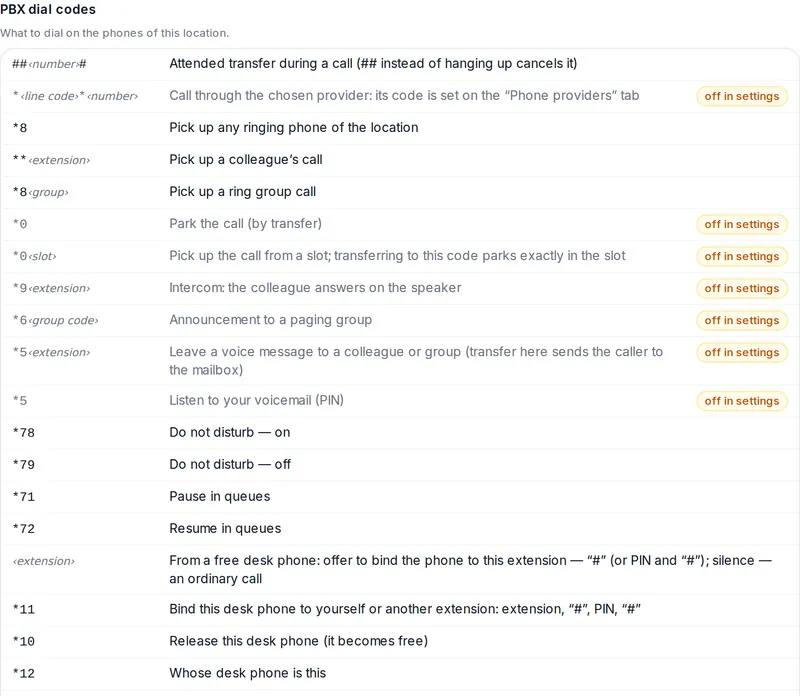 Screenshot: Cenaly admin panel, Telephony → Office, code reference.
Assignment PIN and brute-force protection#
By default no PIN is needed — the hash key is enough. But then anyone who walks up to a free phone can dial your extension and take your calls. That's why it's better to set a PIN. While some employees have none, a yellow "Better set a PIN" banner is shown in Office and in the Phones section. The "Set PIN" button on the banner opens the list of all extensions.
- A PIN is 4 to 8 digits. The owner sets the exact length.
- An employee sets their own PIN in Cenaly Phone: Settings → My phones.
- An administrator sets the PIN in the employee card: Access → Telephony → "PIN for binding from a phone". You can "Set" your own, "Generate" one (the PIN is shown once in large type, next to a "Print a note" button) or "Reset" it.
- The PIN is stored only as a hash. It's not visible in the admin panel or in logs, and the PBX itself doesn't know it: the cloud checks the PIN.
Brute-force protection. After 5 wrong PINs in a row from one phone, assigning from it is closed for 15 minutes. After 20 wrong PINs within an hour at a location, assigning by dialing is closed for the whole location for an hour. The owner gets a notification and sees an alert in "Needs attention". To lift the lock earlier, click "Unlock" in the phone window, in the Phones section or in "Needs attention". All attempts, failed ones included, are shown in the Journal tab of the phone window.
Shared desks: auto-release#
For hot desks, turn on auto-release for the phone: phone window → Binding → Auto-release.
- "every day at 04:00" (you choose the time) — in the location's time zone.
- "at the end of the employee’s shift" — 15 minutes after their shift ends according to the schedule. If the shift is extended or the next one starts right after it, the phone waits. The phone is never released mid-shift.
In the morning the phone is free again, and whoever sits down first assigns it with their extension. Auto-release doesn't interrupt a call in progress.
When an employee leaves or loses an extension#
When an employee is dismissed, their access is suspended or their extension is revoked, their phones go back to free: to the home extension if there is one, otherwise to the common list. The account stays the same, and the phone is immediately ready for the next person. The dismissal window warns in advance: "Phones that will become free: 2".
Limitations#
- Free phones and assigning from the phone work on the location's dedicated PBX after it is updated to a version with this feature. Until the PBX is updated, the Free block of the Phones section shows the banner "Free phones will work after the PBX update" with an update button, the window of a free phone says "Free phones do not register until the PBX is updated", and the code reference says "after the PBX update". Assigned phones work on any version.
- A free phone can't be called unless it has a home extension. It calls outside numbers from the business number.
- Assigning from the phone works only on desk phones from the Phones section. The Cenaly Phone app and the browser phone are always tied to their own employee.
- The phone speaks the employee's name in Russian, English, Georgian and Turkish. For a location in another language the phrase is said without the name: "…to this extension?".
- If the cloud doesn't answer within 3 seconds, the assignment doesn't happen and the phone stays where it was. Moving someone's calls without the cloud is not possible — by design.
FAQ#
Do I need to reconfigure the phone when a new employee arrives?#
No. The account belongs to the phone. Assign it to the new employee in the admin panel, or let the employee dial their extension from that phone.
Can I call a free phone?#
Only if it has a home extension, for example the shared "Front desk 100" line. Then that line's calls ring on it too. A free phone without a home extension has no number of its own.
A colleague dialed my extension from a free phone just to call me. Won't the phone get assigned to them?#
No. The phone offers assignment, but if the colleague doesn't press # or enter a PIN, an ordinary call to your
extension starts after 4 seconds. If you have a PIN, the phone can't be assigned to you without it.
Someone assigned a phone to my extension. How do I find out and unassign it?#
After every assignment by dialing you get a notification "Desk 3 was assigned to your extension 105 at 14:02. Not you?" with an "Unassign" button. The list of phones on your extension is in Cenaly Phone: Settings → My phones. The owner sees every assignment in the Log tab of the phone window.
The phone says "Assigning phones by dialing is turned off". What should I do?#
The owner turned off assigning by dialing: for the whole location (Office → Binding phones by a call → Off), for this phone or for your extension. Ask an administrator to assign the phone in the admin panel or to turn assigning on.
A free phone doesn't register even though the username and password are correct#
Check the banner above the Free block. If it says "Free phones will work after the PBX update", update the PBX with the button in the same banner. If there's no banner, go through registration step by step on the page "The phone doesn't register".
Related sections#
- Overview: connecting a phone to the PBX — credentials, network, factory reset, list of brands.
- Softphones: a phone on your computer and smartphone.
- Distinctive ringing: group, transfer, colleague — a ringtone for one particular phone.
- Troubleshooting by symptom.
Sources#
- Cenaly PBX feature description:
docs/functionality/admin-telephony.md, sections "Devices: free and assigned", "Assigning by dialing on the PBX", "PIN, dial assignment policy and locks". - Auto-provisioning and the
check-syncpush on Yealink and Grandstream:docs/phone-knowledge/desk/yealink-t3x-t4x-t5x.md,docs/phone-knowledge/desk/grandstream-grp-gxp.md.