C cenaly.ru
Start free
Cenaly Customer DisplayEarly access

A customer display for your checkout

At a café, bakery or shop, let customers see every item and the total before they pay. Make mistakes easier to catch and keep questions about the bill from holding up the queue.

Free app · Cenaly account required

Android 7.0+ · Windows 10/11

How it works: illustration. Actual screens below.

Cenaly Customer Display · Windows

The actual customer display

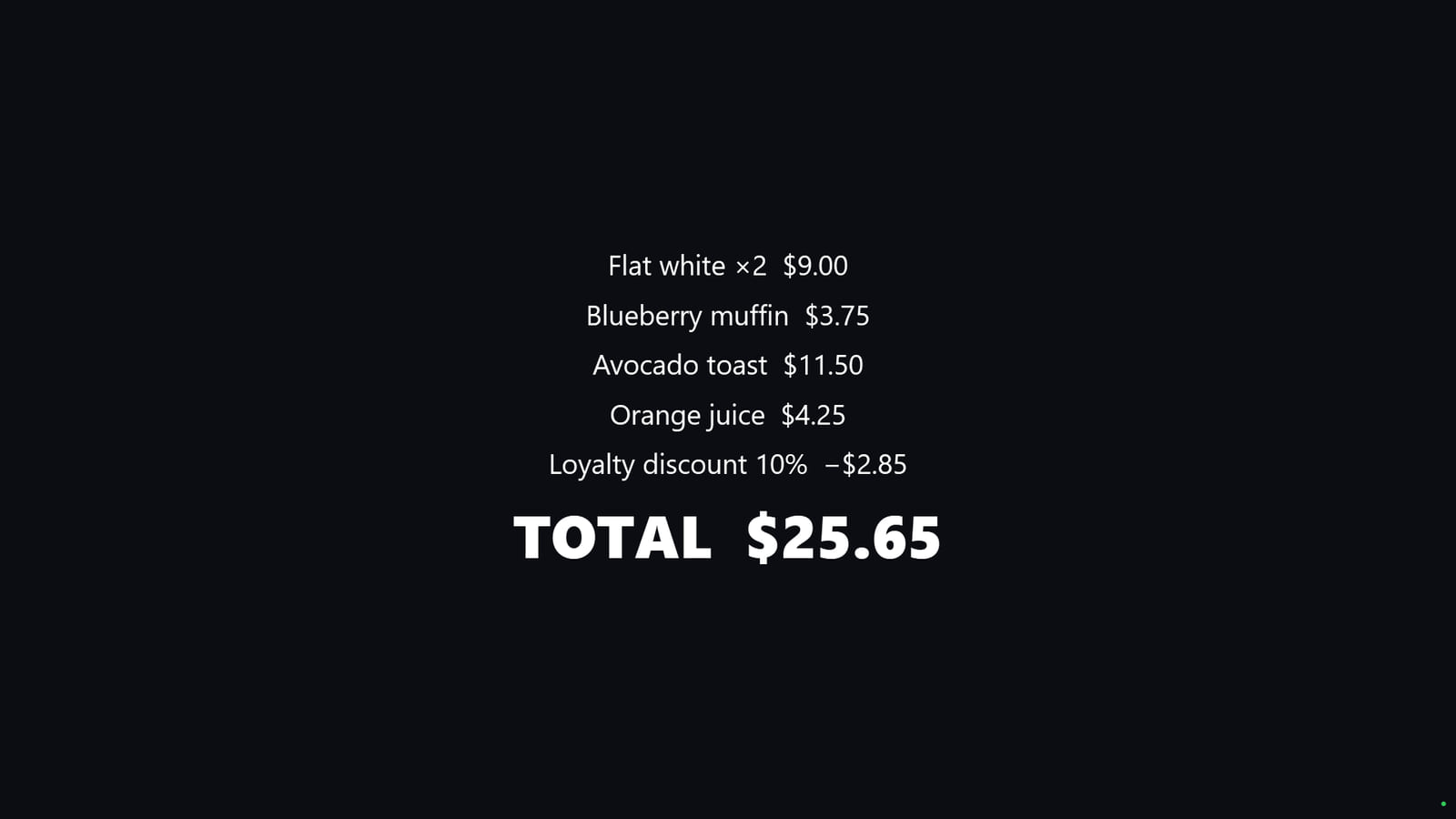
No extra controls facing the customer. The ticket is centre stage, with the total in the largest type.

Ticket and total in Cenaly Customer Display for Windows
Open the full-size screen
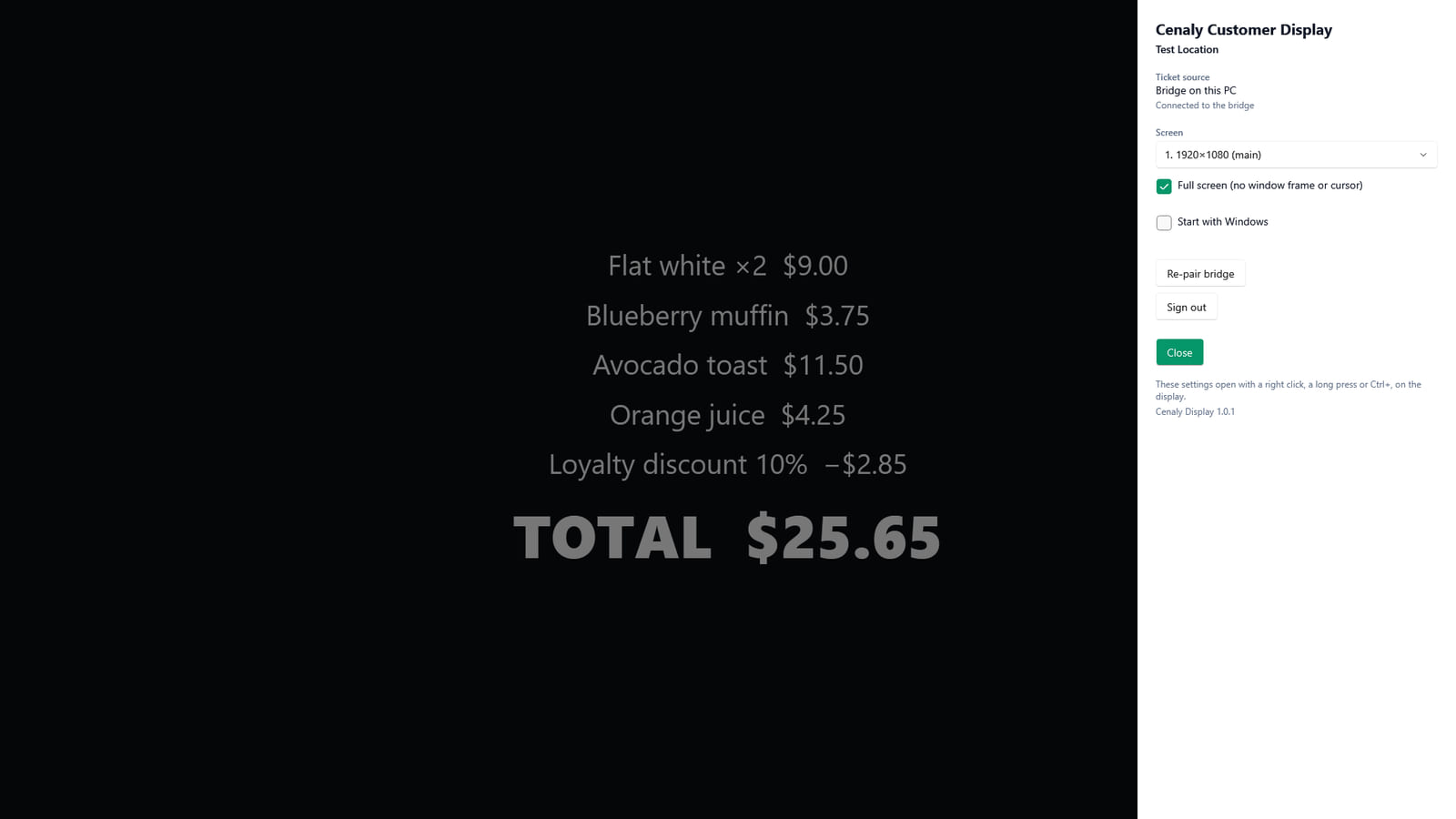
Hidden settings over the board: where the ticket comes from, monitor, auto-start
Open the full-size screen

Windows screenshots with US-market test data. In the app, the checkout sets the language and currency of the ticket.

Keep the purchase in focus

01

Clear items. A total that stands out.

Item names, quantities and amounts arrive as lines from the checkout. Service charges and tips appear as separate lines when the checkout sends them. The last line is always large and bold; long tickets scroll to keep the total visible.

02

From one sale to the next

As the cashier edits the ticket, the display receives new lines. After payment, the checkout clears the ticket and the Cenaly idle screen returns. The next purchase starts with a fresh ticket.

03

Ready for a full shift

The full-screen display stays awake. You can enable startup after a reboot on Android or at sign-in on Windows; it is off by default. Android also offers optional background operation. On Windows, choose a monitor and let text scale with the screen height.

04

Settings stay with your team

On Android, press and hold a corner to open settings. On Windows, right-click, press and hold, or use Ctrl+,. If the bridge revokes the pairing, Windows offers to pair again.

LAN + Cloud

The connection changes. The ticket stays.

The bridge comes first. If it is unavailable, the display can receive the web POS ticket through the cloud. Every 5 seconds the app checks the bridge again and switches back when it returns.

On cenaly.ru, the display cloud channel is not available yet: a bridge is required. If the bridge disconnects, the last ticket stays visible but new lines cannot arrive.

  • Green — bridge
  • Blue — cloud
  • Grey — disconnected

Only the web POS feeds the cloud channel. Android and Windows POS apps send tickets through the bridge only. With both channels lost, the saved ticket may be out of date; new edits arrive once the connection is restored.

How it works: illustration, not an app screenshot

Android + Windows

Two ways to face your customer

Use a spare monitor or a separate device on the counter.

The checkout and bridge run on one PC. The display fills the second monitor, without a frame or cursor. “Bridge on this PC” needs no pairing.

An Android 7.0+ tablet or phone faces the customer. The bridge runs on a computer on the same local network.

How it works: illustration, not an app screenshot

Connected to your checkout

Checkout

The Cenaly web POS builds the ticket lines and sends them to the bridge and the available cloud channel.

Learn more

Hardware Bridge

Hardware Bridge connects the checkout and display over your local network. Check the certificate code before sending the pairing PIN over the secured connection.

Learn more

Cenaly POS · Android / Windows

Cenaly POS for Android and Windows sends tickets through the bridge. For these apps, the cloud cannot replace a local connection.

Learn more

Choose your display

Free app · Cenaly account required

Windows

Second monitor or separate PC · Windows 10/11

Windows settings support 45 languages, including English, Russian and Georgian.

Installs without administrator rights. The installer is not signed yet, so Windows SmartScreen may show a warning.

You need a Cenaly account and a selected location. Local operation requires Hardware Bridge and devices on the same network. Install Android from the website APK; the app is not on Google Play. Android settings are in English. With a web POS and an available cloud channel, you can choose “Cloud only”; this mode does not deliver tickets on cenaly.ru.

On cenaly.ru, the display cloud channel is not available yet: a bridge is required. If the bridge disconnects, the last ticket stays visible but new lines cannot arrive.

There is no iOS version, and none is planned.

Get started in 5 minutes

A short setup path when your account, checkout and bridge are ready. Downloads and first-time hardware setup may take longer.

Android

  1. Download the APK on your tablet or phone and allow installation from your chosen browser.

  2. Scan the device QR code from the admin panel or enter the code manually. If one location is available, the app selects it automatically.

  3. Enter the bridge address and PIN. Compare the certificate code with the bridge, then confirm pairing.

  4. Add an item at the checkout and check the ticket on screen. Turn the device towards your customer.

Windows

  1. Download the x64 or Arm64 installer for your PC and install the app.

  2. Sign in with a device code or email. Select your location and monitor.

  3. Choose “Bridge on this PC” for a local bridge. For another PC, enter its address and PIN, then confirm the certificate code.

  4. Add an item at the checkout. Check the total and enable launch at Windows sign-in.

Bridge connection guide →

Before you install

  • This is a ticket display. It does not take payments, show payment or receipt QR codes, offer a tip selector or manage loyalty.
  • The idle screen shows Cenaly only. There are no ads, slides, business logos or customer language controls.
  • The bridge does not replay the last ticket to a newly connected display. If you open the app during a sale, the next ticket edit at the checkout brings the lines to the screen.

Questions before you start

Do I need a special display?

No. Use an Android 7.0+ phone or tablet, a second checkout monitor, or a separate Windows 10/11 computer. Windows installers are available for x64 and Arm64.

How much does the app cost?

The app is free to download. You need a Cenaly account; hardware and the terms of using the platform are separate.

Will it work without internet?

A configured bridge sends tickets over the local network. Signing in needs internet. On cenaly.ru the display works through the bridge only; the cloud channel is not available yet.

Can every checkout send tickets through the cloud?

No. Only the web POS feeds this channel, where the display cloud service is available. Cenaly POS for Android and Windows sends lines through the bridge.

What happens if the connection drops?

The last ticket stays visible. A green dot means bridge, blue means cloud, and grey means disconnected. Grey warns that the ticket may be out of date; new lines arrive once transmission resumes.

Can customers pay or choose a tip on the display?

No. It only shows lines sent by the checkout. A tip or service charge appears if the checkout includes it, but customers cannot choose or pay it on the display.

Can I use the second monitor of my checkout PC?

Yes, on Windows. The app chooses a non-primary monitor by default and shows a borderless display without a cursor. Change the monitor in settings. A bridge on the same PC needs no PIN pairing.

Choose your platform ↑